
You’ve upgraded to a 2Gbps home fiber line. You’re using a Wi-Fi 7 router. Your speed tests hit the ceiling every time. Yet, when you click a link, you’re staring at a blank tab for 1.5 seconds.
That delay is the Slow DNS Bottleneck.
In 2026, where even the most complex Google Gemini 3 Flash queries stream results in milliseconds, dealing with a slow DNS is an infrastructure failure. This is the technical deep-dive into the “Invisible Layer” of the internet and the exact steps to optimize it for zero-latency browsing.
What is a “Good” DNS Speed? In the current landscape, a Slow DNS lookup time exceeding 100ms is considered a failure. For a “premium” experience, you should aim for <20ms for cached results and <60ms for first-time recursive lookups.
Why is My DNS So Slow? The Hidden Architecture
Most “How-to” guides describe DNS as a “phonebook.” That’s a 1990s metaphor. In 2026, DNS is a globally distributed, high-speed Anycast database that involves a multi-step iterative journey through four distinct entities. When one of these steps fails or lags, you experience Slow DNS.
The Recursive-to-Iterative Journey
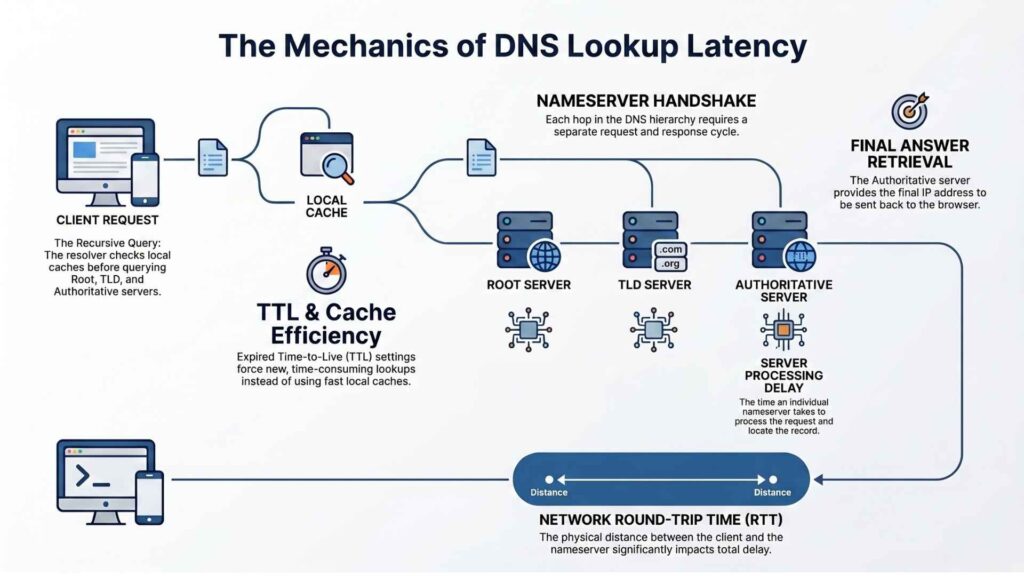
When you type a URL, your Recursive Resolver (usually your ISP’s server) doesn’t know the answer. It has to go find it.
- The Root Servers (The 13 Clusters): Your resolver starts here. The Root servers don’t know the IP of
yoursite.com; they only know which TLD Server handles.com. - The TLD Servers (.com, .org, .io): These servers maintain the “Registry” for specific extensions. They point your resolver to the Authoritative Nameservers for your specific domain.
- Authoritative Nameservers: This is the final source of truth. They provide the A Record (IPv4) or AAAA Record (IPv6).
Where the Lag Hides: Every “hop” in this chain adds Round Trip Time (RTT). If your resolver has to jump from a server in London to a Root server in Virginia, then to a TLD server in Amsterdam, your click will feel “heavy” regardless of your download speed. This is often the secondary culprit even after you’ve fixed your WiFi Disconnection issues.
Technical Causes of Slow DNS Performance
If you’ve already switched to 1.1.1.1 and you still have a slow DNS, you’re likely dealing with one of these three structural failures.
A. Lame Delegations and Glue Records
A Lame Delegation happens when the parent zone (the TLD) points to nameservers that aren’t actually authoritative for the domain. Your resolver reaches the server, asks the question, and gets a “Query Refused” or a timeout. It then has to fail over to a secondary server, which adds 500ms to 2s of lag.
Glue Records are the A/AAAA records provided in the referral to identify a nameserver’s IP. If these are stale, the resolution breaks entirely, resulting in a Slow DNS resolution error.
B. The DNSSEC Crypto-Tax
DNS Security Extensions (DNSSEC) protect against cache poisoning by signing your records. However, this increases the packet size significantly.
- The TCP Fallback: Standard DNS uses UDP (Port 53) because it’s fast (no handshake). If the DNSSEC-signed packet exceeds the MTU (Maximum Transmission Unit)—typically 1280 to 1500 bytes—it “truncates” and forces a fallback to TCP.
- Result: You go from a single UDP packet to a multi-step TCP three-way handshake. This can triple your lookup time.
C. BGP Anycast Convergence
Most premium providers use Anycast. This means hundreds of servers globally share the same IP address. BGP (Border Gateway Protocol) routes you to the “topologically” closest one. The Problem: If an ISP has a misconfigured BGP peering agreement, your request might go to a server on the other side of the planet, causing a slow DNS response even if there’s a server in your city.
The Protocol Debate: DoH, DoT, or DoQ?
Privacy has become a performance factor. In 2026, how you fix slow DNS often depends on which protocol you use for encryption.
| Protocol | Port | Transport | Latency Profile | Best For |
|---|---|---|---|---|
| DNS-over-HTTPS (DoH) | 443 | HTTPS/2, 3 | Moderate | Browsers, bypassing firewalls. |
| DNS-over-TLS (DoT) | 853 | TLS | Low | System-level OS settings. |
| DNS-over-QUIC (DoQ) | 853 | QUIC/UDP | Ultra-Low | Unstable networks (Mobile/5G). |
Why DoQ is the 2026 Winner for Speed
DNS-over-QUIC (DoQ) is the gold standard for speed. Unlike DoH/DoT, it doesn’t suffer from Head-of-Line Blocking. If one packet is lost, the rest can still process. It also supports 0-RTT resumption, meaning if you visit a site you’ve been to recently, the encrypted handshake happens in zero time, eliminating slow DNS lag.
Troubleshooting Workflow: Diagnosing Slow DNS
Stop using “Ping” to test DNS. Use dig (Domain Information Groper).
The dig Deep-Dive
Open your terminal and run: dig +trace trustpost.org
This command forces your computer to bypass its local cache and perform the full Root-to-Authoritative walk.
- Check the bottom: Look for
;; Query time: XX msec. - Analyze the Hops: If the TLD servers resolve in 20ms but the final nameserver takes 200ms, the website’s host is the source of the slow DNS.
Finding “Hidden” Leaks
Use a Looking Glass service (like Hurricane Electric’s lg.he.net). This allows you to see how your DNS resolves from different points on the planet. This is vital for maintaining Cloud Security and ensuring your site hasn’t been targeted by a DNS Hijacking attack.
OS-Level Optimization: How to Fix Slow DNS
Don’t just change the setting in your router; optimize the client device for the fastest possible handshake.
Windows 11/2026
- Settings > Network & Internet > Ethernet/Wi-Fi > Edit DNS.
- Set Preferred to
1.1.1.1and Alternate to8.8.8.8. - Enable DNS over HTTPS: Encrypted (Manual).
- Important: Open PowerShell as Admin and run
Clear-DnsClientCache.
macOS (Terminal Protocol)
Mac users should leverage systemd-resolved equivalents. Run: sudo killall -HUP mDNSResponder; sudo killall mDNSResponderHelper; dscacheutil -flushcache This clears every layer of the macOS networking stack, ensuring a fresh anycast route and resolving slow DNS lookup issues.
Site Owner’s Guide: Preventing Slow DNS for Visitors
If your site is slow to resolve, you are losing money. High DNS latency is a direct hit to your Core Web Vitals.
A. CNAME Flattening (ALIAS Records)
If you use a CNAME for your root domain (e.g., www.yoursite.com -> yoursite.com), you are forcing two lookups. Use a provider that supports CNAME Flattening (like Cloudflare) or ALIAS records. This returns the IP address in a single response, effectively ending the slow DNS cycle for your users.
B. EDNS Client Subnet (ECS)
If you use a global CDN, ensure your DNS provider supports ECS. This allows the nameserver to see a portion of the user’s IP and point them to the specific CDN node that is closest to them. Without ECS, your user in Tokyo might be pointed to a CDN node in Los Angeles, leading to a slow DNS user experience. This level of technical oversight is common in the top search engines list.
C. Secondary DNS & Hidden Masters
For 100% uptime, don’t rely on one provider.
- Set up a Hidden Master (a private server that holds your zone files).
- Configure two different Anycast providers (e.g., AWS Route 53 and Cloudflare) as Secondary DNS. This creates a “Resilient Shield” that survives even a major backbone outage.
Troubleshooting the Edge Cases (Professional Insight)
Sometimes, the standard fixes fail because the issue is “at the edge” of your network configuration.
MTU/MSS and DNS Fragmentation
If you are using a VPN or a specialized tunnel (like GRE), your Maximum Transmission Unit (MTU) might be lower than the standard 1500 bytes. When a DNS response (especially a large one with DNSSEC) exceeds this size, it gets fragmented. Most firewalls drop DNS fragments by default.
- The Symptom: Small queries work; large ones (like looking up a TXT record or a signed A record) time out.
- The Fix: Adjust your MSS (Maximum Segment Size) clamping on your router to ensure packets don’t get truncated.
DNS over QUIC (DoQ) and NAT Traversal
If you are on a mobile network, traditional DNS over UDP can often be interrupted by “NAT Timeouts.” Carriers aggressively close UDP ports. Switching to DoQ maintains the connection state even when your IP changes (e.g., switching from 5G to your home Wi-Fi), providing a seamless, zero-lag experience.
Common Slow DNS Questions (FAQs)
No. DNS only reduces the time it takes to start the connection. Once the connection is established, your download speed depends on your bandwidth. However, a fast DNS makes the web feel significantly faster because it reduces the “wait time” between clicks.
Device-level DNS is superior. Your router is often a weak link that adds its own processing latency. Configuring DNS directly on your PC, Mac, or Phone bypasses the router’s underpowered CPU and gives you the fastest possible resolution.
Cloudflare (1.1.1.1) has one of the world’s largest Anycast networks. They have servers placed directly inside thousands of ISP data centers. While your ISP might have one or two DNS servers for your whole state, Cloudflare has thousands, ensuring the server is always logically “close” to you.
Conclusion
In 2026, the internet is no longer about “who is online,” it’s about “who is fastest.” Slow DNS is more than just a minor annoyance—it’s a conversion killer. Every 100ms of DNS lag correlates directly with a drop in user engagement and sales.
Whether you are a remote worker struggling with a “sticky” VPN or a site owner trying to improve your rankings, the solution is the same: move away from legacy, single-point resolvers and embrace the distributed, encrypted future of Anycast DNS over QUIC. By mastering the “First Millisecond” of the connection, you ensure your infrastructure never stands in the way of your progress.
Also read: What is DNS Cache? The Ultimate Technical Guide to DNS Caching

Trust Post Desk
A journalist and editor at TrustPost.org covering world and national news, technology updates and human-interest stories. They check every fact, interview sources in person or online, and aim to deliver clear, accurate reporting. Their work ranges from breaking news to in-depth features and daily newsletters. Outside the newsroom, they follow emerging trends and engage with readers on social media.