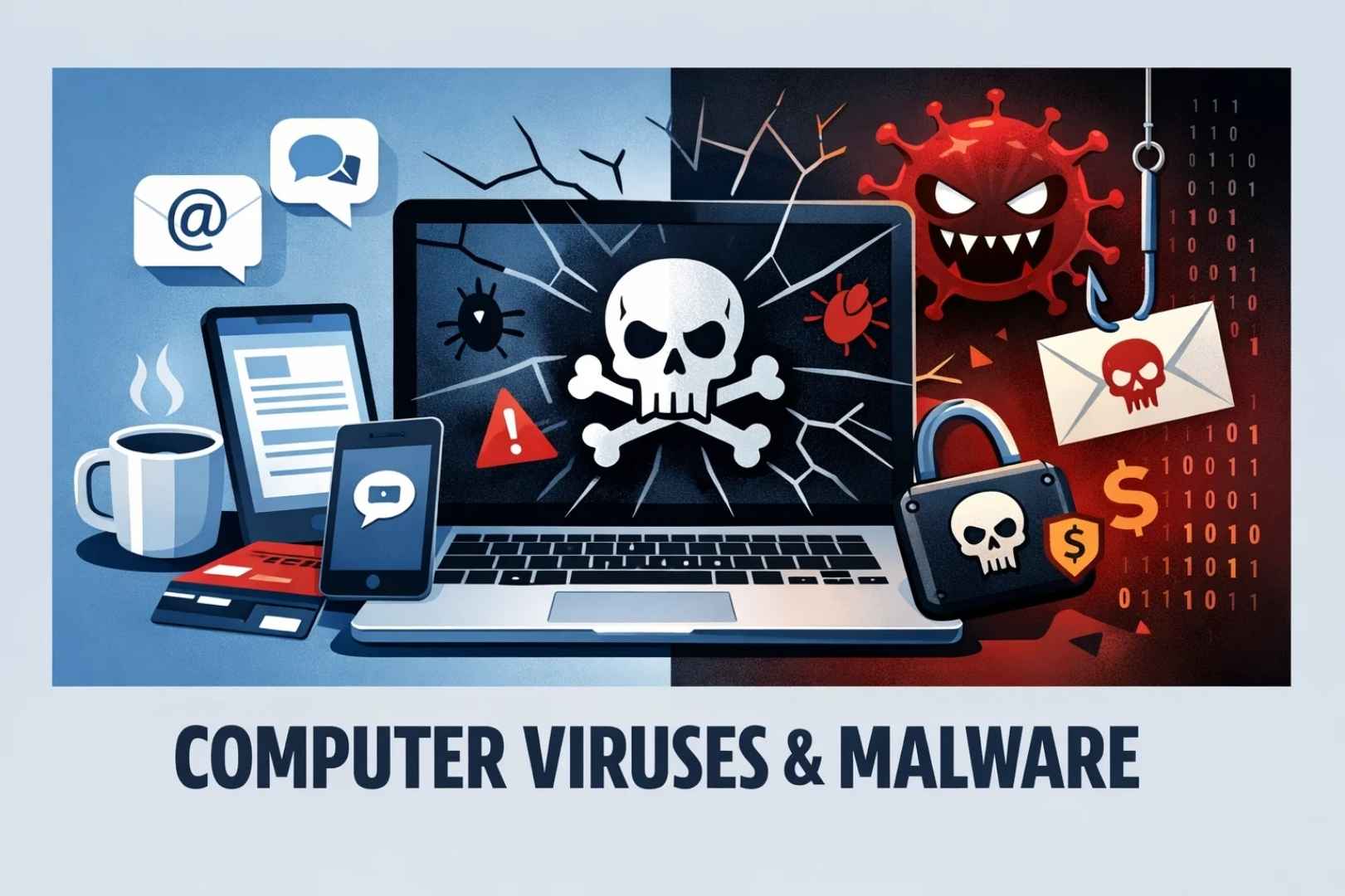
Computers and smartphones have become part of everyday life. People use them to work, manage money, talk with friends, watch videos, and store important information. Almost every activity now depends on digital devices.
That convenience also attracts cyber criminals. They build harmful programs designed to sneak into computers and steal information, damage files, or control the device. These programs are commonly known as computer viruses or malware.
A single virus can cause serious problems. Some slow down the system until it becomes unusable. Others steal passwords, banking details, or private documents. In severe cases, ransomware can lock all files and demand payment to unlock them.
The good news is that most infections happen because of simple mistakes. Clicking a suspicious link, downloading files from unknown websites, or ignoring software updates can open the door for malware.
Small precautions make a huge difference. By building a few safe habits and using the right tools, anyone can lower the risk of infection and keep their devices secure.
What Is a Computer Virus?
A computer virus is a malicious program created to spread from one computer to another and damage systems or steal data.
The name “virus” comes from biology. Just like a biological virus spreads between people, a computer virus spreads between devices.
Most viruses attach themselves to legitimate files or programs. When the infected file is opened, the virus code runs in the background and begins copying itself.
Once inside a system, the virus may perform different actions such as:
- deleting files
- modifying system settings
- spying on user activity
- sending private data to attackers
- spreading to other devices on the same network
Over time, viruses have evolved into many different forms of malware. Some of the most common types include:
- Trojan horses: These pretend to be normal programs but secretly install malware once opened.
- Ransomware: This type encrypts files and demands payment to restore access.
- Spyware: Spyware silently monitors user activity and collects sensitive information.
- Worms: Unlike many viruses, worms can spread automatically across networks without human interaction.
One of the most famous incidents happened in 2000 with the “I LOVE YOU” virus, which spread through email attachments and infected millions of computers around the world within hours.
Events like this show how quickly malware can spread when people unknowingly open infected files.
1. Install Antivirus Software
Security software acts as the first line of defense for any computer. It constantly monitors the system for suspicious behavior and scans files to detect harmful code before it runs.
Modern antivirus tools work in several ways.
They compare files against databases of known malware signatures. If a file matches a known threat, the software blocks it instantly. Many programs also analyze behavior patterns. If a program starts acting like malware, such as modifying system files or sending unknown network requests, the antivirus stops it.
Most operating systems already include basic protection. For example, Windows devices include Windows Security, which offers built-in antivirus features.
However, users should still confirm that protection is active and updated.
A good antivirus program usually provides features such as:
- real-time protection that monitors files continuously
- automatic scanning of downloads and email attachments
- firewall protection to block suspicious connections
- malware removal tools to clean infected systems
Security tools cannot stop every single threat. New viruses appear constantly and attackers keep finding new techniques. Even so, antivirus software dramatically reduces the chance of infection and adds a strong safety layer.
Keeping the software installed and active is one of the simplest and most important steps in computer security.
2. Keep Your System Updated
Software updates often feel inconvenient. They interrupt work and sometimes require restarting the computer. Many users postpone them or ignore them completely.
That decision can create serious security risks.
Software developers regularly release updates to fix vulnerabilities discovered in operating systems and applications. These vulnerabilities are weaknesses that hackers can exploit to install malware or gain unauthorized access.
If a computer runs outdated software, those weaknesses remain open.
Hackers actively search for devices that have not installed security patches. Once they find one, they may use automated tools to break into the system.
Updating software closes those security gaps.
Important updates include:
- operating system updates
- web browser updates
- antivirus definition updates
- plugins and extensions
- productivity apps and office software
Many devices now support automatic updates. Turning this feature on removes the need to manually check for new versions.
Beyond security improvements, updates can also improve performance, fix bugs, and add new features. Regular updates keep devices running smoothly and reduce the chance of cyber attacks.
3. Think Before Clicking Links or Attachments
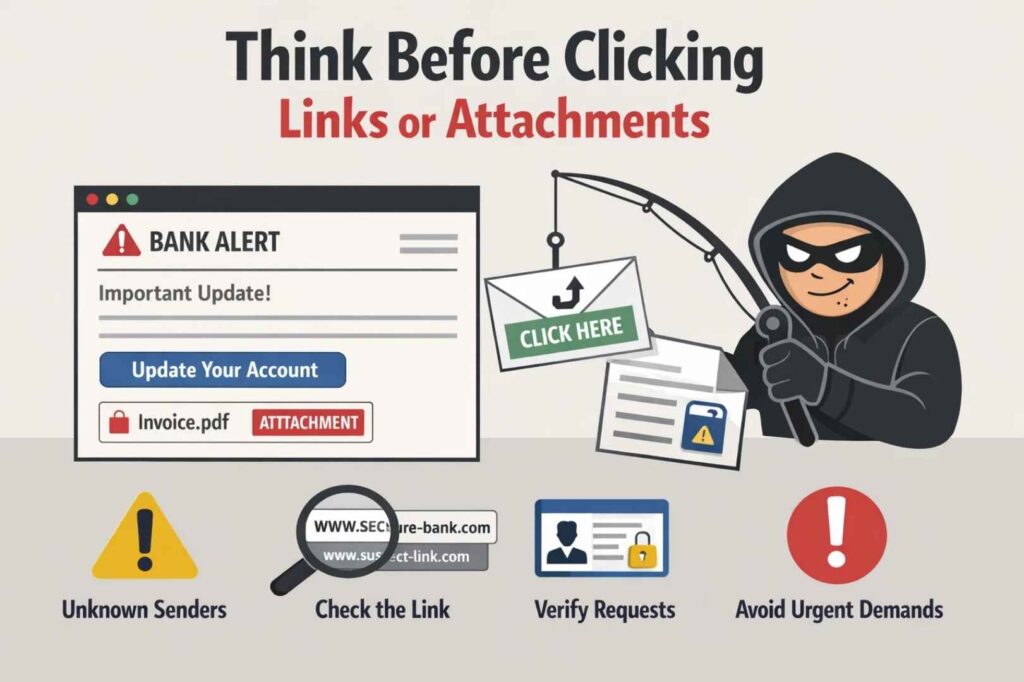
Email remains one of the most common ways malware spreads.
Attackers send messages that look like they come from banks, delivery services, streaming platforms, or well-known companies. These emails usually include a link or attachment that appears harmless.
Once the user clicks the link or downloads the file, the malicious program installs itself.
This technique is called phishing. Its goal is to trick people into performing an action that helps attackers gain access to their systems.
Some phishing emails look surprisingly convincing. They may copy company logos, official layouts, and realistic language. That makes them harder to recognize.
Simple habits help reduce the risk:
- avoid opening attachments from unknown senders
- verify unexpected messages that request personal information
- hover over links to see the real destination
- ignore urgent requests that pressure you to act immediately
Many attacks rely on human curiosity or panic. Taking a moment to double-check a message can prevent a major security incident.
4. Avoid Downloading Files From Untrusted Sites
Free software and downloads attract millions of users every day. Many people search for free versions of paid programs, unofficial apps, or modified games.
Unfortunately, cyber criminals often hide malware inside these downloads.
When users install the program, the malware installs at the same time. The infected software may appear to work normally while the malicious code runs silently in the background.
This is one reason pirated software carries a high security risk.
Safer download habits include:
- downloading software only from official websites
- using trusted app stores whenever possible
- scanning downloaded files with antivirus software
- avoiding websites that promise free versions of paid software
Another common threat comes from fake software updates. Some websites display pop-ups claiming that a browser or media player needs an urgent update. Clicking the update button installs malware instead of a real update.
When updates are needed, always install them directly through the official application or operating system.
5. Use Secure Wi-Fi Connections
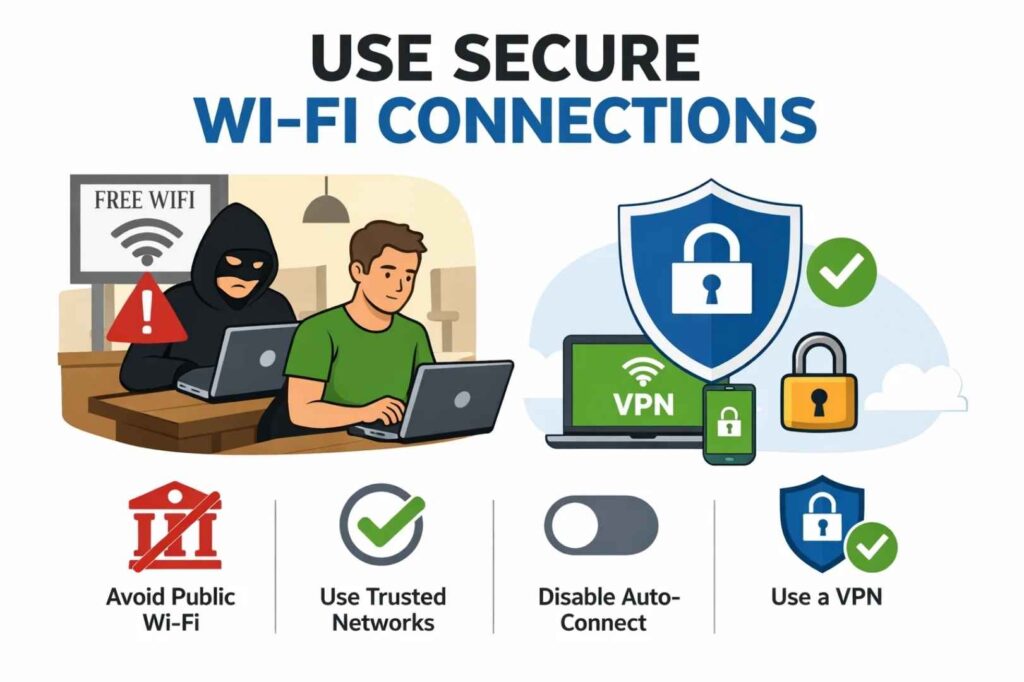
Public Wi-Fi networks are convenient, especially in places like airports, cafes, and hotels. They allow users to connect to the internet without using mobile data.
However, open networks can be risky.
On unsecured networks, attackers may intercept internet traffic or create fake Wi-Fi hotspots that mimic legitimate networks. Once a device connects, attackers may attempt to capture login credentials or inject malicious content.
A few safety habits reduce these risks:
- avoid accessing banking or sensitive accounts on public Wi-Fi
- connect only to trusted networks
- turn off automatic Wi-Fi connections
- use a virtual private network (VPN) for encrypted browsing
A VPN encrypts internet traffic so that other people on the same network cannot easily see what the user is doing online.
Home networks should also be secured. Setting a strong Wi-Fi password and enabling modern encryption standards helps prevent unauthorized access.
6. Back Up Your Files Regularly
Even with strong protection measures, security incidents can still happen. Hardware failures, malware infections, or accidental file deletion may cause permanent data loss.
Regular backups protect against these situations.
A backup is simply a copy of important files stored in another location. If the original files become damaged or inaccessible, the backup copy can restore them.
Many experts recommend following the 3-2-1 backup rule:
- keep three copies of important data
- store them on two different types of storage
- keep one copy in a separate location
Common backup options include:
- external hard drives
- cloud storage services
- network storage devices
Backups are especially important in the case of ransomware attacks. If files become encrypted by malware, a backup allows the user to restore them without paying attackers.
Automatic backup systems make the process easier and ensure files are copied regularly without manual effort.
7. Protect Your Personal Information Online
Many cyber attacks rely on social engineering rather than advanced technical hacking.
Social engineering means manipulating people into revealing sensitive information. Attackers may collect small pieces of data from social media profiles, forums, or public websites.
They use this information to guess passwords, impersonate contacts, or craft convincing phishing messages.
For example, if someone shares their birthday, workplace, and favorite sports team online, attackers might use those details to guess security questions or password patterns.
Protecting personal information online requires awareness and caution.
Helpful practices include:
- creating strong and unique passwords
- enabling two-factor authentication on important accounts
- limiting personal details shared on social media
- reviewing privacy settings regularly
Two-factor authentication adds an extra security layer by requiring a second verification step, such as a code sent to a phone.
Even if someone steals a password, they cannot access the account without the second verification.
Signs Your Computer May Have a Virus
Sometimes malware infections happen without obvious warning. Viruses often run silently in the background.
Still, some signs may indicate something is wrong.
Common warning signals include:
- the computer suddenly becomes very slow
- programs crash or freeze frequently
- unusual pop-up advertisements appear
- unknown software installs automatically
- system settings change without permission
- files disappear or become inaccessible
Viruses may also disable security tools to avoid detection.
If these symptoms appear, running a full antivirus scan is recommended. Disconnecting the device from the internet can also help prevent the infection from spreading to other devices.
Taking quick action helps limit the damage.
FAQs
What is a computer virus?
A computer virus is malicious software that spreads between devices and damages files, steals information, or disrupts system operations.
How do computer viruses spread?
Viruses often spread through email attachments, infected downloads, malicious links, and unsafe websites.
What is the best way to prevent computer viruses?
Installing antivirus software, updating software regularly, avoiding suspicious downloads, and using secure networks can significantly reduce infection risks.
Can antivirus software remove viruses?
Yes. Antivirus tools can detect, quarantine, and remove many types of malware from infected systems.
Final Thoughts
Computer viruses are one of the most common threats on the internet. As technology becomes more connected, cyber criminals continue creating new ways to attack devices.
Fortunately, basic security habits provide strong protection.
- Install antivirus software and keep it updated.
- Update operating systems and applications regularly.
- Avoid suspicious links, downloads, and email attachments.
- Use secure internet connections.
- Back up important data.
These simple practices significantly reduce the risk of infection.
Technology will keep changing, and new threats will appear. Staying informed and cautious helps keep devices, information, and digital life safe.
Also read:

Trust Post Desk
A journalist and editor at TrustPost.org covering world and national news, technology updates and human-interest stories. They check every fact, interview sources in person or online, and aim to deliver clear, accurate reporting. Their work ranges from breaking news to in-depth features and daily newsletters. Outside the newsroom, they follow emerging trends and engage with readers on social media.