Fluid communication is everything. While our smartphones are powerful, there are times when switching back and forth between a laptop and a phone kills your workflow. Enter WhatsApp Web, a tool that has quietly become indispensable for millions of students, professionals, and casual users alike.
If you’ve ever wished you could type out a long reply on a proper keyboard or drag-and-drop a file directly from your desktop to a chat, this guide is for you. We will dive deep into everything you need to know about WhatsApp Web—from the basic setup to hidden power-user tricks that will change the way you message.
What Is WhatsApp Web?
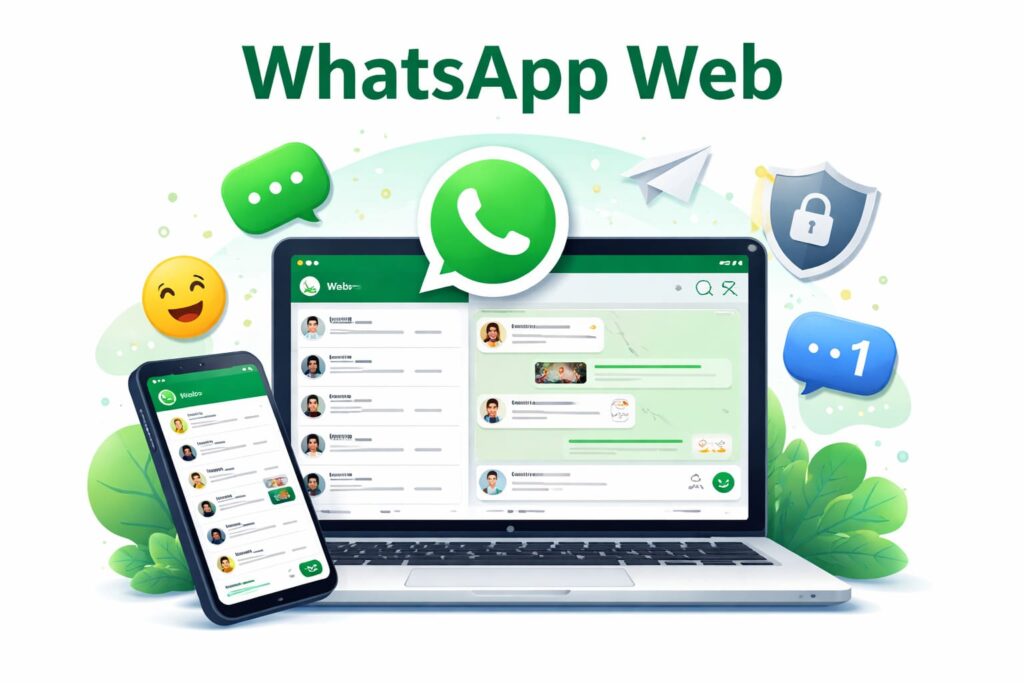
Simply put, WhatsApp Web is a browser-based extension of the WhatsApp mobile application. It mirrors the conversations and messages from your mobile device to your computer.
Unlike the standalone desktop app which you install, WhatsApp Web lives entirely in your browser (Chrome, Firefox, Safari, Edge, etc.). However, it’s not just a “lite” version; over the years, it has evolved into a robust platform that supports voice calls, huge file transfers, and secure end-to-end encryption, all synchronized in real-time with your phone.
The biggest advantage? Efficiency. managing your work chats alongside your emails and spreadsheets on a single screen can significantly boost your productivity.
How to Set Up WhatsApp Web (Step-by-Step)
Getting started is seamless. You don’t need to create a new account; you simply link your existing mobile account to your browser.
Prerequisites
- An active WhatsApp account on your smartphone.
- A computer with a stable internet connection.
- The latest version of a web browser (Chrome, Safari, Edge, Firefox, or Opera).
The Setup Process
1. Open the Portal
Launch your web browser on your computer and navigate to web.whatsapp.com. You will see a large QR code on the screen.
2. Open WhatsApp on Your Phone
- On Android: Open WhatsApp, tap the three dots (menu) in the top-right corner, and select Linked devices.
- On iPhone (iOS): Open WhatsApp, go to the Settings tab in the bottom right, and tap Linked Devices.
3. Link the Device: Tap the huge button that says Link a Device. You may be asked to authenticate using FaceID, TouchID, or your phone PIN.
4. Scan the QR Code
Point your phone’s camera at the QR code displayed on your computer screen.
In seconds, the page will refresh, and your entire chat history will appear on your monitor. You are now live!
Key Features & Capabilities
You might be surprised by how powerful the web version actually is. It’s no longer just for text messages.
1. Multi-Device Capability (No Phone Needed!)
Historically, your phone had to be online for WhatsApp Web to work. That changed with the recent Multi-Device Support update. Once you link your device, you can use WhatsApp Web independently. Even if your phone battery dies or loses signal, your web session will stay active for up to 14 days. You can link up to 4 additional devices to your primary account.
2. Seamless File Sharing
Gone are the days of e-mailing photos to yourself. With WhatsApp Web, file management is drag-and-drop.
- Media: Drag photos and videos directly into a chat to send them.
- Documents: Send PDFs, spreadsheets, and slides up to 2GB in size effortlessly.
3. Voice and Video Calling
While originally a mobile-exclusive feature, you can now make voice and video calls directly from your browser. This is perfect for quick work huddles where you don’t want to switch to Zoom or Teams. Note: You will need to grant your browser permission to access your microphone and camera.
4. Desktop Notifications
Never miss an urgent message again. When you first log in, you will see a banner asking to enable desktop notifications. Turning this on means you’ll get a subtle pop-up in the corner of your screen when a new message arrives, even if your browser is minimized.
Pro Tips & Hidden Tricks
This is where you move from casual user to WhatsApp Web pro. These features are designed to save you clicks and seconds.
1. Master the Keyboard Shortcuts
Stop reaching for the mouse. Use these shortcuts to fly through your chats:
| Action | Windows Shortcut | Mac Shortcut |
|---|---|---|
| New Chat | Ctrl + N | Cmd + N |
| Next Chat | Ctrl + Shift + ] | Cmd + Shift + ] |
| Previous Chat | Ctrl + Shift + [ | Cmd + Shift + [ |
| Archive Chat | Ctrl + E | Cmd + E |
| Mute Chat | Ctrl + Shift + M | Cmd + Shift + M |
| Search in Chat | Ctrl + Shift + F | Cmd + Shift + F |
2. Text Formatting
Add emphasis to your messages without using the emoji menu.
- Bold: Wrap text in asterisks ->
*Important Update* - Italic: Wrap text in underscores ->
_sarcasm_ Strikethrough: Wrap text in tildes ->~ignore this~Monospace: Wrap text in three backticks ->
3. Privacy: Read Without Blue Ticks
Want to read a message without letting the sender know? You don’t need to turn off read receipts for this trick. The Trick: When you receive a message, do not click on the chat. Instead, hover your mouse cursor over the message preview in the left-hand chat list. A small tooltip will appear showing the full text of the latest message, and it won’t trigger the blue ticks!
4. Customization: Dark Mode & Wallpapers
Staring at a bright white screen all day is tiring.
- Click the three dots (menu) above your chat list > Settings > Theme.
- Select Dark to switch to an easier-on-the-eyes interface.
- In the same menu, you can also change the Chat Wallpaper to a solid color (like the classic WhatsApp Doodle background) to personalize your workspace.
Troubleshooting Common Issues
Even the best tools have hiccups. Here is how to fix the most common ones.
“Phone Not Connected” Even with multi-device support, you may see this occasionally if the sync fails.
Fix: distinct toggle flight mode on your phone on and off to refresh the connection. If that fails, log out of WhatsApp Web and re-scan the QR code.
QR Code Won’t Scan
Fix: Increase the brightness of your computer monitor. Ensure your phone camera lens is clean and that you aren’t zooming in too close.
Notifications Not Working
Fix: Check your browser settings (usually clicking the “lock” icon in the URL bar) and ensure that “Notifications” are set to Allow for web.whatsapp.com.
Safety & Security: Best Practices
WhatsApp Web is secure, but because it runs on a computer (which might be shared), it requires different safety habits than your phone.
1. End-to-End Encryption: Rest assured, WhatsApp Web uses the same end-to-end encryption as the app. WhatsApp (and Meta) cannot read your messages.
2. Shared Computers: This is the golden rule. If you use WhatsApp Web at a library, internet cafe, or office, always log out. Closing the tab is not enough.
- To Logout: Click the three dots > Log out.
3. Remote Logout: Did you forget to log out at the office? No panic.
- Open WhatsApp on your phone.
- Go to Linked Devices.
- Tap the device (e.g., “Google Chrome (Windows)”) and tap Log Out. This instantly severs the connection on the computer.
FAQs
Yes! With the new Multi-Device feature, once you have linked your computer, you can continue to use WhatsApp Web for up to 14 days without your phone needing an active internet connection.
It is generally safe if you take precautions. However, you must remember to Log Out when you are finished. Simply closing the browser tab does key log you out, and the next person who opens the browser could access your chats.
You can link up to 4 additional devices (computers or tablets) to your primary WhatsApp account at the same time.
Yes, WhatsApp Web supports both voice and video calls. You will need to grant the browser permission to access your computer’s microphone and camera when you initiate your first call.
This is usually due to screen glare or a dirty camera lens. Try increasing your computer monitor’s brightness, cleaning your phone’s camera, or moving your phone slightly further back from the screen to help it focus.
Not anymore. With the Multi-Device update, WhatsApp Web sends messages directly via your computer’s internet connection, so it does not relay data through your phone or drain your phone’s data plan.
Conclusion
WhatsApp Web is more than just a convenience; it is a productivity powerhouse. By integrating your messaging into your desktop workflow, you can type faster, share files easier, and stay connected without the constant distraction of picking up your phone.
Whether you are managing a business group chat or just keeping up with friends, using the features and shortcuts outlined above will streamline your digital life. So, open a new tab, scan that QR code, and experience a smarter way to chat.
Also read:
- 12 Best Team Collaboration Software Tools (2026 Guide)
- Best Antivirus Software for Windows, Mac, Android and iPhone
- 10 Best SEO Agencies in Cambridge: Expert Rankings
- What Do Those Check Marks on WhatsApp Actually Mean?
- How to Write a WhatsApp Unban Request Message (5 Templates That Work)
- WhatsApp Introduces New Feature to Strict Account Settings to Boost User Security
- 10 Cute Preppy Wallpapers for Phone and Desktop