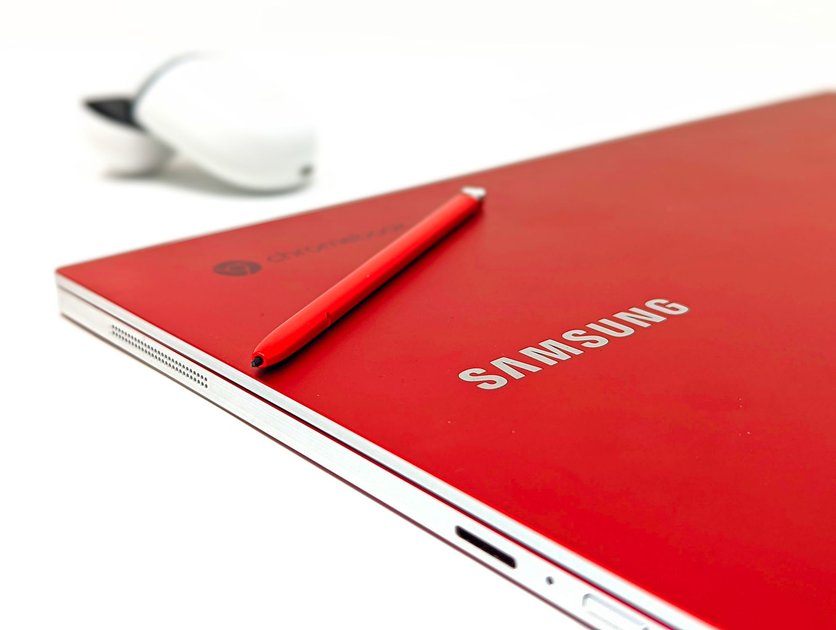
Chromebooks handle screenshots differently from Windows and Mac, using keyboard shortcuts and a built-in screen capture tool instead of a dedicated Print Screen key. Once you learn the three main methods, capturing anything on screen takes under two seconds.
Method 1: Full Screenshot (Entire Screen)
Press Ctrl + Show Windows (the Show Windows key looks like a rectangle with two lines on the right side of it, usually in the top row of the keyboard). The screen will flash briefly and a notification will appear in the bottom right corner confirming the screenshot was saved.
On Chromebooks without a Show Windows key (such as some convertible models), press Ctrl + F5 instead.
Method 2: Partial Screenshot (Select an Area)
Press Ctrl + Shift + Show Windows. Your cursor will change to a crosshair. Click and drag to select the area you want to capture. Release to take the screenshot. Only the selected area is saved.
Method 3: Screenshot a Specific Window
Press Alt + Show Windows to capture only the currently active window, without capturing the rest of the screen or taskbar.
Using the Screen Capture Tool
ChromeOS has a built-in screen capture panel that gives you more options.
- Click the time in the bottom right to open the Quick Settings panel.
- Click Screen capture (or press Ctrl + Shift + Overview).
- A toolbar appears at the bottom of the screen with three options: full screenshot, partial screenshot, and window screenshot.
- You can also switch to Screen record from this toolbar.
- Select your mode and capture.
How to Screenshot on a Touchscreen Chromebook
On Chromebooks with a touchscreen (tablet mode), press and hold the Power button and the Volume Down button simultaneously for one second. The screen will flash and the screenshot is saved.
Where Are Screenshots Saved?
All screenshots are automatically saved to the Downloads folder. You will also see a notification in the bottom right corner immediately after capturing – click it to open the image directly or click the pencil icon to annotate it before saving.
How to Copy a Screenshot to Clipboard Instead of Saving
Add Ctrl to any screenshot shortcut to copy it to the clipboard instead of saving as a file:
- Ctrl + Ctrl + Show Windows – not supported, but the notification that appears after any screenshot includes a Copy to clipboard button you can click immediately.
- Alternatively, after taking a screenshot, click the notification and use the copy option from there.
How to Annotate a Screenshot on Chromebook
After taking a screenshot, click the notification that appears in the bottom right. The image opens in the Gallery app where you can crop, annotate with a pen tool, add text, and adjust brightness before sharing or saving.
Screenshot Shortcuts Quick Reference
- Full screen: Ctrl + Show Windows
- Partial/area: Ctrl + Shift + Show Windows
- Active window only: Alt + Show Windows
- Touchscreen: Power + Volume Down
- Screen capture toolbar: Ctrl + Shift + Overview
Frequently Asked Questions
Where is the Show Windows key on a Chromebook?
The Show Windows key is in the top row of the keyboard, typically the 6th or 7th key from the left. It looks like a rectangle with two vertical lines to its right, resembling an overview of windows.
Can I take a scrolling screenshot on Chromebook?
ChromeOS does not have a native scrolling screenshot feature. For web pages, you can use a Chrome browser extension like GoFullPage to capture an entire webpage as a single image.

Trust Post Desk
A journalist and editor at TrustPost.org covering world and national news, technology updates and human-interest stories. They check every fact, interview sources in person or online, and aim to deliver clear, accurate reporting. Their work ranges from breaking news to in-depth features and daily newsletters. Outside the newsroom, they follow emerging trends and engage with readers on social media.


