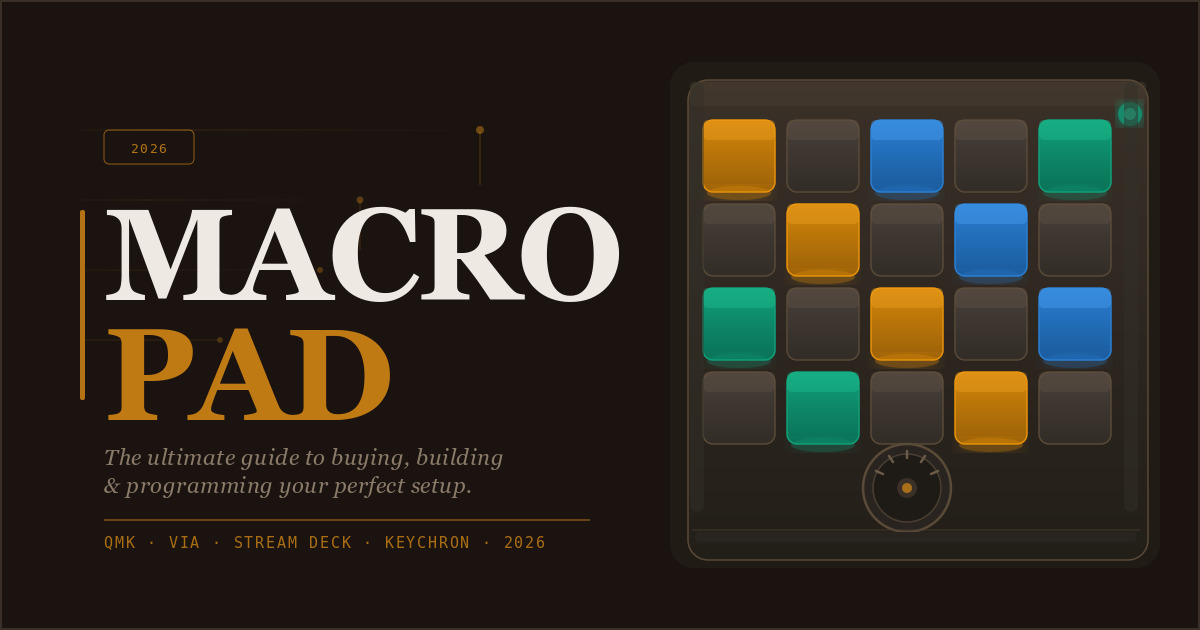
From one-finger shortcuts to fully programmable command centers — everything you need to know about the small device that’s changing how people work, create, and play.
Amacropad is a compact, standalone input device consisting of a small grid of programmable keys — typically ranging from 4 to 24 switches —
For more context, see our coverage of Apple Becomes First $4 Trillion Company.
that can be mapped to virtually any command, keystroke combination, script, or system action your computer can execute.
Unlike a full keyboard, a macropad serves one purpose above all else: putting your most-used actions at your fingertips with a single press.
Think of it as a dedicated remote control for your computer. Instead of hunting through menus, reaching for a complex keyboard shortcut, or clicking
For more context, see our coverage of US-India Trade Deal Latest Updates.
through multiple screens, you press one key on your macropad and the action fires instantly. Whether you’re a video editor triggering timeline commands, a
streamer switching scenes in OBS, a developer deploying with a single tap, or a graphic designer cycling through Photoshop tools — a macropad brings
those actions out of the menu and onto your desk.
For more context, see our coverage of Quantum Computing 2026 Where We Are.
What Is a Macropad?
The term “macropad” is broad. It encompasses everything from a basic 4-key numpad-style board to a sophisticated 6×4 grid with rotary encoders, OLED screens,
RGB per-key lighting, and firmware that can run custom code. What they all share is the fundamental idea: fewer steps between you and the
action you want.
A macropad (also written as “macro pad” or “macro keyboard”) is a small, dedicated input device with programmable keys designed to automate repetitive tasks,
trigger keyboard shortcuts, or execute complex sequences with a single press.
Macropads didn’t emerge fully formed from a product launch — they evolved gradually, driven by a community of keyboard enthusiasts who began questioning why
they needed all 104 keys when only a fraction were ever used productively.
A Brief History: From Numpad to Command Center
The earliest macropads were essentially repurposed numpads. External numeric keypads were already a staple for laptop users and accountants who needed rapid number entry.
Creative professionals quickly realized these standalone keypads could be reprogrammed — Adobe even sold their own dedicated keypad for Photoshop, the Adobe Photoshop CS2
Keypad, in the mid-2000s. These early devices were rigid: they mapped to specific software and offered no user-level reprogramming.
As the mechanical keyboard hobby exploded in the early 2010s, enthusiasts began demanding more. The open-source firmware QMK (Quantum Mechanical Keyboard) was released in 2015, transforming
what macropads could do. QMK allowed hobbyists to define every single key behavior at the firmware level — including layers, macros, tap-dance (one key
doing different things based on how many times it was tapped), and more. For the first time, a tiny board could behave exactly as
its owner imagined.
Group buys on platforms like GeekHack and Massdrop brought dozens of custom macropad PCB designs to small communities willing to wait months for a
kit. The Planck, Minivan, and countless 4×4 macro boards gave enthusiasts new canvases. Simultaneously, off-the-shelf options like the Elgato Stream Deck (2017) brought the concept to mainstream streamers
and content creators, normalizing the idea of a dedicated macro device for non-enthusiasts.
The Numpad Origins (1990s–2000s)
Today, macropads sit at the crossroads of accessibility and customization. Mass-market options from brands like Lofree, Keychron, and Epomaker offer quality macropads for under
$60. The open-source Via and Vial configurator software made QMK programming accessible without touching a line of code. Meanwhile, the enthusiast scene continues to push forward with wireless
macropads, Bluetooth-only designs, Raspberry Pi-powered boards, and micro-display surfaces.
“A macropad is not a luxury accessory — it’s a multiplier. Every complex shortcut you compress into one key is time you spend thinking, not navigating.”
Understanding a macropad’s internals helps you make smarter buying and building decisions. At their core, macropads are elegantly simple devices with a handful of key components working in concert.
The Mechanical Keyboard Renaissance (2010–2016)
Beneath each key cap sits a switch — typically a mechanical switch using Cherry MX, Gateron, Kailh, or a compatible clone.
These switches register presses through a matrix of rows and columns wired to a microcontroller. When you press a key, the circuit at the
intersection of its row and column closes, the microcontroller detects which key was pressed, and sends the corresponding HID (Human Interface Device) report to
your computer.
The brain of every macropad is a microcontroller — most commonly an ATmega32U4 (found in Arduino Pro Micro clones) or the increasingly popular RP2040 (Raspberry Pi’s chip).
The MCU runs the firmware that maps physical key positions to output actions, handles layers, processes rotary encoder inputs, drives RGB LEDs, and communicates
over USB.
Firmware is the software baked into the MCU. QMK Firmware dominates the enthusiast space and supports an extraordinary range of features.
For those who prefer visual configuration without code, Via is a browser-based GUI that lets you drag, drop, and assign keys in real time
— no compilation required. Vial extends Via with additional features like tap-dance and per-key RGB control directly in the browser.
The Ergodox Era and Custom PCBs (2016–2020)
Many modern macropads include one or more rotary encoders — knobs you can spin clockwise or counterclockwise, and often press like a button.
These are exceptionally versatile: mapped to volume control, zoom level, brush size, timeline scrubbing, layer switching, or any other continuously variable action.
A single rotary encoder effectively gives you three inputs (clockwise, counterclockwise, press) in the footprint of one key.
Linear, tactile, or clicky switches provide the physical keystroke feel. Swappable (hot-swap) sockets let you change switch type without soldering.
Spin-able knobs that map to continuous controls like volume, zoom, or scroll. Each encoder delivers 3 distinct inputs.
The Modern Era (2020–Present)
Individual LEDs under each key for visual feedback. Color-code layers, indicate active profiles, or just look spectacular on your desk.
Small screens that display layer names, WPM counters, system stats, or custom artwork. Found on premium and custom boards.
Multiple key mapping profiles on the same hardware. A 12-key pad with 4 layers effectively becomes 48 distinct inputs.
How Macropads Work
Cable-free macropads powered by ZMK firmware or proprietary radios. Great for clean desk setups and multi-device use.
The macropad market spans a wide spectrum, from ultra-minimal 4-key boards to elaborate custom builds with displays, audio, and haptic feedback. Here’s how to navigate the landscape.
Tactile macropads use physical key caps with no display — the classic form. They’re durable, require no drivers, and have essentially unlimited key cap customization. LCD-button
macropads (popularized by the Elgato Stream Deck) replace physical caps with small LCD screens showing custom icons, images, or dynamic content like live viewer counts.
They’re visually richer but generally use softer membrane or low-profile buttons. Hybrid boards combine mechanical switches with per-key OLED displays — expensive but emerging.
The Switch Matrix
Most macropads connect via USB-C (replacing the older micro-USB standard). Wireless macropads using Bluetooth are less common in the enthusiast space but growing —
ZMK firmware handles wireless with good battery life and multi-device pairing. Some specialty boards use 2.4 GHz proprietary wireless for lower latency than Bluetooth.
The macropad has found a home in a surprisingly diverse range of workflows. Far from being niche hardware, it’s become a productivity tool that cuts across professions.
This is arguably the largest mainstream use case. Streamers use macropads to switch scenes in OBS Studio or Streamlabs, trigger sound effects and alerts,
mute microphones, start/stop recordings, send chat messages, and fire off overlays — all without touching a mouse.
The Elgato Stream Deck essentially created this category. A streamer running a 3-hour broadcast might tap their macropad hundreds of times per stream.
The Microcontroller (MCU)
Professional editing software like Adobe Premiere Pro, DaVinci Resolve, Final Cut Pro, and Avid are laden with keyboard shortcuts.
A macropad dedicated to editing puts cut, ripple delete, add marker, zoom to selection, and color grade controls directly under the left hand while
the right controls the mouse. Many editors program an encoder to scrub the timeline, giving them jog-wheel-style control without dedicated hardware.
Photoshop, Illustrator, Affinity Photo, and Clip Studio Paint all reward shortcut mastery. Designers map brush resize, undo/redo stacks, layer operations, zoom, and tool switching
to their macropads. The rotary encoder makes brush size and opacity adjustment feel natural — a significant ergonomic improvement over keyboard shortcuts.
Developers use macropads for build triggers, git commands, IDE refactoring shortcuts, snippet insertion, and terminal actions. A single key can run a shell script
that builds, tests, and deploys a project. Others map common code patterns, SSH connection commands, or Docker container management to their boards.
Firmware
MMO players have used gaming keyboards and macropads for ability rotations and consumable usage for years. More niche applications include per-game macro boards for
complex RTS commands, racing game functions, or custom flight sim controls that exceed what a joystick handles.
For users with motor limitations, a macropad can be life-changing. Mapping complex, multi-key operations to a single large key press dramatically reduces the physical
and cognitive load of using a computer. Some accessibility-focused setups combine a macropad with eye-tracking or switch control software.
The market in 2026 offers strong options at every price point. Here are the standouts across categories.
Rotary Encoders
The Keychron Q0 Plus delivers gasket-mounted premium build quality — a feature normally reserved for flagship keyboards — in a compact 5×5 numpad layout.
Its aluminum case, south-facing per-key RGB, rotary encoder, and full QMK/Via compatibility make it one of the most complete off-the-shelf macropads available.
The hot-swap PCB means switch experimentation requires no soldering. Best Value
No macropad has had a bigger cultural impact than the Stream Deck. Its 15 LCD keys display live-updating images, the software ecosystem is unmatched
(over 300 integrations including Spotify, YouTube, Twitter, Twitch, Discord, and virtually every major streaming tool), and setup requires zero technical knowledge.
It’s not a mechanical keyboard enthusiast’s choice — but it’s the most powerful turnkey macro solution available. Beginner Friendly
For under $40, the Koolertron provides a surprisingly capable macropad experience with its bundled software supporting layers, key combinations, and media controls.
Build quality is modest, but for someone testing whether a macropad fits their workflow before investing more, it’s an excellent entry point. Entry Level
Mechanical Switches
Wireless macropads remain rare because most firmware runs over USB. The Lofree Touch offers genuine Bluetooth connectivity with a 30-day battery life, a clean
minimalist design, and iOS/Android compatibility in addition to desktop platforms — making it unusual in the category. Wireless
For those willing to invest the time, a custom PCB from vendors like Cannonkeys, KBDfans, or a Massdrop group buy offers an unmatched macropad
experience. You choose the case (polycarbonate, aluminum, or resin), switches, stabilizers, key caps, and firmware configuration. The resulting board is unique, tailored to your
exact workflow, and built to last. Advanced
Programming is where a macropad transforms from useful hardware to a genuine workflow multiplier. The level of technical involvement varies enormously depending on which path you choose.
Rotary Encoders
If your macropad ships with QMK firmware and Via support (most modern ones do), you can configure it entirely through a browser interface at usevia.app.
Connect your board, drag keys from the key map picker to positions on the visual layout, and your board updates in real time —
no firmware flashing, no compilation, no command line.
QMK offers capabilities Via can’t expose through a simple UI. Custom tap-dance functions, combo keys, mouse key emulation, dynamic macros, and Unicode input all
require editing QMK’s keymap.c file directly. The QMK documentation is extensive and the community on Discord and GitHub is active and helpful.
// Example QMK keymap.c — 3×3 macropad with 2 layers #include QMK_KEYBOARD_H const uint16_t PROGMEM keymaps[][MATRIX_ROWS][MATRIX_COLS] = { // Layer 0: Default (Photoshop) [0]
= LAYOUT( KC_LBRC, KC_RBRC, KC_E, KC_B, KC_L, KC_V, LCTL(KC_Z), LCTL(KC_Y), MO(1) ), // Layer 1: Color Correction [1] = LAYOUT( LCTL(KC_U), LCTL(KC_B), LCTL(KC_L), KC_TRNS,
KC_TRNS, KC_TRNS, KC_TRNS, KC_TRNS, KC_TRNS ) }; Elgato Stream Deck Software Stream Deck’s proprietary software takes a completely different approach: a visual drag-and-drop interface
with an extensive plugin marketplace. You can install integrations for hundreds of applications without writing a single line of code.
The trade-off is that you’re locked into Elgato’s ecosystem and software, and advanced scripting requires the “System: Open” or “System: Command” actions to run
external scripts.
Per-Key RGB
For Windows users, AutoHotkey scripts paired with any macropad create powerful automation chains. Your macropad sends a key combination; AutoHotkey intercepts it and executes
an arbitrarily complex script — opening applications, filling forms, manipulating windows, scraping web pages, or controlling other software.
Choosing a macropad requires balancing your workflow, budget, technical comfort, and aesthetic preferences. Here’s the framework that cuts through the noise.
Linear switches (Red, Yellow, Silent Red) have smooth, consistent keystroke from top to bottom — preferred for rapid, repeated actions.
Tactile switches (Brown, Clear, Boba U4) provide a bump you feel before actuation — good for deliberate single-press actions.
Clicky switches (Blue, Green) add audible feedback — satisfying but potentially disruptive in shared spaces. For macropads you’ll tap repeatedly in a focused session,
linear or light tactile switches tend to cause the least fatigue.
OLED / E-Ink Displays
Hot-swap sockets let you change switches by pulling the old one out and pressing the new one in — no soldering iron required.
If you’re new to mechanical keyboards and uncertain which switch type you prefer, hot-swap is strongly recommended.
Soldered boards are often sturdier and more stable, but committing to a switch type with no upgrade path is a significant constraint.
QMK/Via support is the gold standard. It means your board will work with community tools, future software updates, and extensive customization without depending on
proprietary software that may be discontinued. Boards using proprietary firmware (like many budget options) are simpler to configure initially but far more limited in
what they can do.
Case material matters more than its weight suggests. Polycarbonate cases flex slightly and produce a “thockier” sound profile.
Aluminum cases are rigid, heavy, and premium-feeling. Acrylic sandwich builds are lightweight and show off internal components.
Gasket mounting (where the PCB is suspended between foam gaskets rather than screwed to the case) dramatically improves sound and feel — worth seeking
at higher price points.
Layers
Custom macropad builds have never been more accessible. You don’t need a background in electronics — just patience, a soldering iron (if not buying
a hot-swap kit), and the willingness to follow community guides.
A basic DIY macropad needs: a PCB (from a group buy, vendor like Cannonkeys, or designed yourself with KiCad), a microcontroller (Pro Micro, Elite-C,
or RP2040-based), mechanical switches, key caps, a case, and a USB cable. Budget builds can come in under $30 in parts.
Enthusiast-grade builds can easily exceed $200 once you factor in premium switches, CNC-milled aluminum cases, and artisan key caps.
The Raspberry Pi Pico ($4 USD) running CircuitPython and Adafruit’s HID library has made DIY macropads extraordinarily cheap and approachable.
You can build a fully functional, custom-programmed macropad for under $20 in parts, and program it in Python — no C compilation required.
The Pico’s USB native support means no additional USB controller chip is needed.
Wireless / Bluetooth
The trajectory of macropad development points in several interesting directions simultaneously. AI integration is the most discussed: macropads that connect to AI assistants (locally
or via API) could dynamically suggest or reassign keys based on the active application, time of day, or detected workflow.
Haptic feedback — already common in smartphone keyboards — is beginning to appear in premium mechanical boards, allowing a macropad to pulse or resist
differently based on which layer is active. E-ink keycap displays that update without power draw, achieving battery lives measured in weeks rather than hours,
represent another frontier.
On the software side, the convergence between macropads and system-level AI automation (tools like Apple’s Shortcuts, Microsoft Power Automate, and open-source alternatives) means that
a single key press could trigger increasingly sophisticated multi-step workflows that span applications, cloud services, and local scripts.
Whether you’re pressing a single key to deploy code, switch a streaming scene, or just skip a song, the macropad’s core promise remains the
same as it ever was: take something that used to take many steps, and make it one.
Types of Macropads
The best macropad isn’t the one with the most features — it’s the one that disappears into your workflow until pressing it feels as natural as breathing.
Also read:
Sources and Further Reading
Learn more at TechCrunch.
Learn more at The Verge.
Learn more at Wired.
Related Articles

Trust Post Desk
A journalist and editor at TrustPost.org covering world and national news, technology updates and human-interest stories. They check every fact, interview sources in person or online, and aim to deliver clear, accurate reporting. Their work ranges from breaking news to in-depth features and daily newsletters. Outside the newsroom, they follow emerging trends and engage with readers on social media.