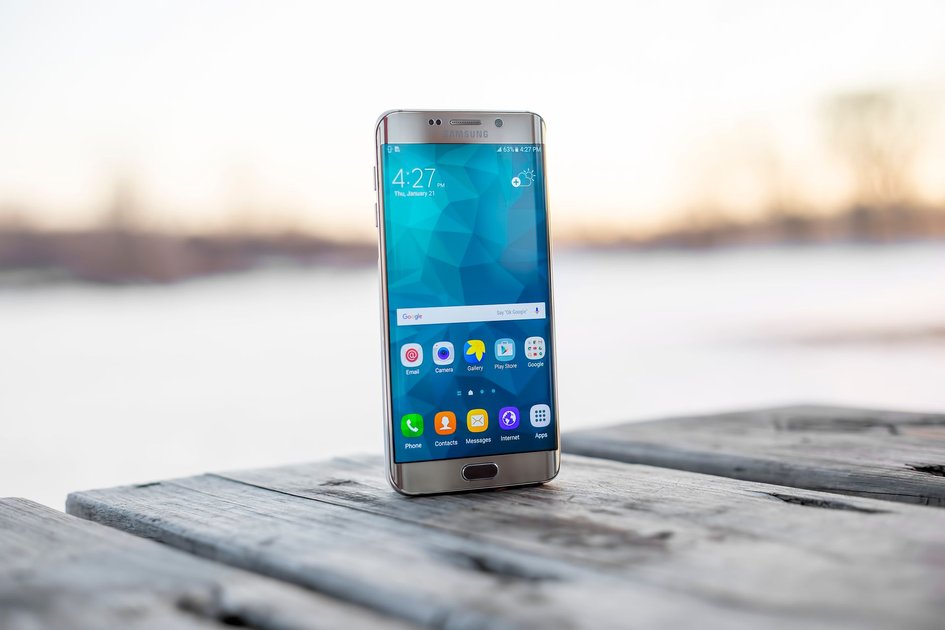
Samsung Galaxy phones have a built-in screen recorder that requires no third-party app. It can record your screen with internal sound, microphone audio, or both, and even capture your front camera as a picture-in-picture overlay.
How to Start Screen Recording
- Swipe down from the top of the screen to open the Quick Settings panel. You may need to swipe down twice to see all tiles.
- Find the Screen recorder tile and tap it. If you do not see it, tap the pencil/edit icon to add it to your Quick Settings.
- A settings popup appears before recording starts. Choose your audio option (see below).
- Tap Start recording. A 3-second countdown begins, then recording starts.
- A red recording bar appears at the top of the screen while recording is active.
Audio Options Before Recording
- No sound – Records video only with no audio.
- Media sounds – Captures audio playing from apps (music, videos, games).
- Media sounds and mic – Captures both app audio and your voice through the microphone. Best for tutorials and commentary.
How to Stop a Screen Recording
Tap the red Stop button in the top left corner of the screen, or pull down the notification shade and tap Stop in the Screen recorder notification. The video is automatically saved to the Gallery.
Adding Front Camera to the Recording
In the screen recorder settings popup (before you start), toggle on Video selfie. Your front camera feed appears as a small circular overlay in the corner of the recording. You can drag it to reposition it during recording.
Drawing on Screen While Recording
While recording is active, tap the pencil icon in the recording toolbar to enable on-screen drawing. Draw with your finger to annotate the recording in real time. This is useful for tutorials where you want to highlight specific areas.
Where Screen Recordings Are Saved
All screen recordings are saved to the Gallery app under the Screen recordings album. They are also accessible in Files under Internal Storage, then Movies, then Screen recordings. Files are saved in MP4 format.
Changing Recording Quality
Open Settings, go to Advanced features, then Screenshots and screen recorder. Under Screen recorder settings, you can set the video resolution (720p, 1080p) and frame rate (30fps or 60fps). Higher quality produces larger files.
Frequently Asked Questions
Why does my screen recording have no sound?
Check that you selected ‘Media sounds’ or ‘Media sounds and mic’ in the audio settings before starting the recording. ‘No sound’ is the default on some Samsung models.
Can I record Netflix or other streaming apps?
DRM-protected apps including Netflix, Disney+, and some banking apps detect screen recording and display a black screen for protected content areas. This is an intentional restriction by the content provider and cannot be bypassed.
How long can I screen record on Samsung?
There is no hard time limit. The recording continues until you stop it or run out of storage space. Monitor your available storage if you plan a long recording.

Trust Post Desk
A journalist and editor at TrustPost.org covering world and national news, technology updates and human-interest stories. They check every fact, interview sources in person or online, and aim to deliver clear, accurate reporting. Their work ranges from breaking news to in-depth features and daily newsletters. Outside the newsroom, they follow emerging trends and engage with readers on social media.


