
Have you clicked on a search result only to land on a completely different website? Does Chrome keep taking you to pages you never wanted to visit? You’re not alone, and it’s not your imagination. Browser redirects are real problems that need real solutions.
Understanding Browser Redirects in Chrome
Browser redirects occur when Chrome automatically sends you to a different webpage than the one you clicked. You might type in a legitimate website address and end up somewhere completely different. These unwanted jumps can happen instantly or after a few seconds.
Sometimes redirects happen so fast you barely notice them. Other times, you see multiple pages flash before landing on the final destination. Either way, it disrupts your browsing and wastes your time.
These redirects aren’t random accidents. Something is causing them, and identifying that cause is your first step to freedom.
Common Reasons Behind Chrome Redirect Problems
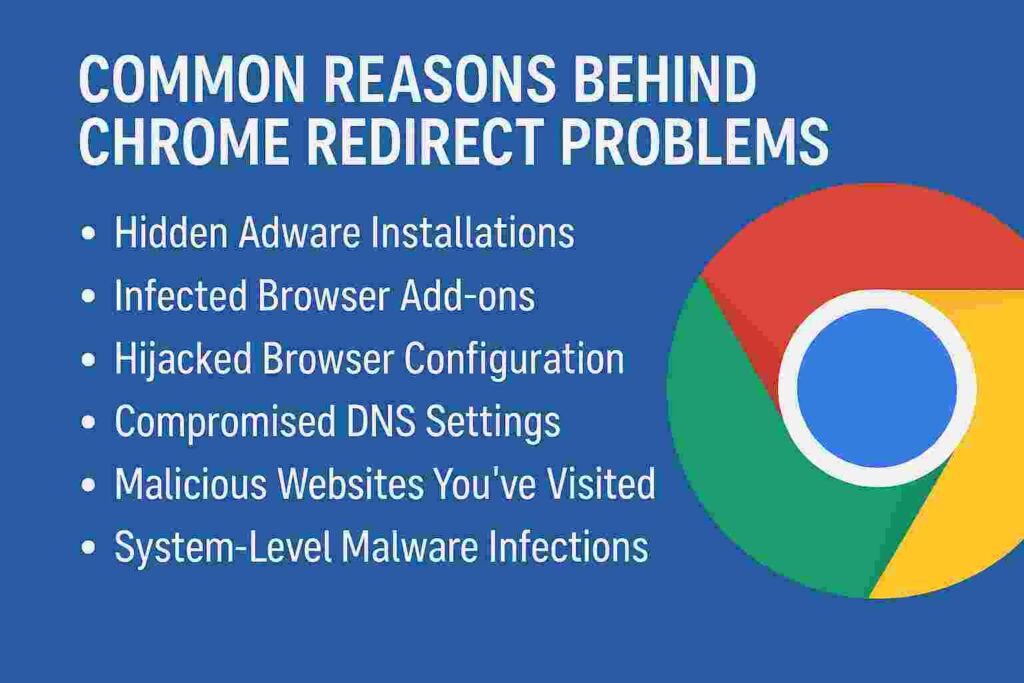
Multiple factors can trigger redirect issues in your browser. Understanding these causes helps you target the right solution.
Hidden Adware Installations
Adware sneaks onto your computer bundled with free software downloads. You think you’re installing a simple PDF reader or video converter. Meanwhile, adware tags along without clear notification.
This software runs silently in the background. It monitors your browsing activity and injects redirects to generate advertising revenue. The people behind adware profit every time you land on their sponsored pages.
Infected Browser Add-ons
Browser extensions promise useful features like ad blocking or productivity tools. Some deliver exactly what they promise. Others contain hidden code that hijacks your browsing sessions.
Malicious extensions can redirect your searches to fake search engines. They intercept clicks on legitimate links and send you elsewhere. Some even modify the websites you visit to insert extra advertisements.
Hijacked Browser Configuration
Browser hijackers change your Chrome settings without permission. Your homepage suddenly points to an unfamiliar search engine. Your default search provider changes to something you’ve never heard of.
These changes persist even after you try resetting them manually. The hijacker software keeps reverting your preferences back. It creates a frustrating cycle of changes and reversions.
Compromised DNS Settings
DNS translates website names into computer-readable addresses. When hijackers modify your DNS settings, they control where your browser actually goes. You type one address but DNS sends you to another location entirely.
This type of attack operates at the network level. It affects all browsers on your device, not just Chrome. The redirects seem to come from nowhere because the problem sits outside your browser.
Malicious Websites You’ve Visited
Some websites contain redirect scripts that exploit browser vulnerabilities. Visiting these sites triggers automatic redirects even after you leave. The malicious code can remain active in your browsing session.
These sites often disguise themselves as legitimate pages. They might claim you’ve won a prize or need to update your software. Clicking anything on these pages activates more redirects.
System-Level Malware Infections
Deeper malware infections affect your entire operating system. These programs intercept network traffic before it reaches Chrome. They redirect requests at such a fundamental level that typical browser solutions won’t help.
Rootkits and trojans can modify system files responsible for internet connectivity. They’re designed to resist removal and hide their presence. Professional-grade security tools become necessary for elimination.
How Redirects Harm Your Digital Experience
Constant redirects create problems that extend beyond simple annoyance. The impacts affect your security, privacy, and daily productivity.
Exposure to Dangerous Content
Redirects often lead to websites hosting malicious software. These pages attempt to download viruses, spyware, or ransomware onto your device. One wrong click could compromise your entire system.
Scam websites designed to steal personal information frequently use redirects. They create fake login pages for banks, email providers, and social media. Entering credentials on these pages hands them directly to criminals.
Compromised Personal Information
Redirect chains can track your browsing behavior across multiple sites. The data collected builds detailed profiles about your interests and habits. This information gets sold to advertisers or worse, used for targeted scams.
Your search queries reveal sensitive information about health concerns, financial situations, and personal relationships. Malicious redirect systems harvest this data without consent. Once collected, you have no control over how it’s used.
Wasted Time and Frustration
Every redirect costs you seconds or minutes. Those moments add up over days and weeks. What should be quick searches turn into lengthy troubleshooting sessions.
You lose focus on important tasks while fighting with your browser. Work deadlines slip because you’re constantly managing redirects. The mental drain affects your overall productivity.
Device Performance Problems
Redirect malware often runs resource-intensive background processes. Your computer slows down noticeably. Chrome becomes sluggish and unresponsive.
The CPU maxes out even when you’re barely using your device. Battery life drains faster on laptops. Fans run constantly trying to cool overworked processors.
Damaged Trust in Online Activities
Frequent redirects make you question every link you click. You become hesitant to explore new websites or follow recommendations. The internet feels like a minefield instead of a useful tool.
This erosion of trust limits your online activities. You avoid legitimate websites because you fear more redirects. The web becomes less useful and more stressful.
Effective Solutions to Stop Chrome Redirects
Taking action immediately prevents redirects from causing more damage. These proven methods address different types of redirect problems.
Run Complete Malware Scans
Start with comprehensive malware detection and removal. Free tools exist but premium options provide better protection. Your device needs a thorough examination from reliable security software.
Here’s the proper scanning process:
- Download reputable antivirus software if you don’t have one installed.
- Update the virus definitions to catch the newest threats.
- Close all programs and browser windows before scanning.
- Run a full system scan, not just a quick check.
- Allow the scan to complete even if it takes hours.
- Follow the software’s instructions to quarantine or delete threats.
- Restart your computer after removing malware.
Important: Run scans from multiple security programs for thorough coverage. One tool might miss what another catches.
Clean Out Suspicious Browser Extensions
Extensions cause a significant percentage of redirect problems. Reviewing and removing questionable add-ons often solves the issue immediately. Take a careful look at everything installed in Chrome.
Follow these steps to clean your extensions:
- Open Chrome and click the three-dot menu icon.
- Navigate to More Tools, then select Extensions.
- Review each extension carefully and ask yourself if you recognize it.
- Check the permissions each extension requests.
- Remove any extension you don’t remember installing.
- Delete extensions from unknown publishers or developers.
- Restart Chrome and test if redirects continue.
Even extensions with good reviews can turn malicious after updates. When in doubt, remove it and see if your problems stop.
Reset Chrome to Factory Settings
Resetting Chrome removes all customizations and returns it to original state. This eliminates changes made by hijackers and malware. Your bookmarks and passwords can be preserved during the reset.
Here’s how to perform a complete reset:
- Open Chrome Settings by clicking the three-dot menu.
- Scroll down and click on Advanced to expand all options.
- Find the Reset and clean up section.
- Select “Restore settings to their original defaults.”
- Read the warning about what will be reset.
- Click Reset settings to confirm the action.
- Restart Chrome and check if redirects stopped.
This reset removes extensions, clears temporary data, and restores default settings. Hijackers can’t survive this process unless they’ve infected your system at a deeper level.
Modify Your DNS Configuration
Switching to trusted DNS servers prevents many redirect attacks. Free public DNS services from reputable companies offer better security than default ISP options. The change takes just minutes.
Steps to change DNS settings on Windows:
- Open Control Panel and go to Network and Sharing Center.
- Click on your active internet connection.
- Select Properties, then double-click Internet Protocol Version 4.
- Choose “Use the following DNS server addresses.”
- Enter primary DNS as 1.1.1.1 (Cloudflare’s secure DNS).
- Enter secondary DNS as 1.0.0.1 for backup.
- Click OK on all windows and restart your computer.
For Mac users:
- Open System Preferences and click Network.
- Select your active connection and click Advanced.
- Go to the DNS tab and click the + button.
- Add 1.1.1.1 and 1.0.0.1 to the list.
- Click OK and Apply to save changes.
Alternative trusted DNS options include Google (8.8.8.8) and Quad9 (9.9.9.9). Both provide good security and performance.
Check Your Hosts File for Modifications
The hosts file on your computer can be modified to redirect specific websites. Hijackers add entries that point legitimate domains to malicious servers. Checking this file reveals hidden redirects.
How to examine your hosts file:
On Windows:
- Press Windows + R to open the Run dialog.
- Type “notepad %SystemRoot%\System32\drivers\etc\hosts” and press Enter.
- If prompted, click Yes to open as administrator.
- Look for entries below the default localhost lines.
- Delete any suspicious website entries you find.
- Save the file and close Notepad.
On Mac:
- Open Terminal from Applications/Utilities.
- Type “sudo nano /etc/hosts” and press Enter.
- Enter your password when prompted.
- Review all entries in the file.
- Delete lines that list websites you recognize.
- Press Control + X, then Y to save changes.
The hosts file should only contain local network entries. Anything pointing to actual websites is suspicious and should be removed.
Use Chrome’s Built-In Cleanup Tool
Chrome includes a cleanup tool specifically designed to find and remove harmful software. This scanner targets programs known to cause problems with Chrome. It’s less comprehensive than full antivirus but useful for browser-specific issues.
Accessing Chrome’s cleanup tool:
- Open Chrome Settings from the three-dot menu.
- Scroll to the bottom and click Advanced.
- Find the Reset and clean up section.
- Click “Clean up computer” or “Find harmful software.”
- Click Find to start the scan.
- Wait for Chrome to complete the analysis.
- Follow prompts to remove any detected threats.
Note: This tool only works on Windows versions of Chrome. Mac users need third-party security software instead.
Prevention Strategies for Future Protection
Stopping current redirects is only half the battle. Preventing future infections keeps you safe long-term.
Download Software from Official Sources Only
Free software sites bundle legitimate programs with unwanted extras. Stick to official developer websites and verified app stores. The few extra seconds of searching prevent hours of cleanup.
Never click “Download Now” buttons on software review sites. These often lead to bundled installers full of adware. Find the actual developer’s website through careful research.
Read Installation Prompts Carefully
Most adware asks permission during software installation. The request is hidden in custom installation options or quickly scrolled end-user agreements. Slowing down and reading everything prevents unwanted additions.
Always choose custom installation instead of express or typical options. Uncheck any boxes mentioning additional software, browser toolbars, or homepage changes. One moment of attention saves future headaches.
Keep Chrome and Your System Updated
Software updates patch security vulnerabilities that attackers exploit. Running outdated versions leaves doors open for malware. Enable automatic updates whenever possible.
Chrome updates itself automatically but verify you’re current. Type “chrome://settings/help” in the address bar. The page shows your current version and checks for updates immediately.
Enable Chrome’s Safe Browsing Features
Chrome includes built-in protection against dangerous websites. These features warn you before visiting known malicious pages. Ensure they’re activated in your settings.
Verify Safe Browsing is active:
- Open Chrome Settings and click Privacy and security.
- Select Security from the options.
- Choose “Enhanced protection” for the strongest defense.
- This scans downloads and warns about dangerous sites.
Enhanced protection shares more data with Google but provides the best security. Standard protection offers good security with less data collection.
Review Permissions for Installed Extensions
Extensions request various permissions to function properly. Some need more access than others. Reviewing what each extension can do reveals potential security risks.
Audit extension permissions regularly:
- Go to chrome://extensions in your address bar.
- Click Details under each extension.
- Review the permissions list carefully.
- Question why extensions need certain permissions.
- Remove extensions with excessive or suspicious permissions.
A grammar checker doesn’t need permission to read all your website data. A simple note-taking extension shouldn’t access your download history.
When to Seek Expert Help
Some redirect problems require professional intervention. Knowing when you’re out of your depth saves time and prevents further damage.
Persistent Redirects After All Fixes
If redirects continue after trying every solution, deeper infections exist. System-level malware resists standard removal tools. Professional technicians have advanced software and expertise.
Redirects Affecting Multiple Browsers
When all browsers on your device show redirect problems, the infection operates at the system level. This points to compromised network settings or rootkit infections. DIY fixes become inadequate.
Suspicious Financial Activity
If you suspect redirects led to financial information theft, act immediately. Contact your bank and credit card companies. Professional security analysis determines the extent of compromise.
IT security professionals can examine your system for data theft indicators. They identify what information was potentially accessed. This helps you take appropriate protective measures.
Redirects After System Restoration
Restoring your system to an earlier point should eliminate software-based problems. If redirects persist after restoration, firmware or BIOS-level infections might exist. These require specialized removal procedures.
Final Thoughts
Chrome redirect problems stem from various sources but share common solutions. Understanding what causes redirects helps you target fixes effectively. Most issues resolve with proper malware removal and browser cleaning.
Prevention protects you better than any cure. Careful downloading habits and regular system maintenance stop problems before they start. The few minutes spent on security save hours of frustration.
Don’t ignore redirect issues hoping they’ll disappear on their own. They won’t. Each redirect potentially exposes you to more serious threats. Take action immediately to protect your device and personal information.
Your browsing experience should be smooth and secure. Follow these steps to reclaim control of Chrome. You deserve internet access without constant interruptions and security concerns.
Frequently Asked Questions
Redirects can lead you to fake login pages designed to capture credentials. The redirects themselves don’t steal passwords directly. However, the destination sites created by attackers specifically harvest login information. Always verify you’re on the actual website before entering sensitive data.
Clearing browser history removes tracking cookies and cached redirect scripts. This solves some redirect problems temporarily. However, it doesn’t address underlying malware or infected extensions. Clearing history should be combined with deeper cleaning methods for lasting results.
Illegal streaming sites, free download portals, and adult content websites have higher redirect risks. These sites often contain malicious advertising networks. However, even legitimate sites can be compromised temporarily. Redirects can happen on any website if your system is infected.
Good antivirus software catches most redirect-causing malware before installation. No solution provides 100% protection. New threats emerge daily that haven’t been identified yet. Combining antivirus with safe browsing habits provides the strongest defense.
Most redirect malware can be removed completely without permanent damage. The longer infections remain active, the more harm they potentially cause. Quick action prevents serious file corruption or data loss. Severe rootkit infections sometimes require operating system reinstallation.
Some redirect malware activates based on specific triggers or time intervals. It might only redirect certain search terms or particular websites. This sporadic behavior helps the malware avoid detection. Users often dismiss occasional redirects as website problems rather than investigating deeper.

Get the TrustPost briefing
The stories that matter, in your inbox. No spam, unsubscribe anytime.
Newsletter signup will be available soon.
Related stories

5 Best SEOquake Alternatives for 2026 (When the Sidebar Fails)
If you’ve noticed the SEOquake sidebar or SERP overlay acting up lately, you aren’t alone. With recent browser updates and the shift to new extension frameworks, many legacy tools are struggling to…

10 Best Guest Post Marketplace Platforms to Buy Guest Posts In 2026
If you’ve ever done manual guest post outreach, you know the grind: building lists, vetting sites, pitching editors, waiting weeks for replies, then haggling over anchors and edits. Guest post marketplaces exist…

Best SEO Agencies for Startups
Choosing an SEO agency for startups is different from hiring one for an established business: budgets are tight, positioning changes, and every channel has to show pipeline within a few quarters. This…