
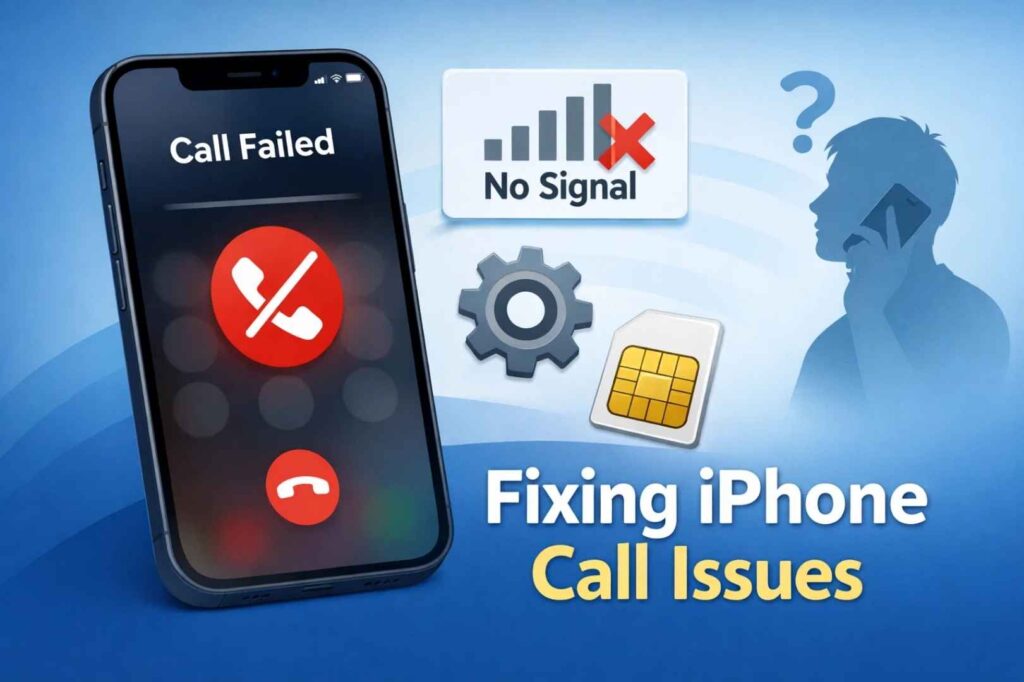
If your iPhone won’t make calls but will text: Check that Airplane Mode is OFF, restart your iPhone, toggle Airplane Mode on and off, verify Do Not Disturb is disabled, check for blocked contacts, update your carrier settings, and reset network settings if needed.
For more context, see our coverage of US-India Trade Deal Latest Updates.
If calls still fail, contact your carrier to verify your account has voice service enabled and your SIM card is properly activated.
Your iPhone suddenly stopped making phone calls. You tap a contact, hit the green call button, and nothing happens.
Or maybe you see “Call Failed” or “Cellular Network Not Available.” Either way, you’re stuck—you can text and use data, but calls won’t go
For more context, see our coverage of Apple Becomes First $4 Trillion Company.
through.
The good news: this usually isn’t your iPhone’s hardware that’s broken. It’s almost always a software issue, a network setting, or a carrier problem. And we can fix it.
Why iPhone Won’t Make Calls (But Will Text)
I’m going to walk you through exactly what causes this problem, why it happens, and most importantly, how to fix it.
For more context, see our coverage of Amazon Prime Day 2026 Deals.
We’ll start with the simplest fixes and work our way up to more advanced troubleshooting.
Before we fix it, let’s understand what’s happening. Your iPhone won’t make calls but CAN text, use data, and do everything else. This tells us something specific about the problem.
Voice calls on iPhone require a completely different network connection than text messages or data. When you send a text, your iPhone uses the data network. When you use Safari or Instagram, same thing—data network. But voice calls? Those go through your carrier’s circuit-switched voice network, which is technically separate from the data network.
The Technical Reason
This is why you can text perfectly fine but can’t make calls. The problem is isolated to the voice calling system, not your overall network connection.
Where to Buy: Shopping for an Apple device? Browse the Latest Apple iPhone on Amazon – including the latest Pro and standard models with Prime delivery.
These are the fastest possible solutions. Most people’s problems are solved by one of these steps.
Common Causes
This is the basic option for network issues—it forces your iPhone to completely disconnect and reconnect to the network.
Here’s how:
This fixes minor network glitches that prevent calling. It’s so simple that most people forget to try it, but it works about 30% of the time for this specific problem.
Quick Fixes (Try These First)
A restart clears temporary software glitches. It sounds too simple, but it works.
For iPhone X and later:
For iPhone 8 and earlier:
Fix #1: Toggle Airplane Mode
Do Not Disturb and Focus modes can block calls while allowing texts. If you enabled this and forgot about it, that’s your problem.
Here’s how to check:
If you see a moon icon in your status bar at the top, that means Do Not Disturb is active.
Same fix—go to Settings > Focus > Do Not Disturb > Turn Off.
Fix #2: Restart Your iPhone
You might have accidentally blocked the person you’re trying to call. Or in some cases, you’ve blocked all unknown callers. Here’s how to check:
To view blocked contacts:
To check Silence Unknown Callers:
Fix #3: Check Do Not Disturb & Focus Modes
If the quick fixes didn’t work, let’s try more comprehensive solutions. Do these in order.
Voice calls require a stronger, more stable signal than texts or data. If your signal is weak, calling won’t work.
Look at the signal bars in the top left of your iPhone:
Fix #4: Check For Blocked Contacts
If you have weak signal:
If you still can’t make calls with decent signal, continue to the next step.
Your carrier frequently updates network settings. If you’re running old carrier settings, you might not be able to connect to newer voice networks (like VoLTE towers).
Detailed Troubleshooting Steps
To check for carrier updates:
If you don’t see a popup, you’re already on the latest carrier settings.
Bugs in iOS can definitely cause calling issues. The most recent one happened when iOS 26 first rolled out in February 2026—many users suddenly couldn’t make calls until they updated.
Step 1: Check Your Cellular Signal
To check for iOS updates:
This is where we actually fix the problem for most people. Resetting network settings erases all your network configuration and restores it to factory defaults. This clears corrupted settings that prevent calling.
WARNING: This will erase:
Step 2: Check For A Carrier Settings Update
It will NOT erase:
Here’s how to do it:
This fixes the problem about 70% of the time for people who’ve tried everything else.
Step 3: Check For An iOS Update
Your SIM card is what connects you to your carrier’s network. If it’s dirty, improperly inserted, or damaged, voice service stops working.
To check your SIM card:
If the SIM card looks damaged, you’ll need to contact your carrier for a replacement.
Step 4: Reset Network Settings
Sometimes carrier settings don’t update automatically. You can force an update.
To manually update carrier settings:
If you’ve tried everything above and calls still won’t work, try these more advanced steps.
Step 5: Check Your SIM Card
This is more drastic, but it clears any corrupted system files that might be preventing calls.
Before you do this:
Then:
Step 6: Update Your Carrier Settings Manually
This fixes corrupted iOS installations that prevent calling. However, it’s time-consuming, so only do this if nothing else worked.
If you have WiFi and calls won’t work on cellular, try WiFi Calling as a temporary workaround.
To enable WiFi Calling:
Advanced Solutions
WiFi Calling won’t fix the underlying problem, but it lets you make calls while you figure out what’s wrong.
If you’ve done everything above and calls still won’t work, the problem is with your carrier account, not your iPhone.
Contact your carrier when:
Erase Your iPhone & Restore From Backup
What to tell them:
What they might do:
Many carriers now require you to visit a physical store if there’s an account issue, so be prepared for that.
Try WiFi Calling
Q: Why can I text but not make calls?
A: Voice calls use a different network connection (circuit-switched voice) than texts (data network). The problem is isolated to the voice calling system.
This is almost always a software or network settings issue, not a hardware problem.
Q: Will resetting network settings delete my data?
When to Contact Your Carrier
A: No. Resetting network settings only clears network configuration (WiFi passwords, VPN settings, etc.). Your photos, videos, messages, contacts, and apps are completely safe.
Q: How long does it take for network settings to reset?
A: The reset itself takes about 30 seconds. After your iPhone restarts, wait another 30 seconds for it to fully reconnect to networks before trying to make a call.
Frequently Asked Questions
Q: What if I’m in an area with no signal?
A: You can’t make calls without at least 2-3 bars of signal. Move to a location with better signal (go outside, move away from buildings, try a different room). Then try again.
Q: Can a virus or malware prevent calls?
The Fix That Works Most Often
A: iPhones don’t get viruses like Android phones do. It’s not malware. This is 100% a software glitch, network setting issue, or carrier account problem.
Q: Why did this start after an iOS update?
A: iOS updates sometimes change network settings or have bugs that affect calling. This is why checking for iOS and carrier updates is one of the first steps.
Prevention: How To Avoid This Problem
Q: My SIM card tray won’t open. What do I do?
A: Don’t force it. If it’s stuck, contact Apple Support or visit an Apple Store. Forcing it might damage your iPhone.
Q: If I reset network settings, do I lose my WiFi passwords?
Summary
A: Yes. You’ll need to re-enter any WiFi passwords you’ve saved. Write them down first if you don’t remember them.
Q: Will enabling WiFi Calling fix the problem?
A: No. WiFi Calling is a workaround, not a fix. It lets you make calls over WiFi while the underlying cellular calling issue remains.
But it does solve the immediate problem of not being able to make calls.
Q: How do I know if my carrier’s network is having an outage?
A: Check your carrier’s website or app, call their customer service from another phone, or ask if friends using the same carrier are experiencing problems. If multiple people in your area can’t make calls, it’s an outage and you have to wait.
Q: What if only calls to one person fail?
A: You might have that contact blocked, or there might be an issue with that specific number. Try calling a different contact.
If only that one person’s calls fail but everyone else works, unblock them in your Blocked Contacts list.
Q: Can I fix this without resetting my iPhone?
A: Yes. About 70% of people fix it without resetting by doing: toggle Airplane Mode, restart, check Do Not Disturb, check blocked contacts, update carrier settings, and reset network settings. Most don’t need to go further.
Q: What’s the difference between “Call Failed” and “No Service”?
A: “Call Failed” means you had service but the call didn’t go through (usually a software issue).
“No Service” means your iPhone isn’t detecting any signal at all (move to a location with better signal).
Q: Why do I need to contact Apple if I’ve already tried everything?
A: If troubleshooting doesn’t work, it might be a hardware issue with your iPhone’s cellular modem, which Apple Support can diagnose or fix under warranty.
Q: Can I use Siri to make calls if regular calling isn’t working?
A: Usually no. Siri uses the same calling system. If regular calls don’t work, Siri calls won’t work either.
Q: What if I can make calls but can’t receive them?
A: That’s a different problem, usually caused by Do Not Disturb, call forwarding, or Silence Unknown Callers.
Check Settings > Focus > Do Not Disturb and Settings > Phone > Call Forwarding.
If I had to guess which single step would fix your problem, I’d say reset network settings.
It fixes about 70% of cases where iPhone won’t make calls but will text.
Do this:
If that doesn’t work, go through the troubleshooting steps in order. One of them will fix it.
Your iPhone not making calls is almost always fixable without expensive repairs. Start with the quick fixes (toggle Airplane Mode, restart, check Do Not
Disturb), then move to more detailed troubleshooting if needed. If nothing works, reset your network settings—that fixes 70% of cases.
Only contact your carrier or Apple after you’ve tried everything in this guide.
Also read:
Sources and Further Reading
Learn more at TechCrunch.
Learn more at The Verge.
Learn more at Wired.
Related Articles
- US-India Trade Deal Latest Updates
- Apple Becomes First $4 Trillion Company
- Amazon Prime Day 2026 Deals

Get the TrustPost briefing
The stories that matter, in your inbox. No spam, unsubscribe anytime.
Newsletter signup will be available soon.
Related stories

Linktree Alternatives: What 6 Tools Cost Over Three Years
Monthly pricing hides the real number. Six Linktree alternatives compared on three-year cost, with every rate read from the vendor’s own pricing page.

Best Graphic Design Software: Free and Paid Tools Compared
Compare the best graphic design software of 2026, from free tools like Affinity and GIMP to paid apps such as Photoshop, with current US prices.

Best Digital Signage Software: 8 Platforms Compared on Price and Features
Compare the best digital signage software in 2026. Verified per-screen pricing for Yodeck, OptiSigns, ScreenCloud, Rise Vision, Xibo and more.