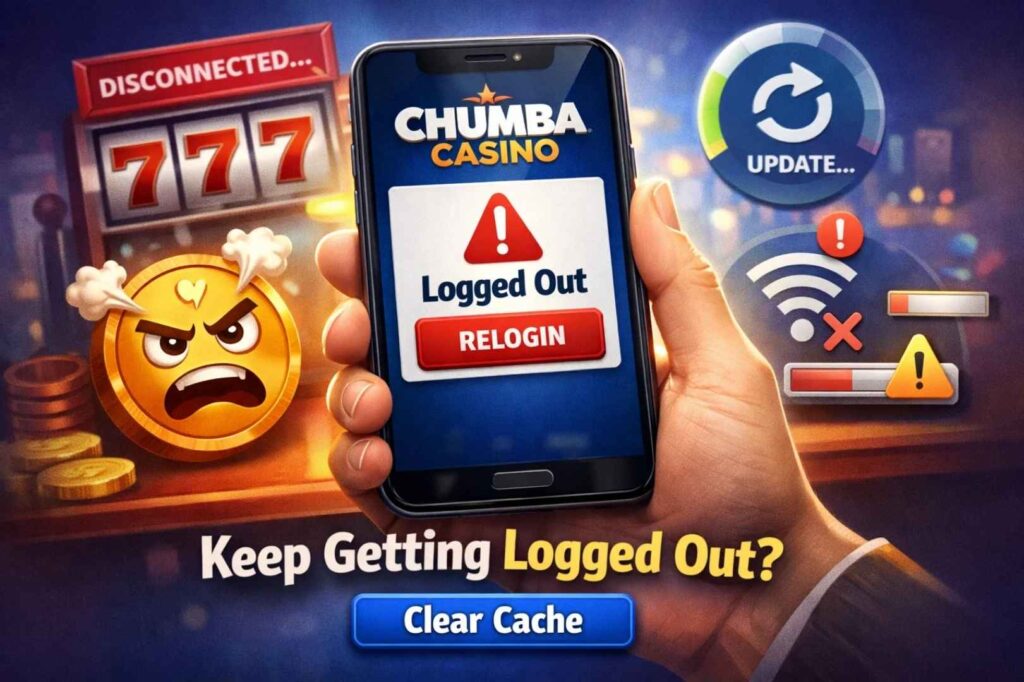
You log into Chumba Casino app, but get logged out after a few minutes or when you close the app. It’s frustrating, especially when you’re trying to play your favorite games. The issue is usually one of five things—and all are fixable.
This guide covers why Chumba Casino keeps logging you out and exactly how to fix it.
Quick Fix: Try This First
Clear the Chumba Casino app cache.
This fixes 70% of Chumba Casino login issues. The app’s cached data gets corrupted, forcing constant logouts.
iPhone: Settings > General > iPhone Storage > Chumba Casino > Offload App > Reinstall Android: Settings > Apps > Chumba Casino > Storage > Clear Cache > (NOT Clear Data)
Try logging in again. If it works, you’re done.
Why Chumba Casino Keeps Logging You Out
1. App Cache is Corrupted
The Chumba Casino app stores temporary files (cache) to speed up loading. When corrupted, the app can’t maintain your login session.
Symptoms: Logged out after a few minutes, logged out when closing app, unable to stay logged in across sessions
Fix: Clear app cache (see Quick Fix above)
2. Outdated Chumba Casino App Version
Older app versions have bugs. Chumba updates the app regularly to fix login issues and security problems.
Symptoms: Frequent logouts that stop after updating
Fix: Update Chumba Casino app from App Store (iPhone) or Google Play (Android)
- iPhone: App Store > Updates > Find Chumba Casino > Update
- Android: Google Play > My apps & games > Updates > Find Chumba Casino > Update
3. Poor Internet Connection
Chumba Casino requires a stable connection to maintain login. Weak WiFi or switching between WiFi and cellular causes disconnections.
Symptoms: Logged out during gameplay, disconnects when moving between rooms
Fix:
- Use WiFi instead of cellular (more stable)
- Move closer to WiFi router
- Restart your router
- Try cellular if WiFi is unstable
- Avoid public WiFi (often unreliable)
4. Device Storage is Almost Full
When your phone’s storage is nearly full, apps can’t function properly. Chumba Casino can’t maintain files needed for login sessions.
Symptoms: Random logouts, app crashes frequently
Fix: Free up phone storage
- iPhone: Settings > General > iPhone Storage > Delete unused apps, photos, videos
- Android: Settings > Storage > Free up space > Delete apps you don’t use
5. Browser Data/App Settings Corrupted
Sometimes the app’s login settings get corrupted. Reinstalling the app clears all corrupted data.
Symptoms: None of the above fixes work, always logged out
Fix: Completely remove and reinstall Chumba Casino app
- iPhone: Find Chumba Casino on home screen > Press and hold > Remove App > Delete App
- Android: Settings > Apps > Chumba Casino > Uninstall
- Then: Reinstall from App Store or Google Play
- Log in fresh
Step-by-Step Troubleshooting for Chumba Casino
Step 1: Update the App (2 minutes)
Make sure you’re running the latest Chumba Casino version.
iPhone:
- Open App Store
- Tap Updates (bottom right)
- Find Chumba Casino
- Tap Update
- Log in and test
Android:
- Open Google Play
- Tap your profile (top right)
- Manage apps & device > Updates
- Find Chumba Casino
- Tap Update
- Log in and test
Step 2: Clear App Cache (3 minutes)
Clear temporary app files without losing your account.
iPhone:
- Settings > General > iPhone Storage
- Find Chumba Casino
- Tap Offload App (NOT Delete App)
- Tap Reinstall App
- Log in
Android:
- Settings > Apps > Chumba Casino
- Storage > Clear Cache
- (Do NOT tap Clear Data – that deletes your account info)
- Go back to app
- Log in
Step 3: Check Internet Connection (2 minutes)
Test your connection quality.
- WiFi: Move closer to router, restart router
- Cellular: Switch to WiFi instead
- Test with other apps to confirm connection is stable
- Try logging in again
Step 4: Check Phone Storage (2 minutes)
Make sure your phone isn’t full.
iPhone: Settings > General > iPhone Storage (look at available space – need at least 1GB free) Android: Settings > Storage (check available space)
If less than 1GB available: Delete unused apps, old photos, or videos to free up space
Step 5: Reinstall the App (5 minutes)
If nothing else works, completely remove and reinstall Chumba Casino.
Important: Reinstalling doesn’t delete your account. Your account is saved in Chumba’s servers. You’ll log in with same username/password.
iPhone:
- Find Chumba Casino app on home screen
- Press and hold > Remove App > Delete App
- App Store > Search Chumba Casino > Download
- Log in with same username/password
Android:
- Settings > Apps > Chumba Casino > Uninstall > Confirm
- Google Play > Search Chumba Casino > Install
- Log in with same username/password
Chumba Casino Specific Issues
“Session Expired” Error Message
Chumba Casino automatically logs you out after 30 minutes of inactivity for security. This is normal—not a bug.
Fix: Just log back in. It’s intentional security feature.
Logged Out When Switching Apps
If you switch away from Chumba Casino and come back, you’re logged out.
Fix: This is normal for many apps. Just log back in. If it’s frequent:
- Clear app cache (Step 2 above)
- Update app (Step 1 above)
Can’t Log In At All
If you can’t log in (not just stay logged in):
- Check Chumba Casino status: Visit Chumba website to verify app isn’t down
- Reset password: Tap “Forgot Password” on login screen
- Check account status: Your account might be temporarily restricted
- Contact Chumba support: If above doesn’t work
Contact Chumba Support:
- In-app: Menu > Contact Us
- Email: Check Chumba’s official website for support email
- Phone: Check Chumba’s official website for support number
Best Practices to Stay Logged In
- Keep app updated – Chumba releases frequent fixes
- Use stable WiFi – Better than cellular for consistency
- Clear cache monthly – Prevents corruption buildup
- Keep phone storage free – Maintain at least 1GB available
- Update iOS/Android – System updates fix compatibility issues
- Restart phone weekly – Clears temporary memory
- Don’t use VPN with Chumba – Can cause login issues (against Chumba terms)
What NOT to Do
- Don’t use VPN – Violates Chumba terms and causes login issues
- Don’t share account – Causes simultaneous login logouts
- Don’t clear app data – Deletes your stored account info
- Don’t use jailbroken/rooted phones – Chumba blocks these
- Don’t reinstall before clearing cache – Unnecessary
Summary
If Chumba Casino app keeps logging you out:
- First: Clear app cache (fixes 70%)
- Second: Update app (fixes 15%)
- Third: Check internet connection and phone storage (fixes 10%)
- Last: Reinstall app (fixes remaining 5%)
Most issues are fixed by step 1. Takes less than 5 minutes total.
If you’ve tried everything and still get logged out: Contact Chumba Casino support. It might be an account-specific issue they need to investigate.
Also read: