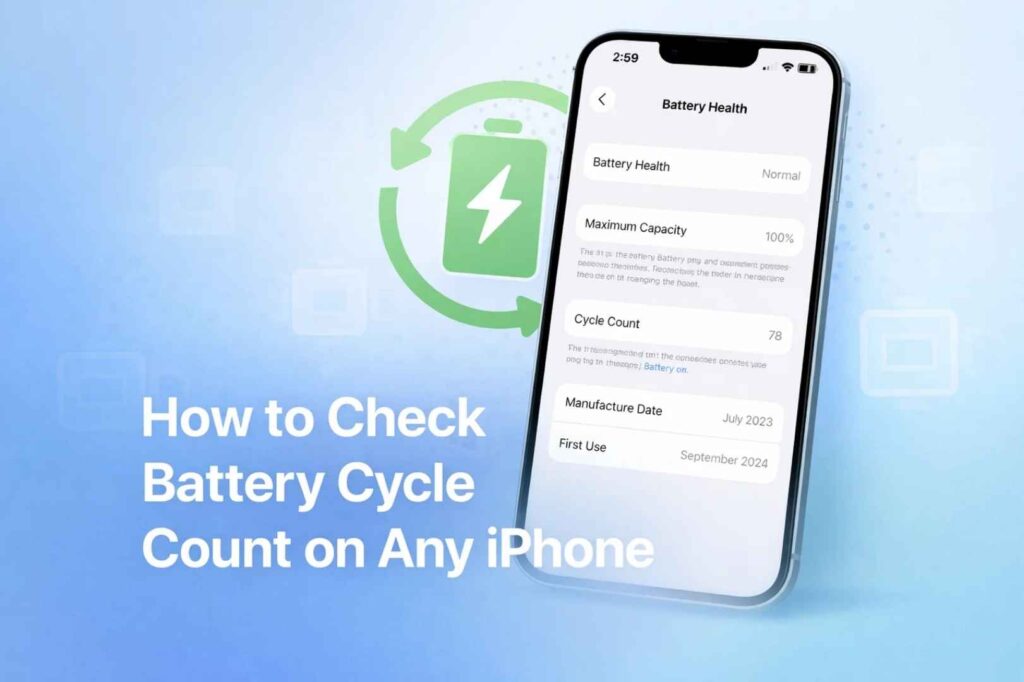
A battery cycle is a way to measure how much you have used your phone’s power. One full cycle is counted every time you use a total of 100% of your battery’s capacity.
You do not have to use all 100% in one day. For example, if you use 50% of your battery today, charge it to full, and use another 50% tomorrow, that counts as one cycle. Your phone tracks these cycles to show the real age of the battery.
How to Check Battery Cycle Count on iPhone 15, 16, 17
If you have a newer iPhone model, checking your cycle count is built directly into the settings. Follow these steps:
- Open the Settings app on your iPhone.
- Scroll down and tap on Battery.
- Select Battery Health & Charging.
- Look for the Cycle Count number at the bottom of the screen.
Note: This feature is currently only available on the iPhone 15, 16, and 17 series.
How to Check Battery Cycle Count on iPhone 14 and Older
For older models, the cycle count is hidden within your phone’s analytics data. Here is the easiest way to find it without using a computer:
Step 1: Enable Analytics
- Go to Settings > Privacy & Security.
- Scroll to the bottom and tap Analytics & Improvements.
- Ensure Share iPhone Analytics is turned ON. (If you just turned this on, you may need to wait 24 hours for the data to appear).
Step 2: Find the Analytics File
- Tap on Analytics Data.
- Scroll down to find the most recent file starting with the name “Analytics-year-month-day”.
- Tap the file to open it.
Step 3: Identify the Cycle Count
- Tap the Share icon (top right) and select Copy.
- Open the Notes app and paste the text.
- Tap the Three Dots in the corner and select Find in Note.
- Type “last_value_CycleCount”.
- The number appearing next to this text is your total battery cycle count.
When Should You Replace Your iPhone Battery?
According to technical standards, a typical iPhone battery is designed to keep up to 80% of its original capacity at 500 complete charge cycles (or 1,000 cycles for the iPhone 15/16 series).
- 0 to 500 Cycles: Your battery is in good health.
- 500 to 800 Cycles: You may notice shorter battery life.
- Over 1,000 Cycles: It is likely time for a professional battery replacement.
Also read:
- How to Block Spam Texts on iPhone & iPad [2026 Guide]
- iOS 27 Rumors: What’s Coming to Your iPhone in 2026
- iPhone Satellite Messaging Can Hold Messages While Offline, Here’s How It Works
- iPhone Not Making Calls? Here’s Why & The Complete Fix Guide
- MacBook Neo: Complete Guide, Specs & Should You Buy? (2026)