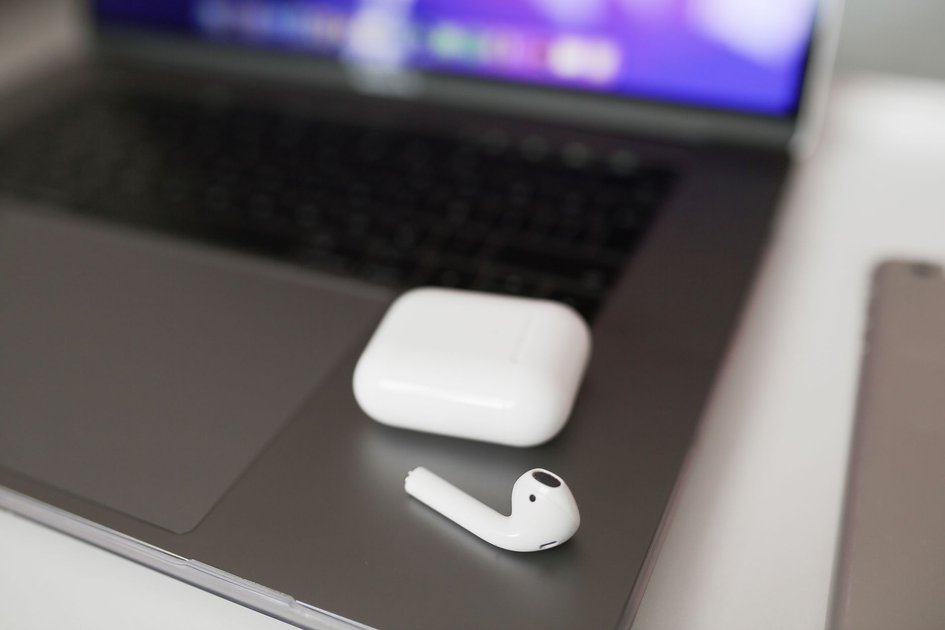
AirPods connect to Chromebooks just like any other Bluetooth headphones. There is no special Apple software needed and the process takes under a minute. The main limitation is that some Siri and AirPods-specific features will not work outside the Apple ecosystem, but audio playback and the microphone work fine.
How to Pair AirPods with a Chromebook
- Put your AirPods in their case and open the lid.
- Press and hold the small button on the back of the AirPods case until the status light flashes white. This puts them into pairing mode.
- On your Chromebook, click the time in the bottom right to open Quick Settings.
- Click the Bluetooth icon.
- Toggle Bluetooth on if it is not already on.
- Click Pair new device.
- Your AirPods should appear in the list (usually listed as ‘AirPods’ or ‘AirPods Pro’).
- Click them to connect. A confirmation will appear when paired.
Reconnecting AirPods After Initial Pairing
Once paired, your AirPods remember the Chromebook. To reconnect next time:
- Take the AirPods out of the case.
- Click the time in the bottom right and open Bluetooth settings.
- Click your AirPods from the list of paired devices.
AirPods do not automatically connect to a Chromebook the way they do with Apple devices – you need to manually select them each time, or click the connected icon in Quick Settings to switch.
Audio Quality: What Works and What Does Not
Works on Chromebook:
- Stereo audio playback at good quality.
- Microphone input for voice calls and Google Meet.
- Play/pause by double-tapping (AirPods 2) or press on the stem (AirPods Pro).
Does not work on Chromebook:
- Automatic ear detection (music does not pause when you remove one AirPod).
- Siri via AirPods.
- Transparency mode and Active Noise Cancellation switching (AirPods Pro).
- Spatial Audio.
- Battery level displayed in the system tray.
Fixing Audio Quality Issues
If audio sounds low quality (the Chromebook may have switched to the headset Bluetooth profile for mic use instead of the stereo A2DP profile):
- Click the time in the Quick Settings.
- Click the speaker/audio icon.
- Check which audio output is selected and switch between available AirPods profiles if multiple appear.
Disconnecting AirPods from Chromebook
Open Quick Settings, click Bluetooth, and click your AirPods. Select Disconnect. To remove them entirely, click the gear icon next to the device name and select Remove from list.
Frequently Asked Questions
Do AirPods Pro work with Chromebook?
Yes. AirPods Pro pair and work the same way as regular AirPods. ANC and Transparency mode switching will not function, but audio and microphone work correctly.
Why do my AirPods keep disconnecting from my Chromebook?
This is usually a Bluetooth interference issue. Try moving closer to the Chromebook, or go to Bluetooth settings and remove other nearby Bluetooth devices that might be competing for the AirPods connection.

Trust Post Desk
A journalist and editor at TrustPost.org covering world and national news, technology updates and human-interest stories. They check every fact, interview sources in person or online, and aim to deliver clear, accurate reporting. Their work ranges from breaking news to in-depth features and daily newsletters. Outside the newsroom, they follow emerging trends and engage with readers on social media.


