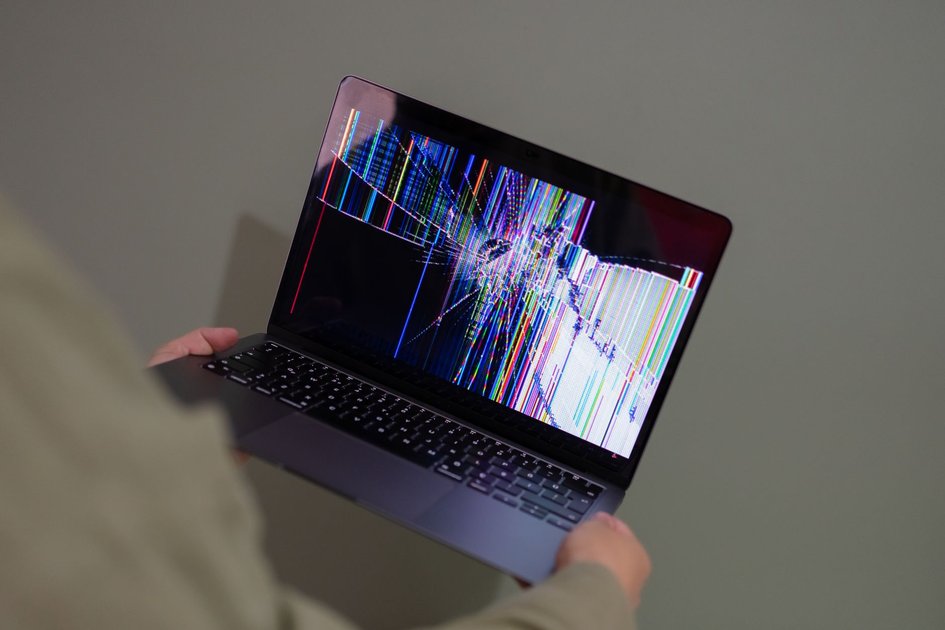
A glitching, flickering, or distorted Chromebook screen is almost always caused by a software issue, a driver conflict with a recently installed extension, or a hardware connection problem. Working through these fixes in order resolves the problem in the vast majority of cases without needing a repair.
Step 1: Restart the Chromebook
Press and hold the Power button for 3 seconds and select Restart (not Shut down). A full restart clears temporary display driver states that cause flickering. If the screen is frozen, hold Power for 10 seconds to force shutdown, then power back on.
Step 2: Perform a Hard Reset (EC Reset)
A hardware reset refreshes the embedded controller which manages the display:
- Turn off the Chromebook completely.
- Hold the Refresh key (F3) and press the Power button.
- Release the Refresh key when the Chromebook begins to boot.
On convertible Chromebooks, remove the power cable, hold the Power button for 10 seconds, then plug back in and power on.
Step 3: Disable Hardware Acceleration
Glitching is often caused by GPU hardware acceleration conflicting with the display driver:
- Open Chrome and go to chrome://settings.
- Search for hardware acceleration.
- Toggle off Use hardware acceleration when available.
- Click Relaunch.
Step 4: Check for Problematic Extensions
Some browser extensions interfere with Chrome OS’s display rendering:
- Open Chrome in a new Incognito window (Ctrl + Shift + N). Extensions are disabled in Incognito by default.
- If the screen stops glitching in Incognito, an extension is the cause.
- Go to chrome://extensions and disable extensions one at a time to identify the culprit.
Step 5: Update Chrome OS
- Open Settings.
- Click About ChromeOS at the bottom of the left sidebar.
- Click Check for updates and install any available update.
- Restart after updating.
Display glitches caused by software bugs are frequently fixed in Chrome OS updates.
Step 6: Check the Display Connection (for Convertible Models)
On convertible Chromebooks, repeatedly folding the display into tablet mode can loosen the internal display cable over time. Try holding the screen at different angles while looking for the glitch pattern. If the flickering appears or disappears at a specific angle, the display cable may be partially disconnected and requires a hardware repair.
Step 7: Test on an External Monitor
Connect the Chromebook to an external monitor or TV using HDMI or USB-C. If the external display shows correctly with no glitching, the problem is isolated to the Chromebook’s built-in display – a hardware issue. If the external display also glitches, the problem is with the GPU or Chrome OS software.
Step 8: Powerwash as Last Resort
If all software fixes fail, a Powerwash (factory reset) eliminates any corrupted system files causing the display issue. Go to Settings, search Powerwash, and follow the prompts. Back up local files to Google Drive first.
Frequently Asked Questions
Why does my Chromebook screen flicker only when on battery?
Some Chromebooks reduce display refresh rate or enable aggressive power saving when on battery. Check Settings under Device, then Displays, and look for any power saving display options to disable.
Is a glitching screen always a hardware problem?
No. The majority of screen glitching issues on Chromebooks are software-related and fixable without repairs. Hardware issues (loose cable, dead pixels) are less common and tend to produce consistent patterns rather than intermittent glitches.

Trust Post Desk
A journalist and editor at TrustPost.org covering world and national news, technology updates and human-interest stories. They check every fact, interview sources in person or online, and aim to deliver clear, accurate reporting. Their work ranges from breaking news to in-depth features and daily newsletters. Outside the newsroom, they follow emerging trends and engage with readers on social media.


