
Few phone messages are as annoying as the dreaded storage full warning, which always seems to appear the moment you try to take a photo or install an app. When your phone runs out of space, it stops backing up photos, refuses updates, and can even slow down noticeably. Fortunately, you can usually reclaim gigabytes of space in minutes without deleting anything you truly care about.
This guide covers exactly what fills up your phone and the most effective ways to free up space on both iPhone and Android. The steps move from the quick wins that recover the most space fastest to the deeper cleanup that keeps your phone running lean over the long term. Follow along and that storage warning should disappear well before you finish.
What Actually Fills Up Your Phone Storage

Before deleting anything, it helps to know where your space actually goes, and both iPhone and Android include a storage breakdown in settings that shows exactly what is using room. For the vast majority of people the answer is the same: photos and videos are by far the biggest consumers, followed closely by apps and the data they cache over time.
Messaging apps are sneaky offenders, quietly saving every photo, video, and voice note you receive into your storage. System files, downloads, and offline content like music and podcasts round out the list. Checking your storage breakdown first tells you where to focus, so you spend your effort clearing the categories that will actually free up meaningful space.
Back Up and Clear Out Photos and Videos

Since photos and videos usually dominate your storage, they are where you will reclaim the most space. The smartest approach is to back them up to a cloud photo service first, then remove the local copies from your phone. This keeps every memory safe and accessible while freeing enormous amounts of space, and most services can do this automatically once enabled.
Videos deserve special attention because a few minutes of high-resolution footage can consume more space than hundreds of photos. Deleting old screenshots, duplicate shots, and long videos you no longer need makes a fast, dramatic difference. Just remember to actually empty the recently deleted album afterward, since photos linger there for weeks and keep occupying space until you clear it. Building a reliable backup habit, as explained in our guide on how to back up your data, means you can delete local copies with confidence.
Offload or Delete Apps You Never Use

Apps and their accumulated data take up more room than most people realize, especially games and social media apps that cache large amounts of content. Reviewing your app list and removing the ones you have not opened in months is a quick way to recover several gigabytes, and it declutters your home screen as a welcome bonus.
On iPhone, an offload feature removes an app while keeping its documents and data, so you can reinstall it later exactly where you left off. Android lets you clear an app cache or its data to reclaim space without fully uninstalling. For the apps you genuinely do not use, a full delete is the cleanest option, and you can always reinstall them free from the app store if you need them again.
Clear Cached Data and Message Attachments

Cached data is the temporary content apps store to load faster, and while useful, it can balloon to several gigabytes over time, particularly for browsers, social apps, and streaming services. Clearing an app cache is safe and simply forces the app to rebuild it as needed, so this is an easy way to recover space without losing anything important.
Messaging apps deserve a close look because they automatically save every image, video, and voice message you receive, and these pile up fast in busy group chats. Most messaging apps have a storage management section that shows which conversations use the most space and lets you delete large attachments in bulk. Clearing these out often frees more room than users expect.
Manage Downloads, Music, and Offline Content

Content you download for offline use is easy to forget but can quietly consume a large share of your storage. Offline music playlists, downloaded podcasts, movies saved for a flight, and map areas cached for travel all sit on your phone until you remove them. Reviewing and deleting offline content you have already enjoyed is a painless way to reclaim space.
Your downloads folder is another overlooked space hog, collecting PDFs, images, and files you saved once and never revisited. Take a few minutes to clear out old downloads and streaming content you no longer need. Setting your streaming apps to store fewer offline downloads, or to remove them automatically after you watch, prevents this clutter from rebuilding.
Move Files to a Computer or SD Card
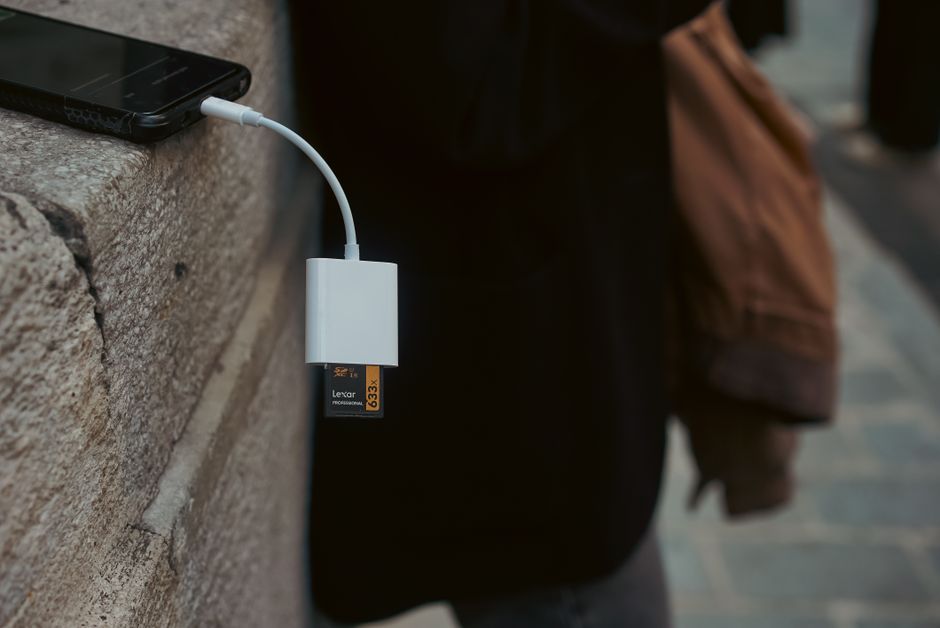
If you regularly run low on space, moving files off your phone entirely is a durable solution rather than a temporary fix. Connecting your phone to a computer lets you transfer photos, videos, and documents to a hard drive, freeing large amounts of space while keeping everything safe. This is especially useful for the big video files and photo libraries that fill phones fastest.
Many Android phones also support a microSD card, which expands your storage cheaply and lets you move photos, media, and even some apps off the internal storage. iPhones do not support expandable storage, so cloud services and computer transfers are the main options there. Whichever route fits your device, offloading files to another location keeps your phone lean without forcing you to delete memories you want to keep.
Turn On Automatic Storage Optimization
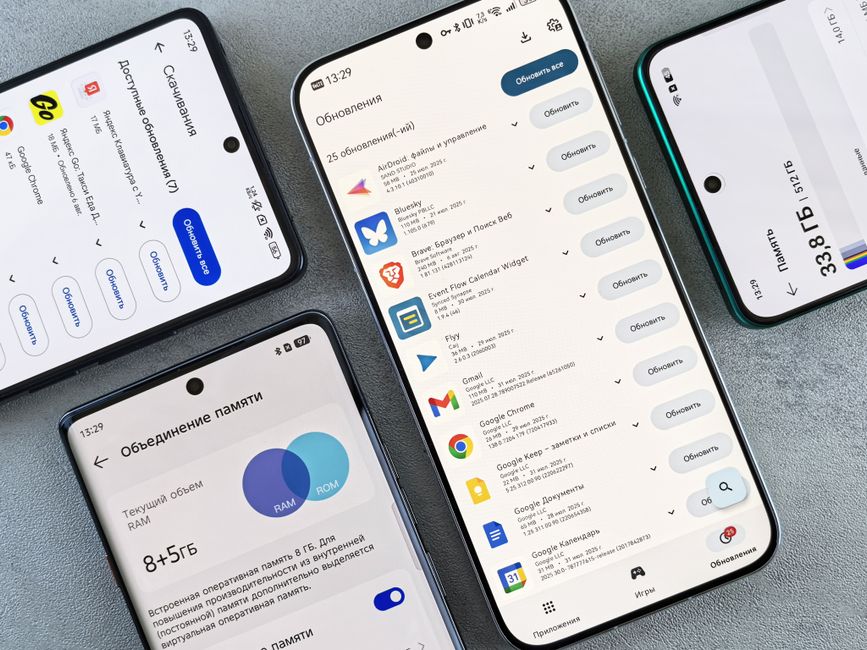
Both major phone platforms include built-in tools that manage storage for you automatically, so you do not have to repeat this cleanup constantly. iPhone offers recommendations that can automatically offload unused apps and optimize photo storage, while Android provides a storage manager and smart storage features that remove backed-up photos and clear junk on a schedule.
Enabling these features is the closest thing to a set-and-forget solution for phone storage. They quietly keep your available space healthy in the background, heading off that storage full warning before it appears. Combined with cloud photo backup, automatic optimization means you rarely have to think about storage again, which is exactly the goal.
It is worth revisiting these settings after a major software update, since new features and larger system files can change how much space your phone needs. A quick check every few months ensures your automatic tools are still enabled and working as intended. Pairing them with the occasional manual cleanup of message attachments and downloads keeps even a smaller phone comfortably ahead of its storage limits for years.
When Your Phone Slows Down or Acts Strangely

Sometimes storage problems come alongside other symptoms like unexpected slowdowns, rapid battery drain, or apps you do not remember installing. While a full storage can cause a phone to slow down, these particular signs can occasionally point to something more serious, such as malicious software running in the background and consuming resources.
If freeing up space does not restore normal performance, or you notice suspicious behavior, it is worth investigating further. Our guide on the signs your phone has been hacked walks through what to look for, and keeping your habits secure by following our advice on how to protect your privacy online helps prevent these problems in the first place.
Frequently Asked Questions
What takes up the most storage on a phone?
Photos and videos are almost always the biggest consumers of phone storage, followed by apps and their cached data. Messaging apps also quietly save every image and video you receive. Checking your storage breakdown in settings shows exactly where your space is going.
Does deleting photos from my phone delete them from the cloud?
It depends on your settings. If your photos are synced with a cloud service, deleting them on your phone may also remove them from the cloud. To free space safely, back up your photos first, then remove the local copies using your phone storage tools.
Is it safe to clear an app cache?
Yes. Clearing an app cache only removes temporary files the app can rebuild automatically. You will not lose your account, settings, or important data. It is one of the safest and quickest ways to free up storage space on your phone.
Why is my phone still full after deleting photos?
Deleted photos usually move to a recently deleted album that keeps them for around 30 days, still using space until you empty it. Clearing that album, along with app caches and message attachments, reclaims the space you expected to free.
Related Articles
How to Back Up Your Data: A Complete Guide

Trust Post Desk
A journalist and editor at TrustPost.org covering world and national news, technology updates and human-interest stories. They check every fact, interview sources in person or online, and aim to deliver clear, accurate reporting. Their work ranges from breaking news to in-depth features and daily newsletters. Outside the newsroom, they follow emerging trends and engage with readers on social media.