A computer that used to boot in seconds but now takes minutes to respond is one of the most common and frustrating tech problems people face. The good news is that a slow computer is rarely a sign that you need to buy a new one. In most cases, a handful of simple maintenance steps can restore much of the speed you remember, whether you are on a Windows PC or a Mac.
This guide walks through the real reasons computers slow down over time and the proven fixes that make the biggest difference, ordered roughly from easiest to most involved. You do not need to be a technician to follow along, and most of these steps take only a few minutes. Work through them in order and you will likely notice a meaningful improvement well before you reach the end.
Why Computers Slow Down Over Time

Computers slow down for reasons that build up gradually, which is why the decline often feels sudden once it crosses a threshold. Every program you install, browser tab you open, and file you save consumes memory and storage, and over months these small demands accumulate until your hardware struggles to keep up. Background apps that launch at startup are among the biggest culprits, quietly eating resources before you open anything yourself.
Storage that fills up is another major factor, because both Windows and macOS need free space to manage memory and temporary files efficiently. Add aging hardware, outdated software, and the occasional malware infection, and the result is a machine that feels sluggish. The fixes below target each of these causes directly, so you can address whichever ones are dragging your system down.
Restart and Close Background Programs

The simplest fix is also one of the most effective: restart your computer. Many people leave their machines running or asleep for weeks, which lets memory leaks, stuck processes, and pending updates pile up. A full restart clears active memory and closes lingering background processes, often delivering an instant speed boost with zero effort.
Beyond restarting, look at what is running while you work. On Windows you can open Task Manager, and on Mac the Activity Monitor, to see which programs are consuming the most memory and processor power. Closing the heavy applications you are not actively using frees resources for the tasks you actually care about, and quitting a runaway browser with dozens of open tabs alone can transform a crawling machine.
Free Up Storage and Delete Junk Files
When your drive is nearly full, your entire system slows down because it has no room to breathe. Aim to keep at least ten to fifteen percent of your storage free. Start by emptying the recycle bin or trash, clearing your downloads folder, and deleting large files you no longer need, such as old videos and forgotten installers.
Both operating systems include built-in cleanup tools that safely remove temporary files, cached data, and system junk that serve no ongoing purpose. Windows offers Storage Sense and Disk Cleanup, while macOS has storage management recommendations under system settings. Running these tools regularly, and moving large media libraries to an external drive or the cloud, keeps your machine responsive. This is also a good moment to make sure your important files are protected, as covered in our guide on how to back up your data.
Disable Startup Programs You Do Not Need
One of the biggest reasons a computer feels slow from the moment it turns on is the number of programs set to launch automatically at startup. Many apps quietly add themselves to this list when you install them, so over time your machine loads a small army of background programs every time it boots. Each one delays startup and consumes memory for the rest of your session.
You can trim this list easily. On Windows, the Startup tab in Task Manager shows every program that launches at boot along with its impact rating, and on Mac you manage login items in system settings. Disable anything you do not need running the instant you log in, such as chat apps, updaters, and media tools. Your computer will boot faster and have more resources free for real work.
Scan for Malware and Unwanted Software

A sudden, dramatic slowdown can be a sign of malware working in the background, using your processor and network without your knowledge. Malicious software, adware, and browser hijackers are notorious for degrading performance while creating security risks. If your computer became slow seemingly overnight, a malware scan should be near the top of your checklist.
Run a full scan with reputable security software and remove anything it flags, then review your installed programs and browser extensions for anything you do not recognize. To understand what you are up against and how to stay protected, see our explainer on what malware is and how to protect yourself, and if you are weighing your options, our guide on whether you need antivirus software can help you decide.
Update Your Operating System and Drivers
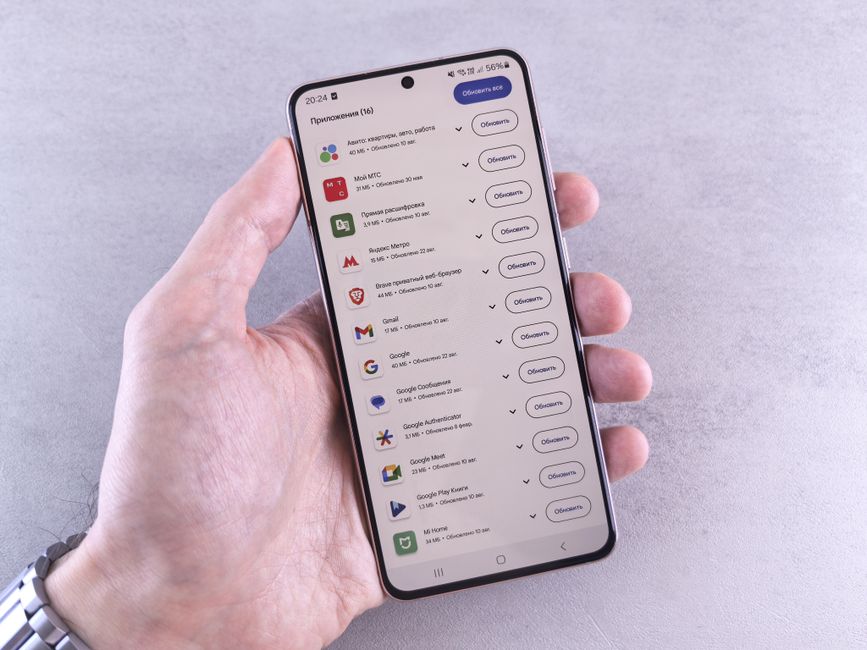
Running outdated software can quietly hurt performance and stability. Operating system updates frequently include performance improvements, bug fixes, and security patches, and outdated device drivers can cause slowdowns, freezes, and compatibility problems. Keeping everything current is one of the easiest ways to ensure your machine runs as smoothly as its hardware allows.
Check for and install operating system updates, and on Windows make sure your graphics and other key drivers are up to date. According to Microsoft support, keeping Windows and drivers updated is a core step for maintaining performance. Enabling automatic updates means these fixes arrive without you having to remember to check.
Upgrade to an SSD or Add More Memory
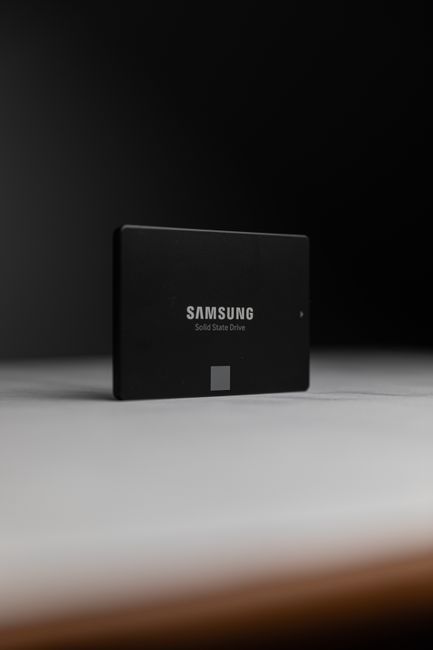
If your computer is still slow after the software fixes above, the bottleneck may be aging hardware, and two upgrades deliver the biggest gains for the least money. Replacing an old mechanical hard drive with a solid state drive, or SSD, is the single most transformative upgrade for an older machine, often making boot times and program launches feel several times faster.
Adding more memory, known as RAM, is the other high-impact upgrade, especially if you frequently work with many browser tabs or demanding applications open at once. More RAM lets your computer handle heavier workloads without slowing to a crawl. On many desktops and some laptops, both upgrades are affordable and straightforward, extending the useful life of a machine by years and postponing the cost of a full replacement.
Adjust Visual Effects and Power Settings
Modern operating systems ship with animations, transparency effects, and visual flourishes that look polished but consume resources, especially on older or lower-powered machines. Dialing these back can noticeably improve responsiveness. On Windows, the performance options let you disable animations or switch to a setting adjusted for best performance, while macOS offers options to reduce motion and transparency in its accessibility settings.
Power settings matter too, particularly on laptops. A battery-saver or power-saving mode deliberately limits performance to extend battery life, which can make a machine feel sluggish when you actually need speed. Switching to a balanced or high-performance power plan while plugged in ensures your computer uses its full capability for demanding tasks instead of throttling itself to save energy.
Keep Your Browser Lean and Fast

For most people, the web browser is where the computer feels slowest, because modern websites and dozens of open tabs consume enormous amounts of memory. If your machine bogs down mainly while browsing, the browser itself is often the real problem rather than the computer as a whole. A few habits keep it fast.
Close tabs you are not using, remove extensions you do not need, and clear your cache periodically to prevent bloat from building up. Keeping your browser updated ensures you have the latest performance and security improvements. Being mindful of the extensions and sites you allow also protects you, a topic we cover in our guide on how to protect your privacy online.
Frequently Asked Questions
Why is my computer suddenly so slow?
A sudden slowdown is often caused by too many background programs, a nearly full hard drive, a pending restart, or malware running unnoticed. Restarting, closing heavy apps, freeing up storage, and running a malware scan resolve most sudden slowdowns quickly.
Does adding more RAM make a computer faster?
Adding RAM helps most if you run many programs or browser tabs at once and your system runs out of memory. It lets your computer handle heavier workloads smoothly, though it will not help if storage or an aging hard drive is the real bottleneck.
Is upgrading to an SSD worth it?
Yes. Replacing an old mechanical hard drive with a solid state drive is usually the single most effective upgrade for an older computer, dramatically speeding up boot times, program launches, and overall responsiveness for a relatively low cost.
Can malware slow down my computer?
Absolutely. Malware, adware, and browser hijackers can run in the background using your processor and network, causing noticeable slowdowns. If your computer became slow suddenly, running a full malware scan is an important troubleshooting step.
Related Articles
What Is Malware? Types and How to Protect Yourself

Trust Post Desk
A journalist and editor at TrustPost.org covering world and national news, technology updates and human-interest stories. They check every fact, interview sources in person or online, and aim to deliver clear, accurate reporting. Their work ranges from breaking news to in-depth features and daily newsletters. Outside the newsroom, they follow emerging trends and engage with readers on social media.