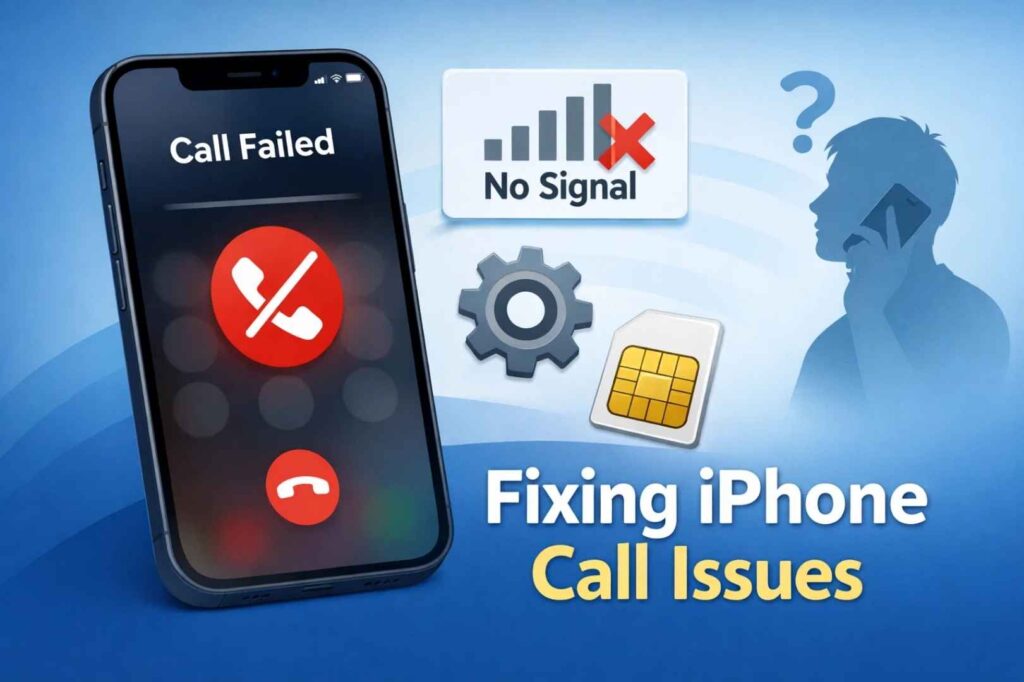
Your iPhone suddenly stopped making phone calls. You tap a contact, hit the green call button, and nothing happens. Or maybe you see “Call Failed” or “Cellular Network Not Available.” Either way, you’re stuck—you can text and use data, but calls won’t go through.
The good news: this usually isn’t your iPhone’s hardware that’s broken. It’s almost always a software issue, a network setting, or a carrier problem. And we can fix it.
I’m going to walk you through exactly what causes this problem, why it happens, and most importantly, how to fix it. We’ll start with the simplest fixes and work our way up to more advanced troubleshooting.
Quick Answer
If your iPhone won’t make calls but will text: Check that Airplane Mode is OFF, restart your iPhone, toggle Airplane Mode on and off, verify Do Not Disturb is disabled, check for blocked contacts, update your carrier settings, and reset network settings if needed. If calls still fail, contact your carrier to verify your account has voice service enabled and your SIM card is properly activated.
Why iPhone Won’t Make Calls (But Will Text)
Before we fix it, let’s understand what’s happening. Your iPhone won’t make calls but CAN text, use data, and do everything else. This tells us something specific about the problem.
The Technical Reason
Voice calls on iPhone require a completely different network connection than text messages or data. When you send a text, your iPhone uses the data network. When you use Safari or Instagram, same thing—data network. But voice calls? Those go through your carrier’s circuit-switched voice network, which is technically separate from the data network.
This is why you can text perfectly fine but can’t make calls. The problem is isolated to the voice calling system, not your overall network connection.
Common Causes
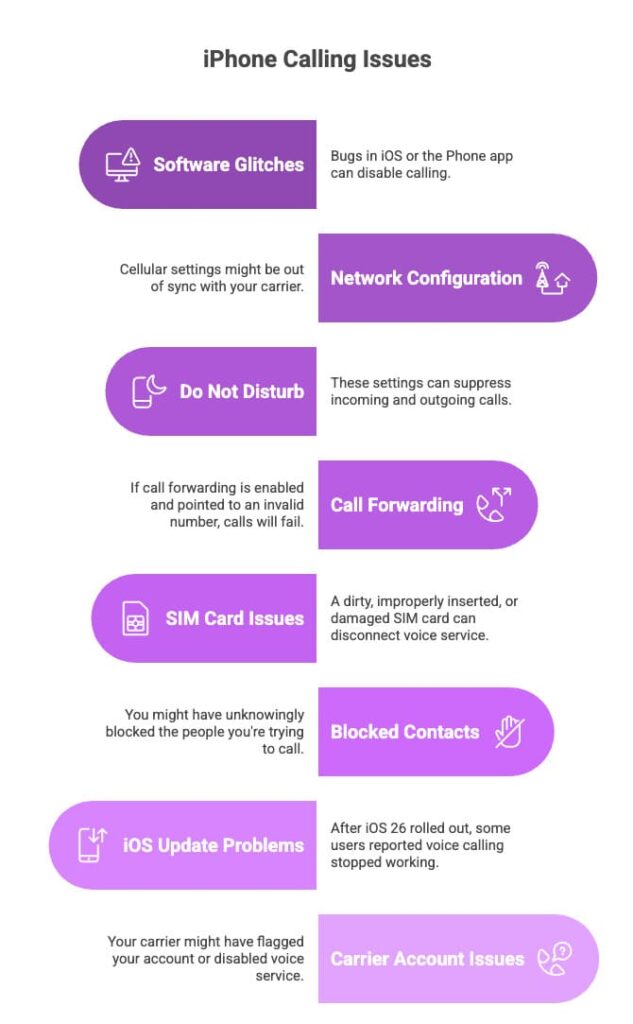
- Software Glitches: A bug in iOS or the Phone app itself can disable calling while leaving everything else working. This is especially common after a major iOS update (like the recent iOS 26 rollout).
- Network Configuration: Your iPhone’s cellular settings might be out of sync with your carrier’s network. This happens when carrier settings aren’t updated or when network configuration gets corrupted.
- Do Not Disturb or Focus Mode: These settings can suppress incoming and outgoing calls while still allowing texts. Many people forget they enabled this.
- Call Forwarding Enabled: If call forwarding is turned on and pointed to an invalid number, your calls will fail.
- SIM Card Issues: A dirty, improperly inserted, or damaged SIM card can disconnect voice service while leaving data service working.
- Blocked Contacts: You might have unknowingly blocked the people you’re trying to call (or blocked everyone).
- iOS Update Problems: After iOS 26 rolled out in February 2026, some users reported voice calling stopped working until they reset network settings.
- Carrier Account Issues: Your carrier might have flagged your account, your voice service might be disabled, or there might be a billing problem.
Quick Fixes (Try These First)
These are the fastest possible solutions. Most people’s problems are solved by one of these steps.
Fix #1: Toggle Airplane Mode
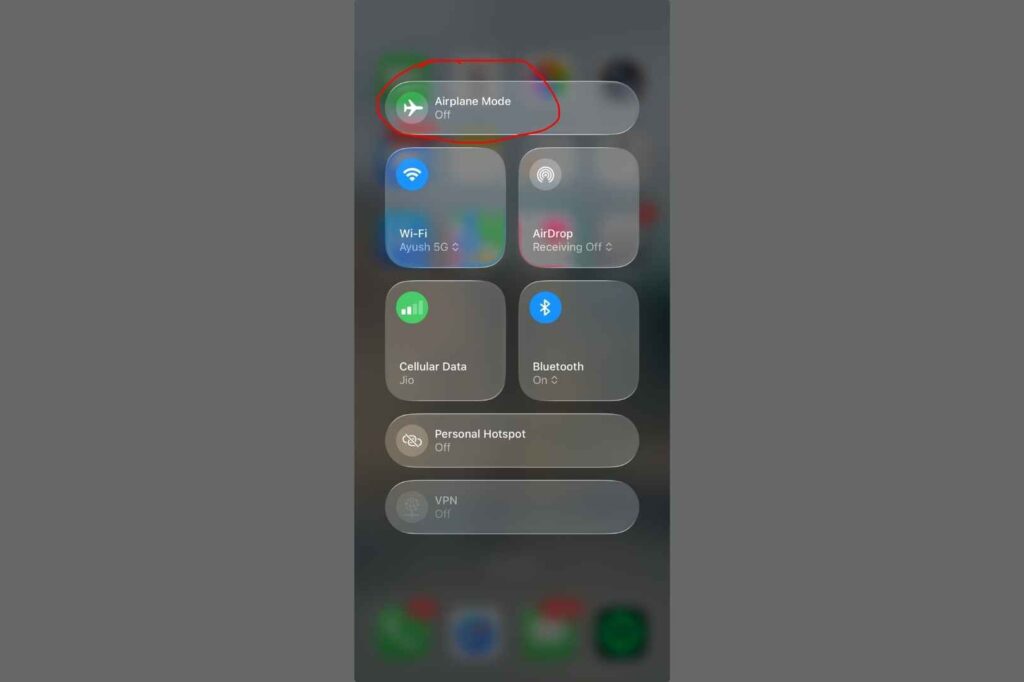
This is the basic option for network issues—it forces your iPhone to completely disconnect and reconnect to the network.
Here’s how:
- Swipe down from the top right corner of your iPhone (or up from the bottom on older models) to open Control Center
- Tap the airplane icon to turn Airplane Mode ON
- Wait 10 seconds
- Tap the airplane icon again to turn Airplane Mode OFF
- Wait for your signal bars to return (usually 5-10 seconds)
- Try making a call
This fixes minor network glitches that prevent calling. It’s so simple that most people forget to try it, but it works about 30% of the time for this specific problem.
Fix #2: Restart Your iPhone
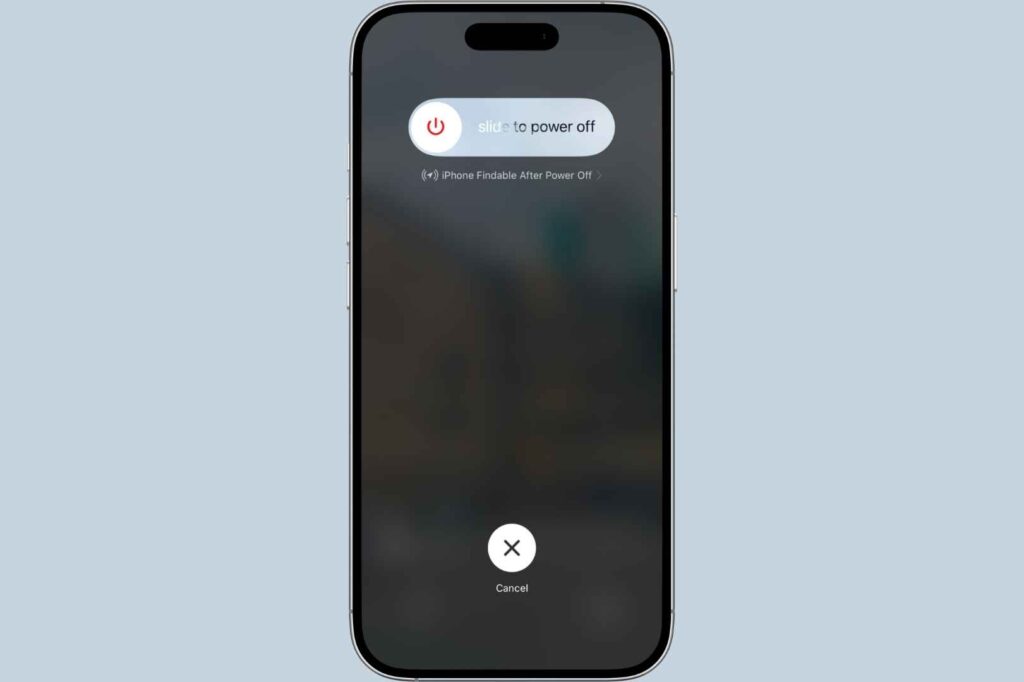
A restart clears temporary software glitches. It sounds too simple, but it works.
For iPhone X and later:
- Press and hold the Volume Up button and the Side button simultaneously
- Keep holding until “slide to power off” appears
- Drag the power slider from left to right
- Wait 30 seconds
- Press and hold the Side button until you see the Apple logo
- Release and wait for your iPhone to boot up completely (this takes about 60 seconds)
- Try making a call
For iPhone 8 and earlier:
- Press and hold the Top (or Side) button
- Drag the slider to power off
- Wait 30 seconds
- Press and hold the Top button to power back on
- Wait for the Apple logo to appear and boot to complete
- Try making a call
Fix #3: Check Do Not Disturb & Focus Modes
Do Not Disturb and Focus modes can block calls while allowing texts. If you enabled this and forgot about it, that’s your problem.
Here’s how to check:
- Go to Settings > Focus
- Look at the list of Focus modes (Do Not Disturb, Sleep, Work, Custom, etc.)
- If any show as “enabled” (they’ll have a blue background), tap it
- Tap “Turn Off” to disable it
- Try making a call
If you see a moon icon in your status bar at the top, that means Do Not Disturb is active. Same fix—go to Settings > Focus > Do Not Disturb > Turn Off.
Fix #4: Check For Blocked Contacts
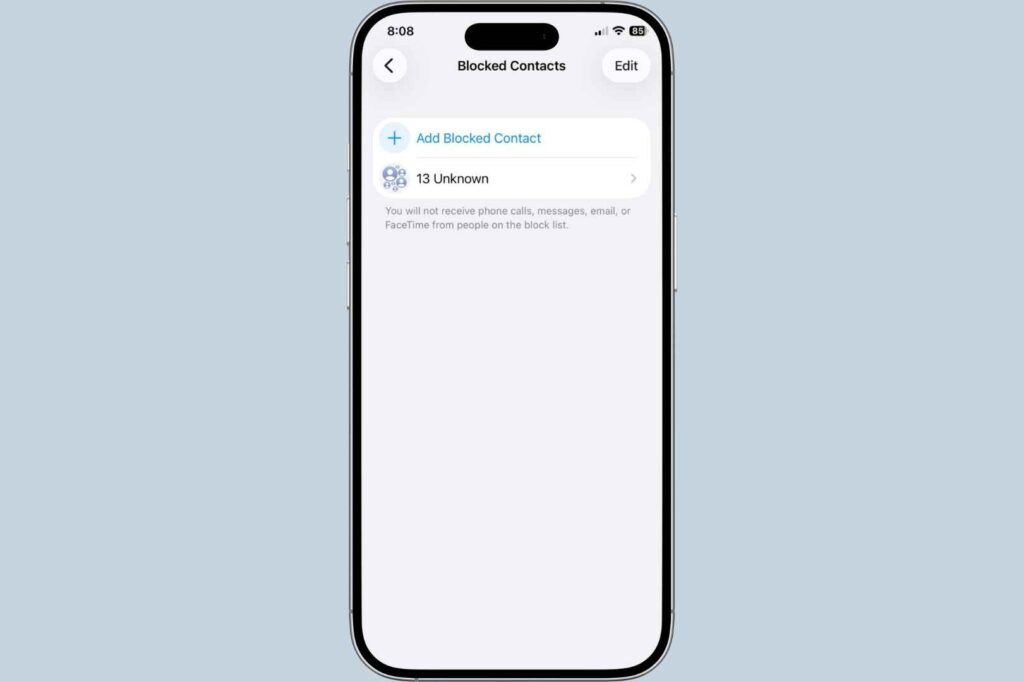
You might have accidentally blocked the person you’re trying to call. Or in some cases, you’ve blocked all unknown callers. Here’s how to check:
To view blocked contacts:
- Go to Settings > Phone > Blocked Contacts
- If you see contacts listed here, those people cannot call or text you
- To unblock someone, swipe left on their name and tap “Unblock”
To check Silence Unknown Callers:
- Go to Settings > Phone
- Look for “Silence Unknown Callers”
- If it’s turned ON, only people in your Contacts or Recents can reach you
- If you need to receive calls from unknown numbers, turn it OFF
Detailed Troubleshooting Steps
If the quick fixes didn’t work, let’s try more comprehensive solutions. Do these in order.
Step 1: Check Your Cellular Signal
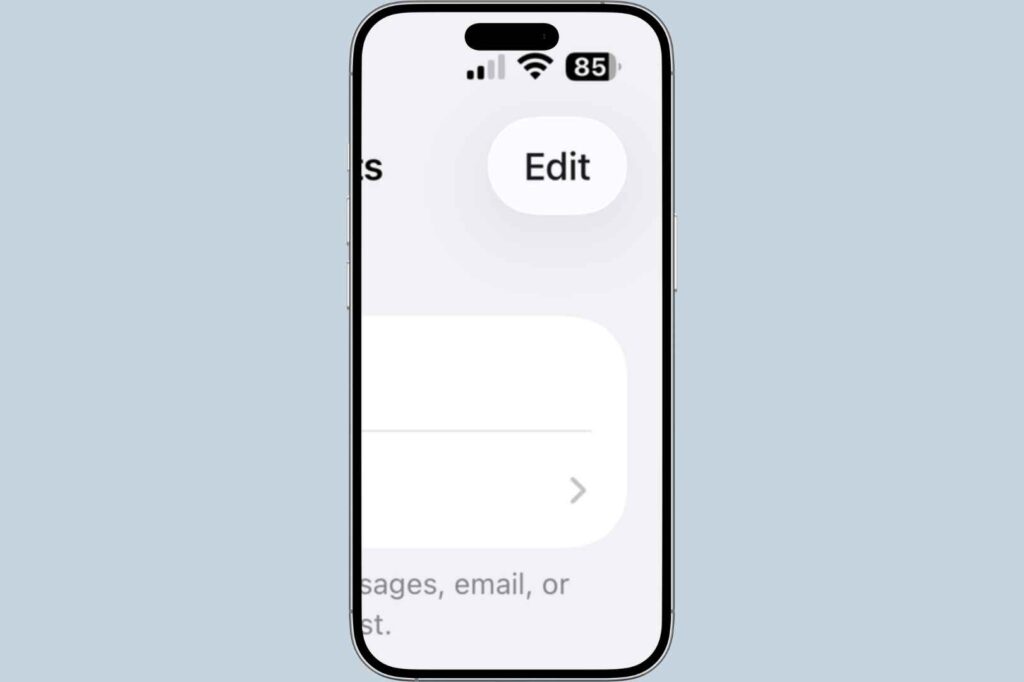
Voice calls require a stronger, more stable signal than texts or data. If your signal is weak, calling won’t work.
Look at the signal bars in the top left of your iPhone:
- Full bars (4-5 bars): Signal is strong, not the problem
- 2-3 bars: Signal is okay, might be part of the problem
- 1 bar or “No Service”: This is definitely the problem
If you have weak signal:
- Move to a different location (away from buildings, elevators, or concrete structures)
- Try going outside or to a window
- Move away from other electronics that might interfere
- Try again in a few minutes (sometimes it’s just temporary network congestion)
If you still can’t make calls with decent signal, continue to the next step.
Step 2: Check For A Carrier Settings Update
Your carrier frequently updates network settings. If you’re running old carrier settings, you might not be able to connect to newer voice networks (like VoLTE towers).
To check for carrier updates:
- Go to Settings > General > About
- You might see a popup that says “Carrier Settings Update” with an Update button
- If you see this popup, tap Update
- Your iPhone will restart, and the update will install
- After restart, try making a call
If you don’t see a popup, you’re already on the latest carrier settings.
Step 3: Check For An iOS Update
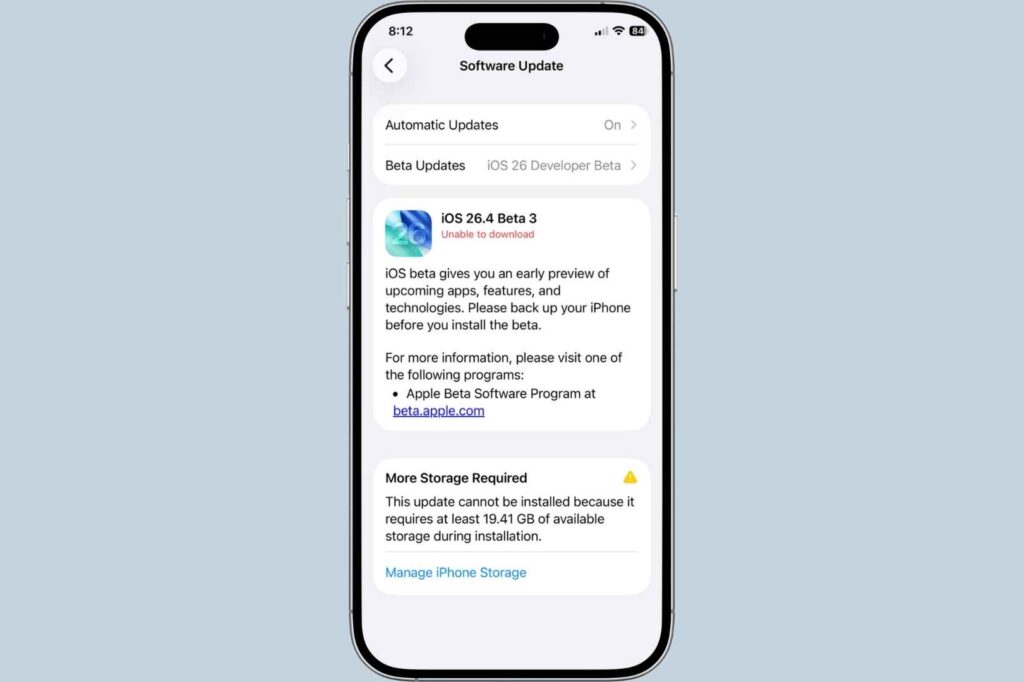
Bugs in iOS can definitely cause calling issues. The most recent one happened when iOS 26 first rolled out in February 2026—many users suddenly couldn’t make calls until they updated.
To check for iOS updates:
- Go to Settings > General > Software Update
- If an update is available, you’ll see “Download and Install”
- Tap it (you’ll need WiFi or cellular data, and a decent battery level)
- Follow the on-screen instructions (your iPhone will restart during the update)
- After the update completes and your iPhone restarts, try making a call
Step 4: Reset Network Settings
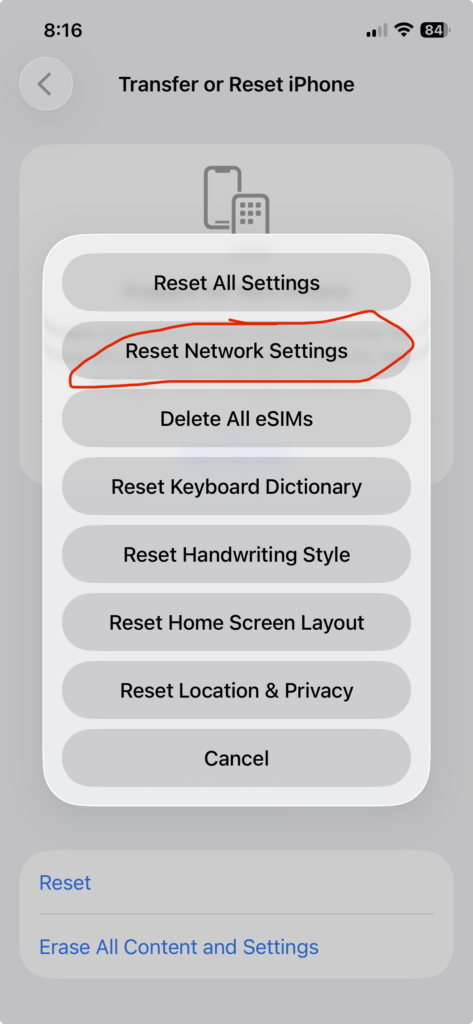
This is where we actually fix the problem for most people. Resetting network settings erases all your network configuration and restores it to factory defaults. This clears corrupted settings that prevent calling.
WARNING: This will erase:
- All saved WiFi passwords (you’ll have to re-enter them)
- VPN settings (you’ll need to reconfigure any VPNs)
- Cellular settings
- Bluetooth pairings (though Bluetooth will still work, you’ll need to re-pair devices)
It will NOT erase:
- Your photos, videos, or personal data
- Your contacts, messages, or apps
- Anything you care about
Here’s how to do it:
- Go to Settings > General
- Scroll down and tap “Transfer or Reset iPhone”
- Tap “Reset”
- Tap “Reset Network Settings”
- Enter your passcode to confirm
- Tap “Reset Network Settings” again
- Your iPhone will restart
- After restarting, wait 30 seconds for it to fully reconnect to networks
- Try making a call
This fixes the problem about 70% of the time for people who’ve tried everything else.
Step 5: Check Your SIM Card
Your SIM card is what connects you to your carrier’s network. If it’s dirty, improperly inserted, or damaged, voice service stops working.
To check your SIM card:
- Find the SIM card tray (it’s on the side of your iPhone, usually marked with a tiny hole)
- Use the SIM eject tool (came in your iPhone box) or a paperclip to gently push the hole
- The tray will pop out
- Remove the SIM card
- Look at it—is there any visible dirt, damage, or corrosion on the chip?
- If it looks dirty, gently wipe it with a soft, lint-free cloth
- Reinsert it into the tray (don’t force it—it should slide in smoothly)
- Push the tray back into the iPhone until it clicks
- Wait 30 seconds, then try making a call
If the SIM card looks damaged, you’ll need to contact your carrier for a replacement.
Step 6: Update Your Carrier Settings Manually
Sometimes carrier settings don’t update automatically. You can force an update.
To manually update carrier settings:
- Plug your iPhone into a computer with iTunes installed
- Open iTunes
- Select your iPhone from the menu
- Click “Check for Update”
- If a carrier settings update is available, you’ll see a prompt
- Click “Update”
- After the update installs, unplug your iPhone
- Try making a call
Advanced Solutions
If you’ve tried everything above and calls still won’t work, try these more advanced steps.
Erase Your iPhone & Restore From Backup
This is more drastic, but it clears any corrupted system files that might be preventing calls.
Before you do this:
- Plug your iPhone into a computer
- Open iTunes (or Finder on Mac)
- Click “Back Up Now”
- Wait for the backup to complete
Then:
- In iTunes/Finder, click “Restore iPhone”
- Follow the on-screen instructions
- When asked, choose “Restore from Backup”
- Choose your most recent backup
- Let it restore (this takes 15-30 minutes)
- After your iPhone restarts and completes the restore, try making a call
This fixes corrupted iOS installations that prevent calling. However, it’s time-consuming, so only do this if nothing else worked.
Try WiFi Calling
If you have WiFi and calls won’t work on cellular, try WiFi Calling as a temporary workaround.
To enable WiFi Calling:
- Go to Settings > Phone
- Tap “WiFi Calling”
- Turn it ON
- Try making a call
WiFi Calling won’t fix the underlying problem, but it lets you make calls while you figure out what’s wrong.
When to Contact Your Carrier
If you’ve done everything above and calls still won’t work, the problem is with your carrier account, not your iPhone.
Contact your carrier when:
- You’ve tried all troubleshooting steps above
- Calls fail on multiple phones (borrow someone else’s phone and try calling from it, using YOUR SIM card)
- You see “Cellular Network Not Available” even with full signal bars
What to tell them:
- “I can text and use data, but can’t make voice calls”
- “I’ve tried restarting, resetting network settings, and checking my settings”
- “I get [specific error message] when I try to call”
What they might do:
- Verify your account has voice service enabled
- Check for account blocks or holds
- Replace your SIM card
- Update your account provisioning
- Check for network outages in your area
Many carriers now require you to visit a physical store if there’s an account issue, so be prepared for that.
Frequently Asked Questions
Q: Why can I text but not make calls?
A: Voice calls use a different network connection (circuit-switched voice) than texts (data network). The problem is isolated to the voice calling system. This is almost always a software or network settings issue, not a hardware problem.
Q: Will resetting network settings delete my data?
A: No. Resetting network settings only clears network configuration (WiFi passwords, VPN settings, etc.). Your photos, videos, messages, contacts, and apps are completely safe.
Q: How long does it take for network settings to reset?
A: The reset itself takes about 30 seconds. After your iPhone restarts, wait another 30 seconds for it to fully reconnect to networks before trying to make a call.
Q: What if I’m in an area with no signal?
A: You can’t make calls without at least 2-3 bars of signal. Move to a location with better signal (go outside, move away from buildings, try a different room). Then try again.
Q: Can a virus or malware prevent calls?
A: iPhones don’t get viruses like Android phones do. It’s not malware. This is 100% a software glitch, network setting issue, or carrier account problem.
Q: Why did this start after an iOS update?
A: iOS updates sometimes change network settings or have bugs that affect calling. This is why checking for iOS and carrier updates is one of the first steps.
Q: My SIM card tray won’t open. What do I do?
A: Don’t force it. If it’s stuck, contact Apple Support or visit an Apple Store. Forcing it might damage your iPhone.
Q: If I reset network settings, do I lose my WiFi passwords?
A: Yes. You’ll need to re-enter any WiFi passwords you’ve saved. Write them down first if you don’t remember them.
Q: Will enabling WiFi Calling fix the problem?
A: No. WiFi Calling is a workaround, not a fix. It lets you make calls over WiFi while the underlying cellular calling issue remains. But it does solve the immediate problem of not being able to make calls.
Q: How do I know if my carrier’s network is having an outage?
A: Check your carrier’s website or app, call their customer service from another phone, or ask if friends using the same carrier are experiencing problems. If multiple people in your area can’t make calls, it’s an outage and you have to wait.
Q: What if only calls to one person fail?
A: You might have that contact blocked, or there might be an issue with that specific number. Try calling a different contact. If only that one person’s calls fail but everyone else works, unblock them in your Blocked Contacts list.
Q: Can I fix this without resetting my iPhone?
A: Yes. About 70% of people fix it without resetting by doing: toggle Airplane Mode, restart, check Do Not Disturb, check blocked contacts, update carrier settings, and reset network settings. Most don’t need to go further.
Q: What’s the difference between “Call Failed” and “No Service”?
A: “Call Failed” means you had service but the call didn’t go through (usually a software issue). “No Service” means your iPhone isn’t detecting any signal at all (move to a location with better signal).
Q: Why do I need to contact Apple if I’ve already tried everything?
A: If troubleshooting doesn’t work, it might be a hardware issue with your iPhone’s cellular modem, which Apple Support can diagnose or fix under warranty.
Q: Can I use Siri to make calls if regular calling isn’t working?
A: Usually no. Siri uses the same calling system. If regular calls don’t work, Siri calls won’t work either.
Q: What if I can make calls but can’t receive them?
A: That’s a different problem, usually caused by Do Not Disturb, call forwarding, or Silence Unknown Callers. Check Settings > Focus > Do Not Disturb and Settings > Phone > Call Forwarding.
The Fix That Works Most Often
If I had to guess which single step would fix your problem, I’d say reset network settings. It fixes about 70% of cases where iPhone won’t make calls but will text.
Do this:
- Go to Settings > General > Transfer or Reset iPhone > Reset > Reset Network Settings
- Enter your passcode
- Confirm by tapping Reset Network Settings again
- Wait for your iPhone to restart
- Wait 30 seconds after restarting
- Try making a call
If that doesn’t work, go through the troubleshooting steps in order. One of them will fix it.
Prevention: How To Avoid This Problem
- Keep iOS updated: Always install iOS updates when they’re available. Updates fix bugs that cause calling issues.
- Update carrier settings regularly: Check Settings > General > About occasionally to see if carrier updates are available.
- Restart your iPhone weekly: A weekly restart prevents glitches from accumulating.
- Keep your SIM card clean: If you remove your SIM (for traveling, etc.), wipe it clean before reinserting.
- Don’t disable critical settings: Avoid turning off features like Voice & Video Calling under Settings > Phone unless you have a specific reason.
Summary
Your iPhone not making calls is almost always fixable without expensive repairs. Start with the quick fixes (toggle Airplane Mode, restart, check Do Not Disturb), then move to more detailed troubleshooting if needed. If nothing works, reset your network settings—that fixes 70% of cases. Only contact your carrier or Apple after you’ve tried everything in this guide.
Also read: