We have all been there. You send a message to a friend or family member, and then you stare at the screen. First there is one check mark, then two, and depending on your settings, they might turn blue.
But what is actually happening? Did they get it? Are they ignoring you? Or is their internet just off?
It can be confusing, but don’t worry. WhatsApp uses a simple “traffic light” system to tell you exactly where your message is. Here is the plain English guide to understanding those little ticks.
The 3 Types of Check Marks
Think of sending a message like sending a letter. There are three steps it has to go through.
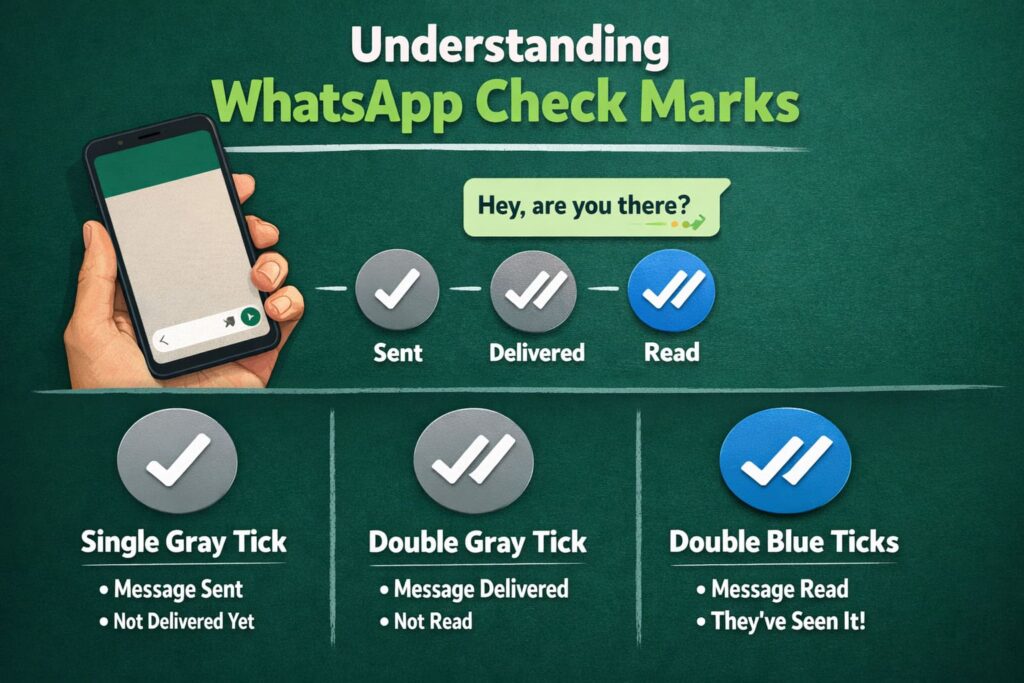
1. The Single Gray Tick (✓)
What it means: It has left your phone. This means your message has successfully flown from your phone to WhatsApp’s storage. You have done your part.
- If it gets stuck here: It usually means the other person is offline. Maybe their phone is dead, they are on a plane, or they have no signal.
2. The Double Gray Tick (✓✓)
What it means: It has arrived at their phone. The message has landed on their device. Their phone has “buzzed” or shown a notification.
- Does this mean they read it? No. It just means it’s sitting on their screen, waiting for them. They might be busy, or they haven’t unlocked their phone yet.
3. The Double Blue Tick (✓✓)
What it means: They saw it! The ticks turn blue when the person actually opens your chat.
- The “Blue Microphone”: If you send a voice note, the microphone icon will turn blue only when they actually press play to listen to it.
“Wait, why don’t I see any Blue Ticks?”
Sometimes, you know your friend has replied to you, but you never saw the blue ticks on your previous message. Is the app broken?
Probably not. It’s likely because of “Read Receipts.”
WhatsApp lets people choose if they want to share this info. It’s a privacy setting.
- How it works: If you turn off your “Read Receipts” (so people can’t see when you read their messages), you typically lose the ability to see when they read yours. It’s a fair trade—you can’t have it one way.
How to Turn Off Read Receipts on WhatsApp On iOS and Android
If you don’t want people to know when you read their messages, WhatsApp gives you a simple switch for that.
Here’s how to turn read receipts off or on.
- Open WhatsApp
- Tap Settings
- Go to Privacy
- Tap Read Receipts
- Turn the toggle off to hide blue ticks
- Turn it on to show them again
Once this is off, people will only see double gray ticks, even if you open their message.
How to Check the Exact Time
Did you know you can check exactly when someone read your message? This is great if you are waiting for an urgent reply.
- Open the chat.
- Press and hold the message you sent.
- Tap Info (sometimes it looks like a little “i” in a circle).
This will show you a simple list:
- Delivered: What time it hit their phone.
- Read: What time they actually looked at it.
A Few Things to Remember
- Group Chats: In a group, the ticks won’t turn blue until everyone in the group has seen the message. So if one person is offline, it stays gray for everyone.
- Blocked: If you see only one gray tick for a long time (days or weeks) and you never see their profile photo change, sadly, this is usually often a sign that you have been blocked.
Final Thoughts
At the end of the day, try not to stress too much about the ticks! Sometimes people open a message but are too busy to reply right that second. The double gray tick is usually good enough—it means your message is safe and sound on their phone.
Read more:
- WhatsApp Web Guide 2026: How to Use Without Phone, Keyboard Shortcuts & Dark Mode
- WhatsApp Introduces New Feature to Strict Account Settings to Boost User Security
- How to Block Someone on TikTok (Step-by-Step Guide)
- How to Delete Lemon8 Account: Step-by-Step Guide
- How to Delete Your Facebook Account: A Step-by-Step Guide
- How to Delete Your Instagram Account: A Step-by-Step Guide
- How to Write a WhatsApp Unban Request Message (5 Templates That Work)