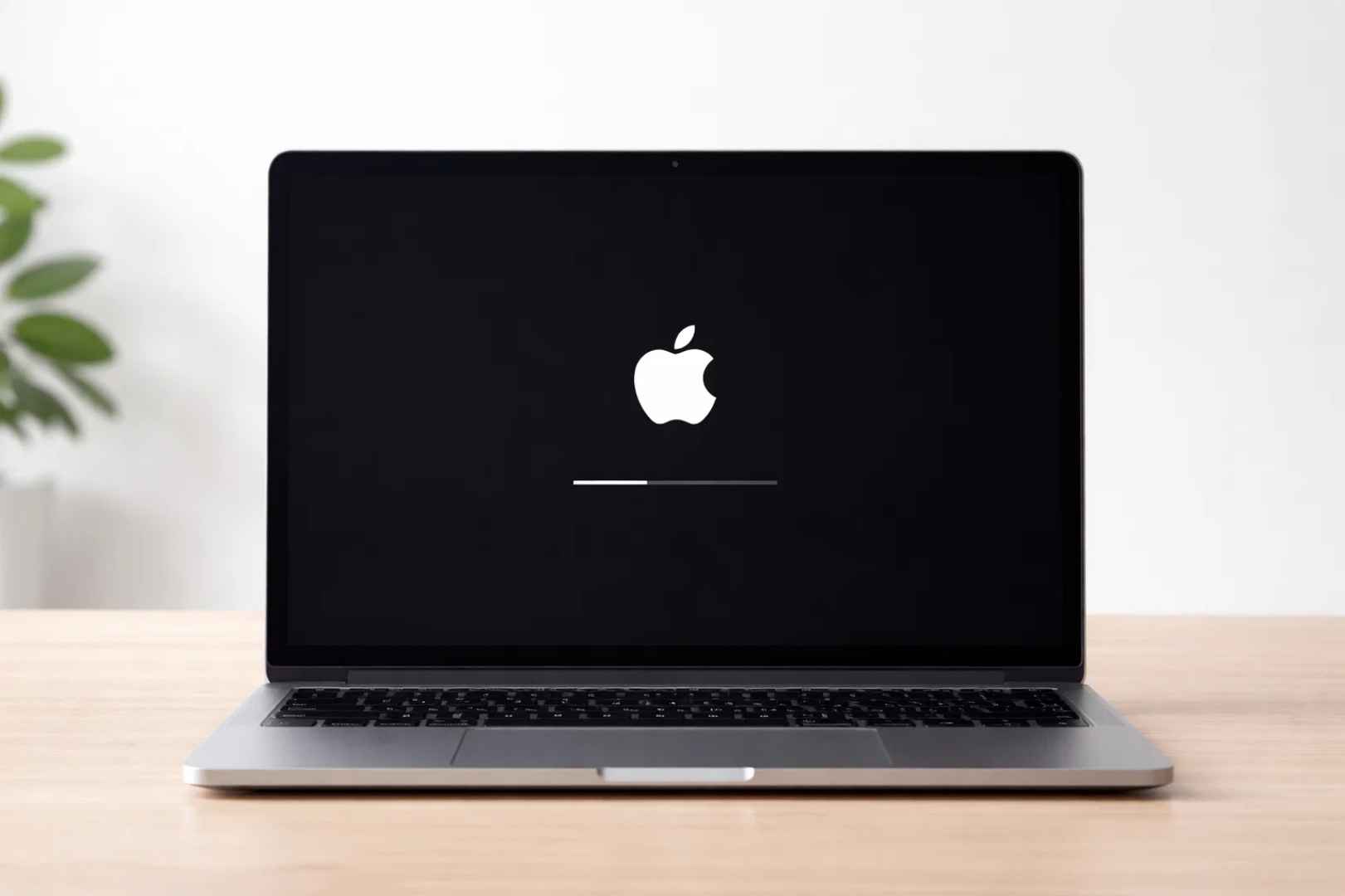
A Mac taking 10 to 15 minutes to start is a serious performance issue. It disrupts workflow and raises concerns about hardware failure. In most cases, though, the root cause is not hardware damage but system-level buildup.
A real example shared on Apple Support Community highlights this clearly. The issue developed over time and was linked to multiple small factors rather than a single fault.
This matters for one reason. If the cause is buildup, the problem is fixable.
What Normal Mac Startup Looks Like
A healthy Mac typically boots within a few seconds to under a minute, depending on the model and storage type. Systems using SSD storage tend to start faster, often reaching the desktop in under 30 seconds.
A delay becomes a concern when startup consistently takes several minutes. Occasional slow boots can happen after updates or system changes. That is normal.
A pattern of long delays every time you start the system points to an underlying issue that needs attention.
Core Reasons Behind Slow Boot
Storage Running Low
macOS relies on available disk space to manage system operations. When storage is nearly full, the system struggles to create temporary files and load essential components during startup. This leads to longer boot times and overall sluggish performance.
Too Many Startup Apps
Applications set to launch at login increase the workload during startup. Each app consumes system resources as the Mac boots. Over time, this list grows, often without the user realizing it, leading to noticeable delays.
Third-Party System Tools
Many users install antivirus software, cleaning tools, or optimization apps expecting better performance. Systems built by Apple Inc. already include integrated security and performance management.
Additional tools can conflict with these built-in processes, adding extra load during startup and slowing the system down.
User Profile Issues
Performance problems can be tied to a specific user account. Over time, a profile may accumulate unnecessary login items, corrupted settings, and leftover application data. These issues affect startup speed without impacting the entire system.
Disk Errors and System-Level Issues
File system errors and minor disk corruption can slow down how data is accessed during boot. When the system takes longer to read essential files, startup time increases.
How to Diagnose the Problem
Safe Mode Check
Starting the Mac in Safe Mode loads only essential system components. If the system boots faster in this mode, it indicates that third-party apps or extensions are contributing to the slowdown.
Test with New User Account
Creating a new user account helps determine whether the issue is system-wide or limited to a specific profile. Faster startup in a new account suggests that the original user environment is the source of the problem.
Basic System Check
Running Disk Utility or similar system tools helps identify disk errors or irregularities. These checks provide insight into underlying issues affecting startup performance.
Practical Fixes That Work
Free Up Storage
Clearing unnecessary files, removing unused applications, and moving large data to external storage can significantly improve startup speed. Maintaining free space allows the system to operate efficiently.
Reduce Startup Items
Review login items and remove applications that are not essential. Reducing the number of apps that launch at startup decreases system load and shortens boot time.
Remove Problematic Software
Uninstall third-party system tools that interfere with macOS processes. Keeping the system closer to its default configuration helps avoid conflicts and improves performance.
Repair Disk Errors
Use Disk Utility to run a repair check on the disk. Fixing file system errors improves data access speed and supports faster startup.
Clean or Reset User Profile (if needed)
If the issue is limited to one user account, cleaning up the profile or creating a new one can resolve the problem. This removes corrupted settings and unnecessary background processes.
Prevention Strategy (Keep It Fast Long-Term)
Maintaining consistent performance requires basic system discipline. Keeping sufficient free storage, limiting startup applications, and avoiding unnecessary system tools helps prevent slowdowns.
Periodic cleanup and careful app management keep the system stable over time. Small habits make a noticeable difference in long-term performance.
Conclusion
A Mac that takes 10 to 15 minutes to boot is not functioning as expected, but it is rarely beyond repair. The issue usually comes from gradual buildup rather than hardware failure.
Addressing storage, startup processes, and software conflicts restores normal performance. With regular maintenance, the system remains fast and reliable without the need for immediate upgrades.
Also read:

Trust Post Desk
A journalist and editor at TrustPost.org covering world and national news, technology updates and human-interest stories. They check every fact, interview sources in person or online, and aim to deliver clear, accurate reporting. Their work ranges from breaking news to in-depth features and daily newsletters. Outside the newsroom, they follow emerging trends and engage with readers on social media.