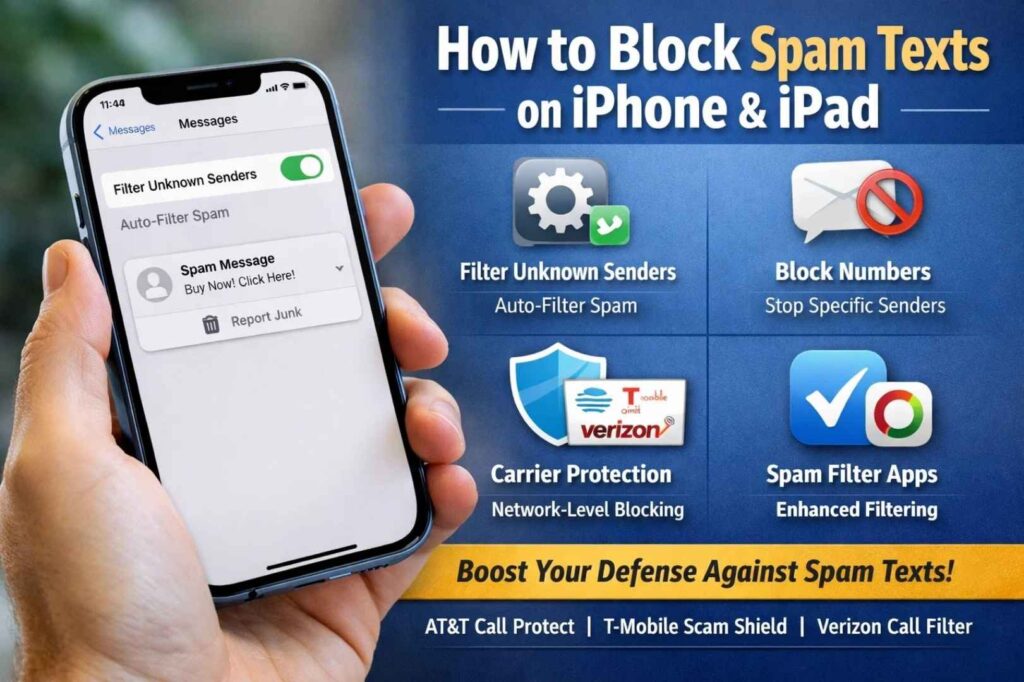
Quick Answer: To block spam texts on iPhone or iPad, go to Settings > Apps > Messages, turn on Filter Unknown Senders, and manually block numbers by opening a text, tapping the sender’s name, and selecting Block this Caller. For carrier-level protection, use AT&T Call Protect, T-Mobile Scam Shield, or Verizon Call Filter.
Quick Methods to Block Spam Texts
| Method | Steps | Best For | Effectiveness |
|---|---|---|---|
| Filter Unknown Senders | Settings > Messages > Filter Unknown Senders > ON | Automatic spam handling | 70-80% |
| Block Individual Numbers | Messages app > Tap sender > Block this Caller | Repeat offenders | 100% for that number |
| Report as Junk | Messages app > Swipe left > Report Spam | Helping others | Building databases |
| Carrier Filtering | Download carrier app | Network-level blocking | 85-90% |
| Third-Party Apps | App Store > SMS Filter | Enhanced protection | 90-95% |
Built-in iPhone Features to Stop Spam Texts
What Makes iPhone Spam Filtering Effective
Apple’s native spam filtering system works automatically on iPhone and iPad running iOS 18 and later. These tools don’t require jailbreaking or complicated setup, and they respect your privacy by keeping your messages encrypted.
1. Filter Unknown Senders (Automatic Spam Management)
The simplest way to reduce spam text notifications is enabling the “Filter Unknown Senders” feature. This separates messages from numbers not in your contacts into a separate folder.
Step-by-Step Instructions:
- Open the Settings app on your iPhone or iPad
- Scroll down and tap Apps (or find Messages in the list)
- Select Messages
- Tap Unknown & Spam or Message Filtering
- Toggle ON the “Filter Unknown Senders” switch
- Confirm that SMS Filter is checked
What This Does:
- Moves texts from unknown numbers to a separate section
- Prevents notifications from these messages
- Keeps your main inbox clean
- Doesn’t block the messages—they still arrive, just filtered
Pro Tip: Time-sensitive messages (two-factor authentication codes, bank alerts, delivery notifications) will still come through to your main inbox. You won’t miss critical texts.
2. Screen Time-Based Message Filtering
For added control, use Screen Time settings to allow messages only from contacts:
- Go to Settings > Screen Time
- Tap Content & Privacy Restrictions
- Enable restrictions
- Go to Allowed Apps and customize who can contact you
- Choose Contacts Only for Messages
Important Note: This is more restrictive and may cause you to miss legitimate texts from businesses (doctors, shipping notifications, etc.).
How to Block Specific Phone Numbers
If spam keeps coming from the same number, blocking is the most effective solution.
Method 1: Block Directly from Messages App
Steps:
- Open the Messages app
- Find the conversation with the spam sender
- Tap the sender’s name or phone number at the top of the conversation
- Tap the Profile Icon or Info button
- Scroll down and tap Block this Caller
- Confirm by tapping Block Contact
What Happens When You Block Someone:
- They cannot send you text messages
- Calls to your iPhone go straight to voicemail
- FaceTime calls are blocked
- They won’t be notified that they’re blocked
- Blocked conversations disappear from your Messages list (but can be recovered)
Method 2: Block from Phone App
For numbers you haven’t texted yet:
- Open the Phone app
- Go to Recents
- Find the spam number and tap the Info icon (i)
- Scroll down and tap Block this Caller
- Confirm by selecting Block Contact
Method 3: Manage Blocked Contacts in Settings
To view or unblock numbers:
- Go to Settings
- Tap Apps > Messages (or Phone)
- Scroll to Blocked Contacts
- Swipe left on a number to Unblock it
- Or tap Edit and tap the minus (-) icon to remove
Note: Unblocking a contact makes them a known sender, so their messages will return to your main inbox.
Complete Guide to Filter Unknown Senders
“Filter Unknown Senders” is Apple’s most powerful built-in spam defense. Here’s everything you need to know:
How It Works
When enabled, this feature uses on-device machine learning to identify messages from unknown numbers and automatically routes them to a separate section. Messages from people in your Contacts app always appear in your main inbox, no matter what.
Step-by-Step Setup
iOS 26 and Later:
- Open Settings
- Tap Apps > Messages
- Tap Unknown & Spam
- Toggle Screen Unknown Senders to ON
- Toggle Time Sensitive to ON (to get verification codes)
- Toggle Filter Spam to ON
Earlier iOS Versions:
- Open Settings
- Tap Messages
- Scroll to Message Filtering
- Toggle Filter Unknown Senders to ON
Where Do Filtered Messages Go?
After filtering is enabled, open Messages and look for new tabs:
- Unknown Senders – Messages from numbers not in your Contacts
- Promotions – Marketing messages and sales offers
- Transactions – Receipts, shipping updates, package tracking
- Finance – Bank statements, account notifications
- Orders – Online shopping confirmations
- Reminders – Calendar invitations, appointment notifications
- Junk – Spam and phishing attempts
You can tap any category to view those messages.
Viewing Filtered Messages You Might Have Missed
If you’re worried a legitimate message was filtered:
- Open Messages
- Tap the Filter icon (looks like lines) in the top right corner
- Tap Unknown Senders or specific category
- Look for the legitimate sender
- Tap their message, then select Mark as Known to add them to your contacts
This prevents their future messages from being filtered.
How to Report Spam Text Messages
Reporting spam helps Apple and your carrier build databases to protect you and others. Here’s how:
Report Directly in Messages App
For Unopened Messages:
- In the Messages list, swipe left on the spam text
- Tap the Trash icon
- Tap Delete & Report Spam
For Opened Messages:
- Open the message
- Tap Report Junk at the bottom
- Confirm Delete and Report Junk
Report via SMS to 7726 (SPAM)
This method works with all U.S. carriers:
- Copy the entire spam message
- Create a new text message
- Address it to 7726 (SPAM)
- Paste the copied message
- Send (this is free)
How It Works:
- The message goes to your wireless provider’s spam defense team
- AT&T, Verizon, T-Mobile, and others analyze patterns
- If multiple reports match, the number gets blocked carrier-wide
Report to the FTC (Federal Trade Commission)
For serious scams or fraud attempts:
- Visit ReportFraud.ftc.gov
- Select the type of fraud (text message scam)
- Provide details about the message
- Include the sender’s number and message content
- Submit your report
The FTC shares this data with law enforcement and uses it to identify major scam operations.
Report to Apple
While not as direct, you can report through your device:
- Some messages show a Report Junk option automatically
- If available, tap it (this appears for SMS messages your carrier has flagged)
- Confirm the report
Carrier-Level Spam Protection
Your wireless provider offers native spam-blocking tools that work at the network level—stopping spam before it reaches your phone.
AT&T Call Protect
Features:
- Free basic version
- Premium version: $3.99/month or $34.99/year
- Blocks spam calls and texts
- Identifies suspected spam calls with “Suspected Spam” label
- Blocks calls from numbers using spoofed AT&T numbers
How to Get It:
- Visit att.com/callprotect
- Download the free app
- Enable filtering in app settings
- Messages from suspicious numbers go to a separate folder
T-Mobile Scam Shield
Features:
- Free with all T-Mobile plans (basic version)
- Advanced version: $4.99/month
- Real-time scanning of incoming calls and texts
- Blocks known scam numbers automatically
- Shows “Scam Likely” warning labels
How to Get It:
- Included automatically with T-Mobile service
- Open the T-Mobile app
- Go to Tools > Scam Shield
- Enable features you want
Verizon Call Filter
Features:
- Free basic version
- Premium version: $2.99/month
- Stops robocalls and spam texts
- Lets you create custom block lists
- Reports spam patterns to Verizon’s network
How to Get It:
- Download Verizon Call Filter from App Store
- Open the app
- Tap Enable on the filter
- Choose your blocking preference
Other Major Carriers
Sprint/T-Mobile Fusion: Call 611 from your phone to enable free spam blocking
Google Fi: Built-in spam protection through Google Messages
Boost Mobile: Download the carrier’s official spam-blocking app
Best Third-Party Spam-Blocking Apps
When built-in tools aren’t enough, these iOS apps provide enhanced spam filtering:
1. Junkman (SMS Filter)
Best For: Affordable monthly protection
Features:
- Blocks 99%+ of spam SMS and RCS messages
- Keyword-based blocking system
- Custom block lists
- Doesn’t access your message content
- Privacy-first design
Cost: Free trial, $1.99/month or $9.99/year
How to Use:
- Download from App Store
- Go to Settings > Messages > Unknown & Spam
- Enable the Junkman SMS Filter extension
- Return to Junkman app to set up keywords
2. VeroSMS
Best For: Keyword-based filtering
Features:
- Free version with customizable keyword blocking
- Premium version ($2.99/month) with crowdsourced spam lists
- Blocks texts containing specific words or phrases
- Filters by sender phone number ranges
- Privacy-respecting (no data sent to servers)
Perfect For: People getting repetitive spam with similar wording (loan offers, political messages, etc.)
3. TrueCaller
Best For: Caller identification and spam blocking
Features:
- Free tier available
- Identifies unknown callers
- Blocks spam calls and texts
- 100+ million number database
- Works globally
Cost: Free or premium tiers
4. Bouncer
Best For: Email-like spam management
Features:
- Organizes messages like email (Junk, Promotions, Transactions)
- Filters spam to designated folders
- Free app
- Integrates with iOS filtering
Cost: Free
Advanced Strategies to Stop Spam Texts
1. Enable “Do Not Disturb” Scheduling
Prevent spam notifications during specific hours:
- Go to Settings > Focus > Do Not Disturb
- Enable the focus
- Set a schedule (e.g., 10 PM – 8 AM)
- Allow only contacts to notify you
- Messages from unknown numbers won’t trigger notifications
2. Use Silent Mode for Unknown Senders
- Go to Settings > Messages
- Find Notifications > Unknown Senders
- Set Sound to None
- Messages still arrive but silently
This prevents the disruption while letting you review them later.
3. Create a “Spam” VIP Contact
While not blocking, you can organize:
- Create a contact called “Spam Numbers”
- Add spam numbers to this contact’s “Related Names” field
- Set notifications for this contact to silent
- Later, refer to this list when reporting patterns
4. Check Your Privacy Settings
Limit who can see your phone number:
- Facebook: Settings > Privacy > Who can contact you
- LinkedIn: Settings > Privacy > Who can contact you
- Instagram: Settings > Privacy > Who can contact you
- Disable public contact options
5. Use a Secondary Number for Online Signups
If you receive excessive spam:
- Use Google Voice for online forms and signups
- Keep your real number for important contacts only
- Reduces your exposure to data brokers
Why Am I Getting So Many Spam Texts?
Understanding where spam comes from helps you prevent future messages:
Common Reasons for Spam Texts
1. Data Brokers and Public Databases
- Websites you’ve visited have shared your number
- Social media profiles with public phone numbers
- Online signup forms selling data
- Previous data breaches (Target, Facebook, Equifax, etc.)
2. You Replied to a Spam Text
- Responding “STOP” confirms your number is active
- Replying to unsubscribe requests validates your number
- Scammers add active numbers to sell lists
- Your number becomes marked as “live” to other scammers
3. Number Generation Technology
- Spammers use software to generate random numbers in sequence
- Your number may fall into their range by chance
- They’re essentially “fishing” for active phones
4. Social Media Exposure
- Publicly listed phone numbers on Facebook, LinkedIn, Instagram
- Tagged photos with visible contact info
- Online directories that aggregate data
- Public profiles connected to your real name
5. Previous Subscriptions
- You may have opted into marketing texts previously
- Legitimate companies selling contact lists to third parties
- Newsletters that were later resold
Why Spam is Increasing
Statistics show text-based scams have risen by 50% in 2025. This is because:
- RCS (Rich Communication Services) makes it easier to send rich media in spam
- Low costs for spammers (pennies per message)
- Spoofing technology lets them fake sender numbers
- Limited enforcement across carrier boundaries
- High success rates (a small percentage of people falling for scams generates profit)
What NOT to Do When You Get Spam Message
Avoid these actions that actually encourage more spam:
❌ Don’t Reply to Spam Messages
- Reply confirms your number is active
- Scammers add you to “hot list” for other scammers
- They may intensify targeting
❌ Don’t Click Links in Suspicious Texts
- Malware can infect your device
- Links track your location and device info
- Phishing attempts capture login credentials
- Confirms you’re an active user (sends more spam)
❌ Don’t Reply with “STOP” to Unknown Numbers
- Scammers use responses to confirm valid numbers
- Legitimate companies respect “STOP,” but scammers ignore it
- Most spam is from criminals, not legitimate businesses
❌ Don’t Share Personal Information
- Never provide SSN, credit card, or banking info via text
- Don’t confirm your full name or address
- Don’t give birthdates or account numbers
❌ Don’t Forward Spam to Friends
- Don’t forward warnings about scams (often inaccurate)
- Each forward adds numbers to spam lists
- Warning messages often contain links that track data
Preventing Future Spam: Proactive Steps
1. Limit Your Digital Footprint
- Set social media profiles to Private
- Remove your phone number from public social media
- Use Privacy.com or similar for online shopping
- Opt out of data broker websites (use Incogni service)
2. Use Email Instead of Phone Number
- Provide email addresses for online signups instead of phone numbers
- Email spam is easier to filter than SMS
- Less likely to get sold to SMS spammers
3. Give Selective Access
- Only share your real number with trusted contacts
- Use Google Voice for online forms
- Use temporary numbers for one-time registrations
4. Regularly Review Contacts
- Check your Blocked Contacts list monthly
- Unblock if you accidentally blocked someone
- Stay aware of current spam patterns
5. Register on Do Not Call List
While primarily for calls, registering helps:
- Visit donotcall.gov (U.S.)
- Register your phone number
- This signals you’re actively monitoring your number
- Some legitimate companies respect this
Frequently Asked Questions
If I block someone, will they know I blocked them?
No. Blocked contacts won’t receive any notification that they’re blocked. Their messages simply won’t reach you, and they may assume their texts went through normally. Calls go to voicemail without notification.
Can I unblock someone I accidentally blocked?
Yes. Go to Settings > Messages > Blocked Contacts, swipe left on the number, and tap Unblock. Their messages will return to your main inbox.
Will blocking stop all spam texts forever?
No. Spammers change numbers constantly and use spoofing technology. Blocking individual numbers helps with repeat offenders, but new numbers will continue coming. A combination of filtering, blocking, and carrier protection works best.
What’s the difference between blocking and filtering?
Filtering: Messages still arrive but are sorted into separate folders. You won’t be notified, but can review them later. Blocking: Messages from that specific number never reach you at all. Best for repeat offenders.
Is it safe to use third-party SMS filter apps?
Yes, reputable apps like VeroSMS and Bouncer are safe and privacy-focused. Avoid apps that:
- Ask for full access to your messages
- Have poor reviews or privacy policies
- Are from unknown developers
Stick with apps from established security companies.
Why do I still get spam even with filtering enabled?
Common reasons:
- New numbers (spammers constantly rotate)
- Spoofed numbers (appear as legitimate businesses)
- Messages from known senders (filtering doesn’t apply to contacts)
- RCS messages (may need additional filtering)
What should I do if a text contains a scam or phishing link?
- Don’t click the link
- Don’t reply or engage
- Report it as junk immediately
- Delete the message
- Report to FTC at ReportFraud.ftc.gov if serious
Can I block messages from Apple, my bank, or other important services?
No. Filter Unknown Senders only affects numbers not in your Contacts. Apple Messages, banking alerts, and customer service messages won’t be filtered because they come from verified sources in your contacts list.
Why don’t iPhone and Apple do more to block spam?
Apple has limitations:
- Your carrier delivers messages (not Apple)
- End-to-end encryption prevents comprehensive scanning
- Privacy concerns with message analysis
- Spammers constantly change numbers/spoofing methods
Apple focuses on tools and reporting systems instead.
Is there a way to completely stop spam texts?
No solution is 100% effective. However, combining these strategies blocks 90-95% of spam:
- Filter Unknown Senders enabled
- Block repeat offenders
- Use carrier-level protection
- Third-party app for additional filtering
- Don’t respond to spam
- Keep phone number private
What if spam texts contain explicit or sexual content?
- Report immediately as junk
- Block the number
- Take a screenshot for evidence
- Report to FTC at ReportFraud.ftc.gov
- Save communication in case of escalation
- Inform your carrier – they can escalate serious cases
If targeted harassment continues, contact local law enforcement.
Do I need to pay for spam protection?
No, but premium tools offer better protection:
Free Options:
- Apple’s built-in Filter Unknown Senders
- Carrier’s free spam filter
- Free SMS filter apps (VeroSMS, Bouncer)
Paid Options ($2-4/month):
- Enhanced carrier filtering
- Advanced third-party apps with larger databases
Most people find free options sufficient.
Will my real contacts still reach me if I use filtering?
Yes. Filtering only affects unknown numbers. Anyone in your Contacts app will reach your main inbox normally, and you’ll receive notifications.
Conclusion
Blocking spam texts on iPhone is straightforward with Apple’s built-in tools. For most users, enabling Filter Unknown Senders and blocking repeat offenders eliminates 70-80% of spam. Adding carrier-level protection increases this to 85-90%, and third-party apps can achieve 90-95% effectiveness.
Remember: no solution is perfect because spammers constantly evolve. The key is using a layered approach combining multiple tools and best practices. The steps outlined above will significantly reduce spam while protecting your privacy and security.
Start today with Filter Unknown Senders, and your iPhone experience will improve immediately.
Last Updated: February 2026 Compatible with: iOS 18, iOS 26, and later | iPadOS 18, iPadOS 26, and later
Also read:
- iPhone Satellite Messaging Can Hold Messages While Offline, Here’s How It Works
- How to Remove Private Number on Android & iPhone (Show Caller ID)
- How to Check Battery Cycle Count on Any iPhone in Seconds
- iPhone Not Making Calls? Here’s Why & The Complete Fix Guide