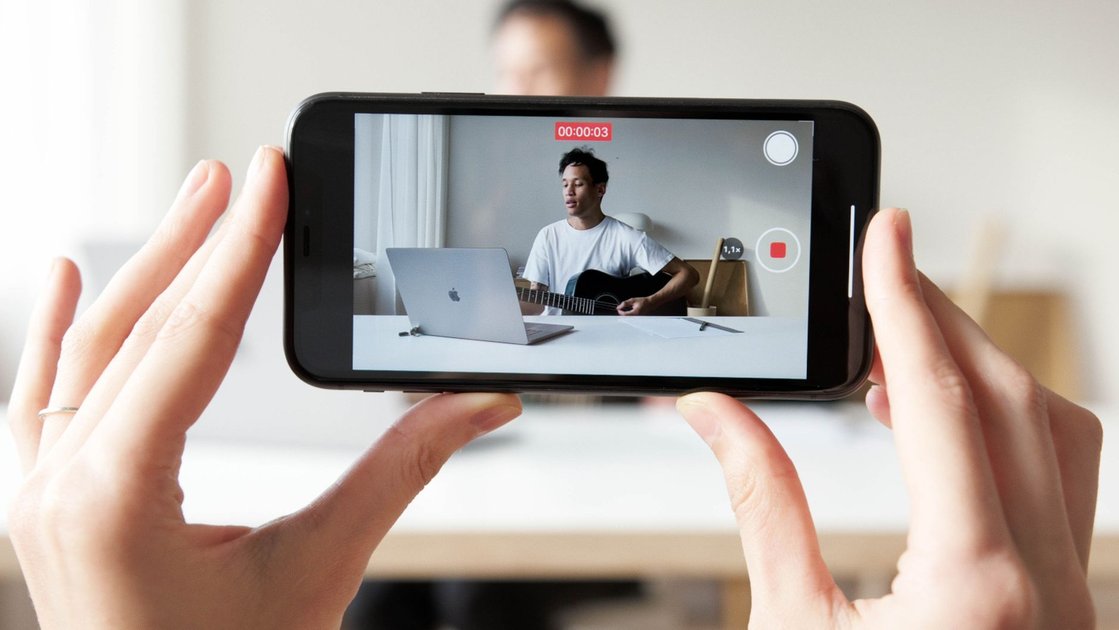
Live streaming on YouTube from your iPhone lets you broadcast directly to your audience in real time. The feature is built into the YouTube app and requires no additional equipment beyond your phone. There is one prerequisite: your channel needs to be verified and must have at least 50 subscribers to go live from a mobile device.
Requirements for iPhone Live Streaming
- A YouTube channel with at least 50 subscribers.
- A verified channel (verify at youtube.com/verify using a phone number).
- No live streaming restrictions on your account (accounts with restrictions from community guideline strikes cannot go live).
- A stable internet connection – at minimum 5Mbps upload speed for decent quality streaming.
How to Go Live on YouTube from iPhone
- Open the YouTube app and tap the + (Create) button.
- Select Go live.
- The live stream setup screen will open. If you see a message saying mobile live streaming is not available, your channel does not yet meet the requirements above.
Setting Up Your Live Stream Details
Before going live, configure your stream settings:
- Title: Add a descriptive title. Viewers can discover live streams through YouTube search, so use relevant keywords.
- Description: Optional but helpful for context. Add relevant hashtags here.
- Privacy: Choose Public (visible to everyone), Unlisted (only people with the link), or Private (only selected people).
- Camera: Toggle between front and rear camera. You can switch cameras during the stream too.
- Schedule: You can schedule a live stream for a future date rather than going live immediately. Scheduled streams generate a public waiting room where viewers can set reminders.
Managing Your Stream While Live
Once you tap Go live, the broadcast starts immediately. During the stream:
- Live chat messages appear on screen. You can respond verbally or tap messages to pin them.
- Tap the shield icon to manage chat moderation, block viewers, or enable slow mode (limits how often viewers can post).
- The viewer count and live duration are displayed at the top of the screen.
- Tap the three-dot menu for options including adding a poll, enabling super chats (if monetisation is set up), and adjusting stream settings.
Ending Your Live Stream
Tap the X or End stream button. YouTube will ask you to confirm. After ending, the stream is automatically saved as a video on your channel (unless you set it to delete automatically in stream settings). Your VOD (video on demand) will be available for viewers to watch after the stream ends.
Improving Stream Quality from iPhone
- Use Wi-Fi rather than mobile data for more stable upload speeds.
- Plug your iPhone in to power during the stream – live streaming drains the battery quickly.
- Use a simple phone stand or tripod to keep the camera stable.
- For better audio, use wired earphones with a microphone or a dedicated clip-on microphone (Lightning or USB-C depending on your iPhone model).
- Stream in a well-lit location – face a window or light source rather than having it behind you.
Frequently Asked Questions
Why does my channel not have the Go Live option?
Either your channel has fewer than 50 subscribers or has not been verified. Complete phone verification at youtube.com/verify first, then work toward the 50-subscriber requirement.
Can I stream to a private stream key using a third-party app?
Yes. Apps like Streamlabs, Larix Broadcaster, and Prism Live Studio connect to YouTube via a stream key and offer more advanced features (overlays, multiple camera sources, scene switching) than the native YouTube app. Find your stream key in YouTube Studio under Settings, then Stream.

Trust Post Desk
A journalist and editor at TrustPost.org covering world and national news, technology updates and human-interest stories. They check every fact, interview sources in person or online, and aim to deliver clear, accurate reporting. Their work ranges from breaking news to in-depth features and daily newsletters. Outside the newsroom, they follow emerging trends and engage with readers on social media.