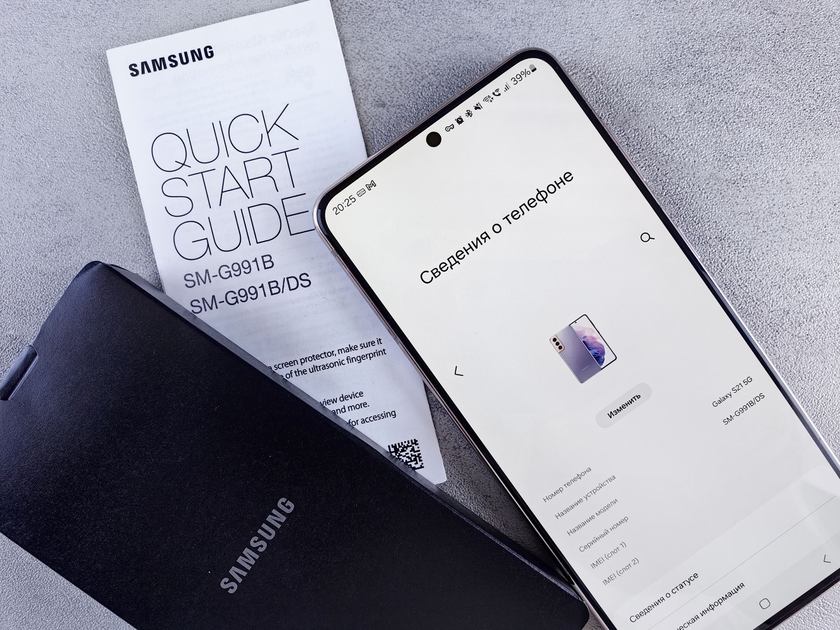
Restarting a Samsung phone is the first fix for almost any minor software problem – slow performance, apps crashing, Wi-Fi not connecting, or the screen being unresponsive. Here are all the ways to do it, including force restarting a completely frozen phone.
Standard Restart
- Press and hold the Power button (Side key) for about 2 seconds.
- A menu appears with Power off, Restart, and Emergency mode.
- Tap Restart.
- The phone will shut down and reboot automatically.
On newer Samsung Galaxy S models, pressing and holding the Power button opens Bixby or the power menu depending on your settings. If Bixby opens instead, press Power and Volume Down together to get the power menu, or go to Settings, Advanced features, Side key, and change Press and hold to Power off menu.
Force Restart a Frozen Samsung Phone
If the screen is unresponsive and the phone will not respond to button presses:
- Press and hold the Volume Down button and the Power button (Side key) simultaneously.
- Hold both buttons for 7-10 seconds.
- The screen will turn off, then the Samsung logo will appear as the phone restarts.
This force restart does not erase any data – it is equivalent to removing and reinserting a battery on older phones.
Restart Using Bixby Voice
If the touchscreen works but buttons are stuck, say ‘Hi Bixby, restart my phone’. Bixby will ask for confirmation and then restart the device.
Schedule Automatic Restarts
Samsung allows you to schedule automatic restarts at a time when you are not using the phone:
- Open Settings.
- Tap General management.
- Tap Reset.
- Tap Auto restart.
- Toggle it on and set the frequency (daily, weekly) and time.
Scheduling a weekly restart (such as 3am on Sunday) keeps the phone running smoothly by clearing accumulated temporary files automatically.
Restart vs Power Off vs Force Restart
- Restart: Shuts down and boots back up. Clears RAM and temporary files. Best for minor glitches.
- Power off: Shuts down completely. Use when you need the phone fully off.
- Force restart: Cuts power immediately and reboots. Use only when the phone is frozen and unresponsive.
Frequently Asked Questions
How often should I restart my Samsung phone?
A weekly restart is a good habit. It clears memory, closes background processes, and applies any pending system optimizations. The scheduled auto-restart feature handles this automatically.
Will restarting delete anything on my Samsung?
No. A standard or force restart does not delete any data, apps, photos, or settings. Only a factory reset erases data.
My Samsung phone keeps restarting by itself – what is wrong?
Random restarts usually indicate a software issue (a bad app update), a failing battery, or overheating. Check for system updates, remove recently installed apps, and if the problem persists, consider a factory reset or battery replacement.

Trust Post Desk
A journalist and editor at TrustPost.org covering world and national news, technology updates and human-interest stories. They check every fact, interview sources in person or online, and aim to deliver clear, accurate reporting. Their work ranges from breaking news to in-depth features and daily newsletters. Outside the newsroom, they follow emerging trends and engage with readers on social media.


