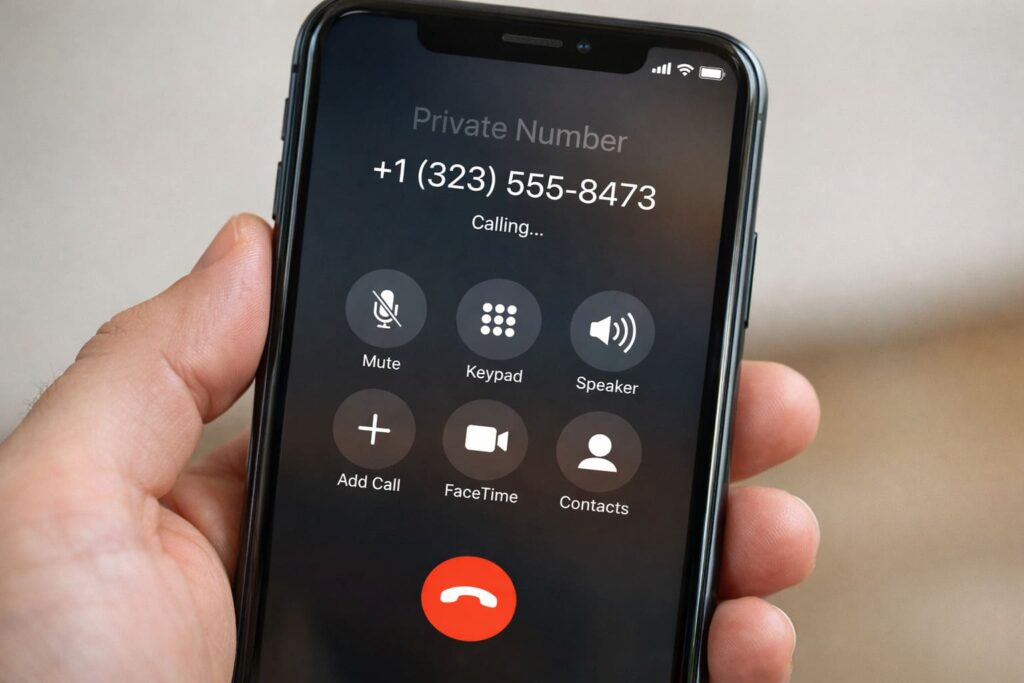
Seeing “Private Number” or “Unknown Caller” on the screen can be confusing and frustrating, especially when people you know can’t see your number. Whether you’re using Android, iPhone, or a feature phone, this guide shows you how to remove private number and show your caller ID every time you make a call.
In many cases, your number is hidden because of a setting on your phone or carrier. Removing that setting is usually quick and doesn’t require any special tools.
Why Your Number Shows as “Private Number”
When you make a call and the person on the other end sees Private Number, Unknown, or No Caller ID, it means your phone is not sending your number to the recipient. This can happen for a few reasons:
- Caller ID is turned off in your phone settings
- A prefix or code is automatically added to your number
- Your mobile network carrier is blocking it by default
Before you can fix it, you first need to know where the issue is coming from.
How to Remove Private Number on Android
Most Android phones let you choose whether your number is shown or hidden.
Steps to show your number:
- Open the Phone app
- Tap the three dots (menu) in the top corner
- Go to Settings or Call settings
- Tap Additional settings
- Tap Caller ID
- Select Show number
Once you choose “Show number,” your phone will send your number to the person you call instead of showing “Private Number.”
How to Remove Private Number on iPhone
iPhones also let you control your caller ID directly.
Steps to show your number:
- Open Settings
- Tap Phone
- Go to Show My Caller ID
- Turn the switch on
If “Show My Caller ID” is already on and the problem remains, you may need to check your carrier settings (see below).
Remove Private Number Using Carrier Code
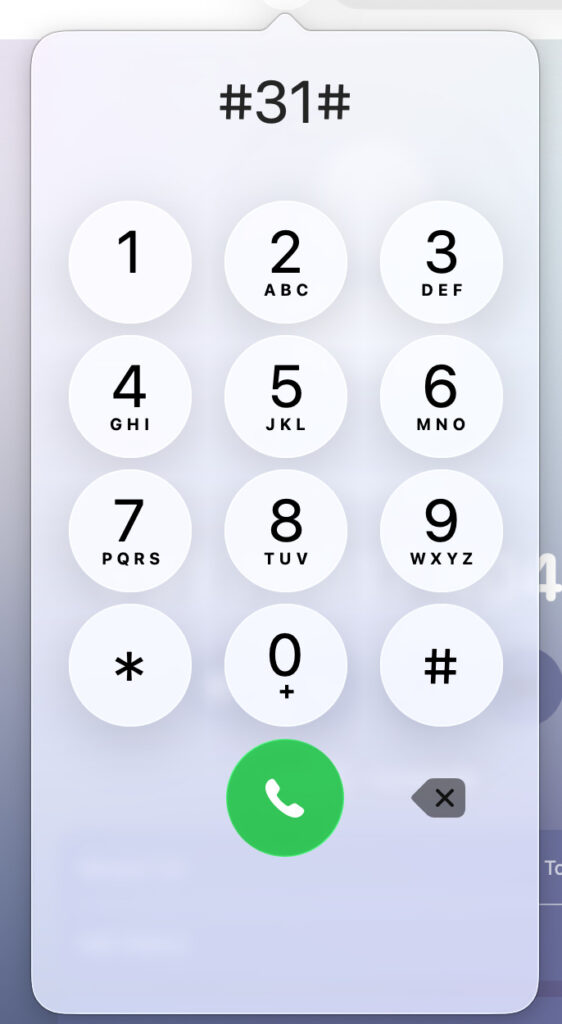
Some networks add a code that hides your number on every call. If your number still shows as private, remove the code.
Common step (works on many carriers):
- Open your Phone dialer
- Dial: #31#
- Press Call
This code turns off number hiding for that call. If you want this to apply to every call, you may need to change caller ID settings in your carrier dashboard or app.
What to Do If Your Number Still Shows as Private
If you tried the phone settings and carrier code but your number still isn’t showing:
- Restart your phone — sometimes settings need a reboot.
- Update your phone’s software to the latest version.
- Check your carrier account settings or app — some networks let you hide caller ID by default.
- Contact your mobile network support and ask them to enable caller ID on your line.
Each carrier has a slightly different way of managing caller ID, so support staff can help you make sure it’s set correctly.
When You Might Want to Hide Your Number
There are situations where hiding your number is useful, such as:
- Calling a business when you don’t want your number stored
- Making a one-time private call
- Protecting your privacy temporarily
In these cases, keeping “Show My Caller ID” off or using the prefix #31# before the number you dial works well.
Quick Troubleshooting Checklist
Here’s a simple checklist to follow if your number still shows private:
- Caller ID setting on phone is ON
- Network prefix like
#31#is not forced on every call - Phone has been restarted
- Carrier settings are up to date
- Contacted carrier support if needed
Conclusion
Removing “Private Number” and displaying your phone number is usually a quick fix. Most of the time you just need to turn on caller ID from your phone settings or remove a network prefix. If settings alone don’t work, your carrier can help make sure your number appears correctly on outgoing calls.
By following the steps above, you should be able to make calls with your number visible again.
Also read:
- How to Check Your MTN Number in Ghana (All Working Methods)
- How to Delete Reddit History on Phone and PC (Step-by-Step Guide)
- How to Check Your Glo Number in Nigeria (All Working USSD Codes)
- iPhone Not Making Calls? Here’s Why & The Complete Fix Guide
- How to Check Battery Cycle Count on Any iPhone in Seconds