Chrome OS is the operating system that runs on Chromebooks. It looks similar to Windows at first glance – there is a taskbar, a desktop, and a file manager – but underneath it works very differently. Understanding what sets Chrome OS apart from Windows helps you decide which is right for your needs.
The Core Difference: Cloud-First vs Local-First
Windows is designed around local software installed on the machine. Chrome OS is designed around the web and cloud services. On Windows, you install programs that run locally and store files on the hard drive. On Chrome OS, most work happens in the Chrome browser and files are stored in Google Drive, with the local storage acting as temporary space.
What Chrome OS Looks Like
- Shelf: The taskbar at the bottom of the screen, similar to Windows’ taskbar. Shows pinned apps and running applications.
- Launcher: The circle button at the bottom left opens a search bar and app grid, similar to the Windows Start menu.
- System tray: Bottom right shows clock, Wi-Fi, battery, and Quick Settings – similar to Windows’ notification area.
- Files app: Manages local files (Downloads) and Google Drive files in one place.
App Compatibility
Chrome OS runs:
- Any website or web app in the Chrome browser.
- Chrome browser extensions.
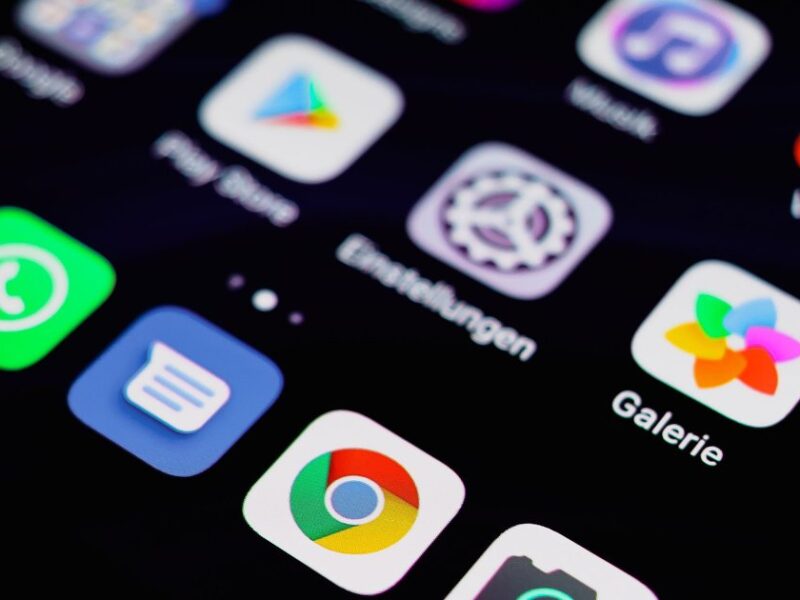
- Android apps from the Google Play Store.
- Linux desktop applications (through the built-in Linux environment).
Chrome OS does not run:
- Traditional Windows .exe programs.
- macOS applications.
- Software that requires Windows-specific system components.
Security Differences
Chrome OS was built with security as a core priority from the start, while Windows security has been bolted on over decades.
- Sandboxing: Every Chrome tab and app runs in isolation. If one is compromised, it cannot access others.
- Verified Boot: Every time Chrome OS boots, it checks its own system files against a known-good version. If anything has been tampered with, it self-repairs.
- Automatic updates: Chrome OS updates silently without requiring user action. There is no ‘Windows Update’ moment that delays you.
- No traditional viruses: The architecture of Chrome OS makes traditional malware unable to run or persist.
Performance and Speed
Chrome OS boots in 8-12 seconds on average. Windows takes 20-40 seconds on comparable hardware. Chrome OS uses fewer system resources because it runs less background software, which means cheaper hardware performs well. A $300 Chromebook often feels snappier than a $400 Windows laptop for everyday tasks.
Storage and Files
Chromebooks typically come with 64GB-128GB of storage, much less than Windows laptops. This works because Chrome OS is designed to keep files in Google Drive rather than locally. Offline access is available for Google Drive files when you enable offline sync.
Updates and Maintenance
Chrome OS updates automatically with no user involvement. There are no driver updates to manage, no antivirus to run, and no software to manually update. Windows requires regular driver updates, security patches, and ongoing maintenance. For users who want a computer that just works without upkeep, Chrome OS is significantly simpler.
Frequently Asked Questions
Is Chrome OS free?
Chrome OS comes pre-installed on Chromebooks. Google does not sell it separately. There is no upgrade cost – updates are free for the life of the device’s support period.
Can Chrome OS run on any laptop?
Officially, Chrome OS only runs on Google-certified Chromebook hardware. An open-source version called ChromiumOS exists, and a project called Brunch allows installing Chrome OS Flex on older PCs and Macs. Google also officially offers Chrome OS Flex as a free download to repurpose older Windows and Mac computers.

Trust Post Desk
A journalist and editor at TrustPost.org covering world and national news, technology updates and human-interest stories. They check every fact, interview sources in person or online, and aim to deliver clear, accurate reporting. Their work ranges from breaking news to in-depth features and daily newsletters. Outside the newsroom, they follow emerging trends and engage with readers on social media.