
Carl bot Discord setup takes about ten minutes, and most of that is deciding which of its modules you actually want switched on. Carl-bot, built by Botlabs.gg, is one of the longest-running moderation and utility bots on Discord, and it is the tool most servers reach for when they need reaction roles, automod, and a proper audit log without stitching three separate bots together. The free tier covers nearly everything a mid-sized community needs, and almost all of it can be configured from a web dashboard rather than by typing commands.
One detail trips up new admins before anything else: Carl-bot does not have a single prefix. It answers to !, ?, an @mention, and Discord slash commands out of the box, and a server can hold up to 15 prefixes at once. This guide covers the commands worth memorizing, what each feature module does, the exact install and permission steps, and the role hierarchy rule behind most “the bot is not working” complaints.
| Command | What it does |
|---|---|
!ban @user reason | Bans a member, and works even if they are not currently in the server |
!tempban @user 1h | Bans for a set duration, then lifts automatically |
!softban @user | Bans and instantly unbans to wipe the member’s recent messages |
!kick @user | Removes a member who can rejoin with a new invite |
!mute @user 2h30m | Mutes for a set time, or indefinitely if no time is given |
!hardmute @user 2h | Mutes and strips every role the member holds |
!timeout @user 10m | Applies a timeout and DMs the member the reason |
!warn @user reason | Logs a warning against the member and DMs them a copy |
!warns @user | Shows the full warning history for a member or the server |
!purge 200 | Bulk deletes messages, optionally only from one member |
!lockdown setup | Removes Send Messages from every role except your staff roles |
!rr make | Launches the interactive reaction role builder |
The Moderation Commands Worth Memorizing
Carl-bot’s moderation set goes deeper than the ban and kick pair most bots stop at. The punishments are timed, the records persist, and every action lands in a modlog channel you control. Three commands separate it from lighter alternatives:
!softbanbans and immediately unbans a member, which clears their recent message history without permanently removing them. It is the cleanest way to deal with a spam raid account that a real user might be behind.!hardmutemutes a member and removes all of their roles, so someone whose role grants channel access cannot simply talk elsewhere.!massbanbans several members in one command, rate limited to two uses per hour to prevent an abused moderator account from emptying a server.
Alongside punishments, Carl-bot keeps two parallel records on each member. Warnings are public to your staff and DM the member a copy of the reason, managed with !warn, !warns, !removewarn, and !clearwarn. Notes are quiet internal annotations that the member never sees, set with !setnote and read back with !notes. Splitting formal warnings from moderator observations is what makes an infraction history usable months later.
Two more commands earn their place during an incident. !lockdown setup strips Send Messages from every role except staff so you can stop a raid mid-flow, with !unlockdown #general reversing it per channel. !purge handles cleanup, including a bot-only variant that clears Carl-bot’s own replies and messages starting with a given prefix.
Reaction Roles, Automod, and the Rest of the Module List
Reaction roles are what most servers install Carl-bot for. The free tier allows up to 250 reaction-role pairs per server, and each pair can run in one of several modes: unique (one role from a set), verify, reversed, binding, and temporary. Run !rr make for the guided setup, or !rr channel to have the bot create a properly permissioned channel for them first.
The rest of the feature set breaks down like this:
- Automod: blocks bad links, spam, mass mentions, attachment spam, and slurs, with per-rule punishments, custom rate limits, and channel whitelists
- Logging: deleted and edited messages, joins, leaves, role changes, bans, and invites, which can be split across several channels so one log is not a firehose
- Greetings: welcome embeds with variables such as
{user}, a separate join DM, farewell messages, and ban announcements - Tags and triggers: custom commands and autoresponders written in TagScript, Carl-bot’s own scripting syntax
- Suggestions: a member suggestion board with voting, an anonymous mode, moderator responses, and a decision log
- Starboard: pins popular messages once they pass a star threshold you set with
!star limit - Notifications: Twitch and YouTube alerts when a stream goes live or a video drops, plus alerts when a game goes free or on sale
Those stream and upload alerts are the reason a lot of creator communities run Carl-bot rather than a pure moderation bot, since the announcement that used to need a separate integration is handled in the same dashboard. If you are building a server around a channel, our breakdown of what YouTubers earn per view covers the audience side of that equation. The same module announces when a game goes free or drops in price across the major stores, which is why it turns up in so many of the handheld and PC gaming communities that trade deal alerts all day.
Carl Bot Discord Installation, Step by Step
Installation is an OAuth flow, not a download. Before you start, confirm you have the right permission on the target server: Discord only lets you add an app to a server you own or where you hold the Manage Server permission, per Discord’s own app documentation.
- Go to carl.gg and select Add to Discord, or find Carl-bot in Discord’s App Directory and select Add App.
- Sign in with Discord and pick the server from the dropdown. Servers where you lack Manage Server will not appear.
- Review the permission list before authorizing. Grant only what you plan to use, though moderation modules do need Ban Members, Kick Members, Manage Roles, Manage Messages, and Moderate Members to function.
- Complete the prompts and select Authorize.
- Open Server Settings, then Roles, and drag Carl-bot’s role above every role you want it to hand out or remove. This step is not optional and is skipped constantly.
- Test it in the channel you intend to use by typing
@Carl-bot ping. A reply confirms the bot has View Channel and Send Messages there.
Step five is the one that generates most support requests. Discord decides whether a bot can assign a role by comparing positions in the role list, so Carl-bot cannot touch any role sitting above its own no matter how many permissions you tick. The role you hoist it above does not need special permissions itself, it just needs to sit lower.
Because a moderation bot ends up holding real power over your server, treat the admin account that installs it accordingly. Discord servers can require two-factor authentication for moderation actions, and the account that authorizes the bot should be protected by a unique credential rather than a reused one, which our guide to creating a strong password covers in practical terms.
Six Setup Commands to Run Straight After Authorizing
A freshly added Carl-bot logs almost everything by default and has nowhere to put it. These commands give it somewhere to write and set up the pieces the rest of the bot depends on:
!log channel #server-logsets where message deletions, edits, name changes, and role updates are recorded!modlogs createbuilds a modlog channel with the right permissions already applied, or!modlogs set #channelto use one you already have!muterole createcreates a muted role with Send Messages denied in every existing channel, which is what makes!mutework at all!set welcome #generalchooses the channel for join, leave, and ban alerts, then!welcome <message>writes the greeting!starboardsets up a starboard, with!star limit 5adjusting how many stars a message needs!prefix set -replaces the prefixes with one of your own, or!prefix add -adds one while keeping the defaults
One warning about the mute role: it is applied to channels that exist when you create it. Any channel you add later will not inherit the deny rule, which is the usual explanation for a muted member who can still talk somewhere. Running /muterole update refreshes the permissions across all channels and fixes it.
Logging deserves a second pass too. Carl-bot logs every member action in every channel by default, which buries the events you care about. Toggle off what you do not need with commands like !log edit, and silence noisy channels entirely with !log ignore #channel.
Free Limits Against Carl-bot Premium
Carl-bot’s free tier is not a trial. Moderation, automod, logging, greetings, reaction roles, tags, suggestions, and the starboard are all included with no time limit. Premium raises ceilings and unlocks a specific set of extras, sold through Patreon or as a Discord subscription.
| Feature | Free | Premium |
|---|---|---|
| Reaction roles per server | 250 | 1,000 |
| YouTube channel alerts | 5 | 20 |
| Twitch stream alerts | 2 | 5 |
| Weblog entries | 100 | 500 |
| Levels and XP system | No | Yes |
| Sticky messages | No | Yes |
| Timed reaction roles | No | Yes |
| Voice-role links | No | Yes |
| Custom bot avatar and banner | No | Yes |
The choice between the two purchase routes matters if you run more than one community. A Discord subscription covers a single server, while higher Patreon tiers come with multiple slots that you can move between servers whenever you want. Both unlock identical per-server features, so the only real question is how many servers you need covered. Cancel either one and premium features stop at the end of the billing period, though Carl-bot’s premium page confirms your premium-only data is preserved for whenever you resubscribe.
When Carl-bot Stops Responding
Nearly every fault report traces back to one of five causes, and the official Carl-bot documentation lists them in the order worth checking:
- The bot is offline. Check the member list first, then carl.gg/status for a live incident.
- Missing channel permissions. Type
@Carl-bot pingin the channel that is failing. No reply means it lacks View Channel or Send Messages there. - The prefix changed. An @mention always works, so
@Carl-bot prefixwill report what the server currently accepts. - Role hierarchy. “I do not have the required permissions to assign that role” means the target role outranks Carl-bot, or outranks you.
- The command is disabled. Carl-bot supports per-command rules and global overrides, so a command may be switched off for that channel or role.
Prefix collisions are the other recurring annoyance. Because ! and ? are shared by many popular bots, two bots can answer the same message. Changing Carl-bot’s prefix with !prefix set is usually easier than reconfiguring the other bot, and slash commands sidestep the conflict entirely since Discord namespaces them per application.
Frequently Asked Questions
What is the default prefix for Carl bot on Discord?
Carl-bot responds to four things by default: !, ?, an @mention of the bot, and Discord slash commands. A server can define up to 15 prefixes, and /prefix list shows the ones currently active. Avoid clearing every prefix, because you would then be left mentioning the bot or using slash commands to set a new one.
Is Carl-bot free to use?
Yes. Moderation, automod, logging, greetings, suggestions, tags, the starboard, and up to 250 reaction-role pairs per server are all free with no expiry. Premium, bought via Patreon or Discord, raises those limits and adds levels, sticky messages, timed reaction roles, voice-role links, and a custom bot avatar.
Why can Carl-bot not assign a role?
Because the role sits above Carl-bot in your server’s role list. Discord blocks any bot or member from granting a role higher than their own highest role, regardless of permissions. Open Server Settings, then Roles, and drag Carl-bot above every role it needs to manage. The same rule applies to you as a moderator: you cannot assign a role that outranks your own.
Do I need Administrator permission to add Carl-bot?
No. You need to own the server or hold the Manage Server permission on it to add any app, and Carl-bot itself can run on a narrower permission set than Administrator. Granting Administrator is quicker but hands the bot full control, so most server owners prefer to enable Ban Members, Kick Members, Manage Roles, Manage Messages, and Moderate Members instead.
Can Carl-bot post Twitch and YouTube alerts?
Yes, and it is part of the free tier. Free servers can track 2 Twitch streams and 5 YouTube channels for live and upload alerts. Premium raises those to 5 and 20 respectively, and makes auto-feeds fire immediately instead of waiting for the next scheduled check.
Related Articles

Get the TrustPost briefing
The stories that matter, in your inbox. No spam, unsubscribe anytime.
Newsletter signup will be available soon.
Related stories
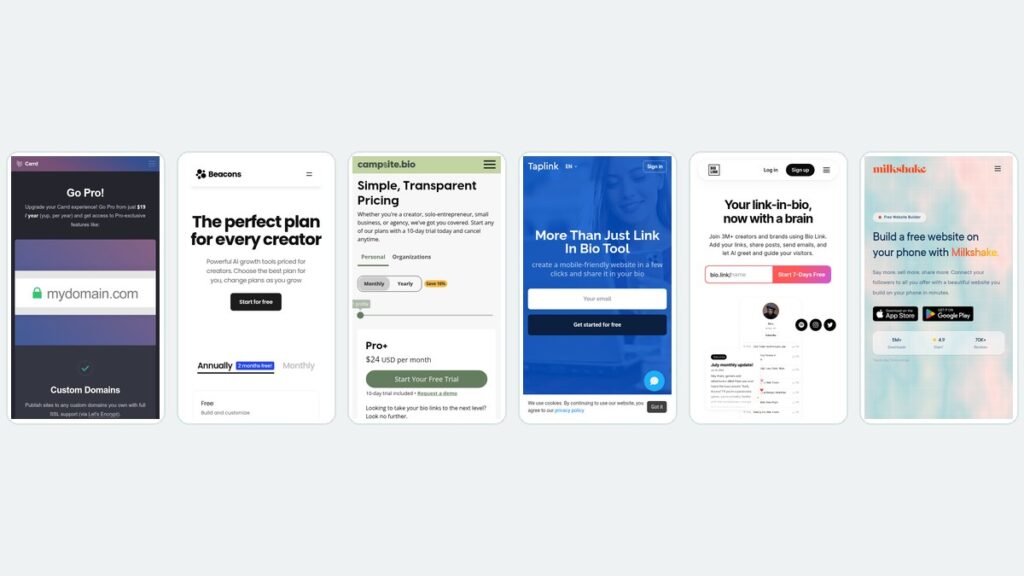
Linktree Alternatives: What 6 Tools Cost Over Three Years
Monthly pricing hides the real number. Six Linktree alternatives compared on three-year cost, with every rate read from the vendor’s own pricing page.

Best Graphic Design Software: Free and Paid Tools Compared
Compare the best graphic design software of 2026, from free tools like Affinity and GIMP to paid apps such as Photoshop, with current US prices.

Best Digital Signage Software: 8 Platforms Compared on Price and Features
Compare the best digital signage software in 2026. Verified per-screen pricing for Yodeck, OptiSigns, ScreenCloud, Rise Vision, Xibo and more.