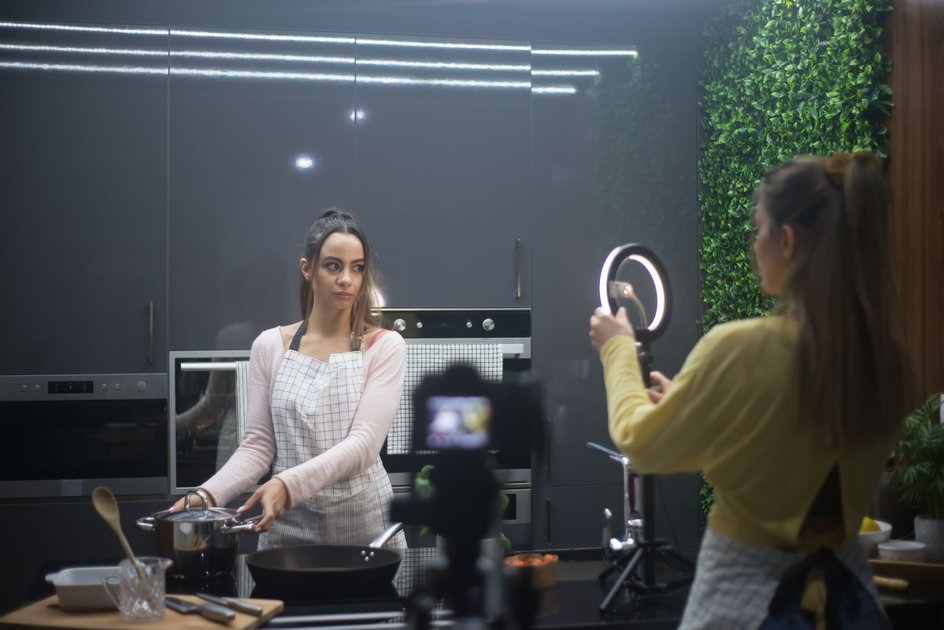
YouTube Shorts give creators access to a dedicated short-form video feed that billions of people scroll through daily. Shorts are vertical videos up to 3 minutes long (60 seconds was the original limit, expanded in 2024), and they are filmed and published directly from the YouTube app on your iPhone without needing any third-party tools.
How to Create a YouTube Short from the iPhone App
- Open the YouTube app on your iPhone.
- Tap the + (Create) button at the bottom of the screen.
- Select Create a Short.
- The Shorts camera will open in vertical (portrait) orientation.
Filming Your Short
- Press and hold the red record button to record. Release to pause and resume as needed to create a multi-segment clip.
- The progress bar at the top shows how much of your time limit you have used.
- Toggle between the front and rear cameras using the flip icon.
- Adjust the recording speed using the speed controls (0.3x, 0.5x, 1x, 2x, 3x). Slow motion at 0.3x is useful for dramatic moments; 2x creates a time-lapse effect.
- Use a countdown timer (3 or 10 seconds) to hands-free record by tapping the timer icon.
Adding Audio to Your Short
Tap the Add sound button at the top of the Shorts camera to browse YouTube’s licensed music library. Search for a specific song or browse trending audio. Tap a track to preview it and tap again to add it. The audio will overlay your video at the volume you set.
If you record with your own original audio (speech, background sound), it plays as recorded without any music unless you add a track on top.
Editing Your Short Before Publishing
After recording, tap the checkmark to proceed to the editing screen.
- Text: Tap the Text icon to add captions or title cards. Drag text to position it and use the timeline to set when text appears and disappears.
- Filters: Apply colour filters for a consistent visual style.
- Timeline: Reorder or trim individual segments by tapping the segments icon.
- Voiceover: Tap the microphone icon to record a voiceover after filming, useful for adding commentary to footage you did not narrate while recording.
Publishing Your Short
- Tap Next after editing.
- Add a title (keep it concise and compelling – Short titles appear prominently in the feed).
- Set visibility: Public, Unlisted, or Private.
- Add hashtags in the description – using #Shorts helps YouTube classify your video correctly.
- Tap Upload Short.
Uploading an Existing Short from Your Camera Roll
To upload a vertical video you already filmed rather than recording directly in the app:
- Tap the + button, then select Upload a video.
- Select your vertical video. If it is under 3 minutes and filmed vertically, YouTube automatically identifies it as a Short.
- Add title and details, then upload.
Tips for Growing with YouTube Shorts
- Post consistently – the Shorts algorithm rewards regular uploaders more than sporadic high-quality posts.
- Hook viewers in the first 2 seconds – Shorts are scrollable and viewers swipe away instantly if the opening does not grab them.
- Use trending audio – Shorts with popular sounds get boosted in the discovery feed.
- End with a question or call to action to encourage comments, which signals engagement to the algorithm.
Frequently Asked Questions
Do YouTube Shorts earn ad revenue?
Yes. Creators eligible for the YouTube Partner Program can earn revenue from Shorts through the Shorts ad revenue sharing programme, though the per-view rate is generally lower than for long-form videos.
Can I cross-post a TikTok video as a YouTube Short?
Technically yes, but videos with TikTok watermarks are penalised in YouTube’s recommendation algorithm. Use the original footage rather than downloading from TikTok.

Trust Post Desk
A journalist and editor at TrustPost.org covering world and national news, technology updates and human-interest stories. They check every fact, interview sources in person or online, and aim to deliver clear, accurate reporting. Their work ranges from breaking news to in-depth features and daily newsletters. Outside the newsroom, they follow emerging trends and engage with readers on social media.